> ## Documentation Index
> Fetch the complete documentation index at: https://docs.valiyou.com/llms.txt
> Use this file to discover all available pages before exploring further.
# Verify Email
> Confirm your email address to activate your account
.png?fit=max&auto=format&n=HPNv9aZ-ac6qmbzI&q=85&s=1778f87f6a665da9a7db721d27429a19) Email verification confirms your email address and activates your Valiyou account.
## Verification Process
### After Sign Up
1. Complete sign-up form
2. See **"Check your email"** confirmation page
3. Open email from **Valiyou** (`support@valiyou.com`)
4. Subject: **"Verify your email address for Valiyou"**
5. Click **"Verify Email"** button
6. Redirected to Valiyou with confirmed account
7. Ready to log in
Email verification confirms your email address and activates your Valiyou account.
## Verification Process
### After Sign Up
1. Complete sign-up form
2. See **"Check your email"** confirmation page
3. Open email from **Valiyou** (`support@valiyou.com`)
4. Subject: **"Verify your email address for Valiyou"**
5. Click **"Verify Email"** button
6. Redirected to Valiyou with confirmed account
7. Ready to log in
 **Verification Link**: Valid for 24 hours. Request new email if expired.
### What the Email Contains
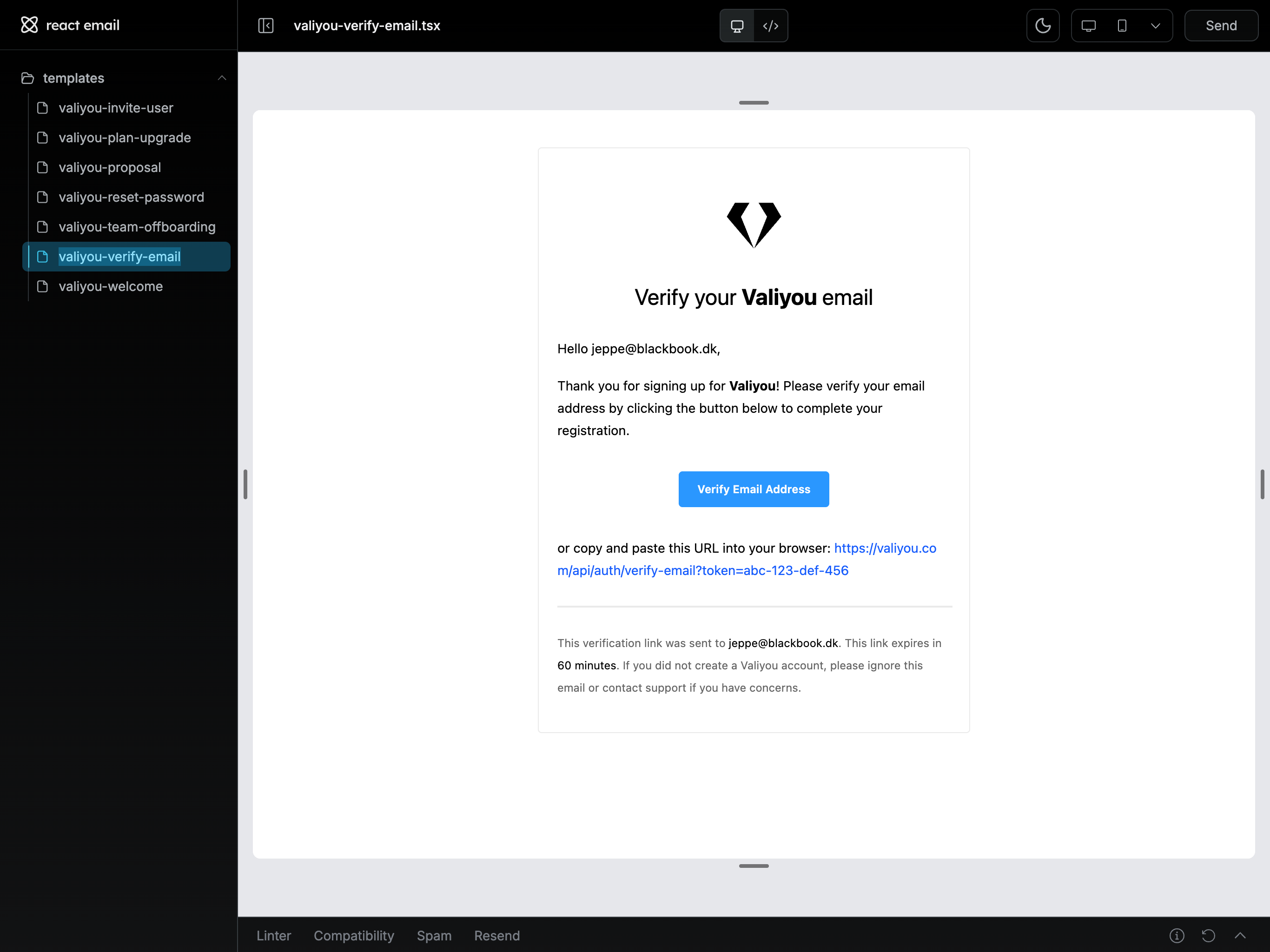
The verification email includes:
* **Your email address** - Confirms recipient
* **Verify button** - One-click verification
* **Backup link** - Manual copy-paste option
* **Expiration notice** - 24-hour validity
* **Support contact** - Help if issues arise
**Phishing Protection**: Verify sender is `support@valiyou.com`. Never click suspicious verification links.
## Verification States
### Already Verified
**Page**: "Check your email"
**When Shown**:
* Just completed sign-up
* Waiting for verification
* Haven't clicked verification link yet
**Action**: Check your inbox and click the verification link.
### Successfully Verified
**Page**: Automatically redirected to login
**When Shown**:
* Clicked verification link
* Email confirmed successfully
* Account activated
**Action**: Log in with your credentials.
### Verification Expired
**Error**: "Verification link has expired"
**When Shown**:
* More than 24 hours since sign-up
* Verification link no longer valid
**Solution**: Contact support to request new verification email.
## Troubleshooting
### Email Not Received
**Common Causes**:
1. **Spam folder** - Check junk/spam folders (most common)
2. **Wrong email** - Verify email address during sign-up
3. **Delay** - Can take 1-5 minutes to arrive
4. **Email filters** - Overly aggressive spam filters
**Solutions**:
1. **Check spam** - Look in spam, junk, promotions folders
2. **Wait** - Give it 5-10 minutes
3. **Whitelist sender** - Add `support@valiyou.com` to contacts
4. **Check email** - Verify you used correct address
5. **Contact support** - Request manual verification
**Prevent Spam Filtering**: Add `support@valiyou.com` to your email contacts before signing up.
### Link Already Used
**Error**: "This verification link has already been used"
**Cause**: Already verified your email
**Solution**: Go to [login page](/authentication/login) and sign in normally.
### Invalid Link
**Error**: "Invalid verification link"
**Causes**:
* Link corrupted (email client reformatted it)
* Link incomplete (didn't copy full URL)
* Link tampered with
**Solutions**:
1. Click link directly from email (don't copy-paste)
2. If copying, ensure entire URL is copied
3. Contact support for new verification email
### Link Expired
**Error**: "Verification link has expired"
**Cause**: More than 24 hours passed since sign-up
**Solution**: Contact support via [trust-center](https://valiyou.com/trust-center) to request new verification email.
### Wrong Email Address
**Issue**: Signed up with wrong email, can't access inbox
**Solutions**:
1. **Check all email accounts** - Verify which one you used
2. **Contact support** - Can update email address before verification
3. **Sign up again** - Create new account with correct email
**Cannot Change Email**: After verification, email becomes permanent account identifier. Contact support for email changes.
## Social Sign-Up (No Verification)
If you signed up with social provider (Google, LinkedIn, Microsoft, Salesforce):
* **No verification needed** ✅
* Email already verified by provider
* Immediate account activation
* Skip verification step entirely
**Instant Access**: Social sign-ups are ready to use immediately after account creation.
## Security & Privacy
### Why Verification Matters
1. **Proves ownership** - Confirms you own the email
2. **Prevents spam** - Stops fake account creation
3. **Account recovery** - Enables password reset
4. **Security** - Protects against unauthorized access
5. **Communication** - Ensures you receive important updates
### Verification Link Security
* **Unique token** - Each link is single-use
* **Time-limited** - Expires after 24 hours
* **Encrypted** - Secure HTTPS transmission
* **No password** - Never includes sensitive info
### What We Never Do
* ❌ Ask for password in email
* ❌ Request payment info
* ❌ Include attachments
* ❌ Send verification from different domains
* ❌ Ask you to reply to email
## Email Provider Tips
### Gmail
* Check **Spam** folder
* Check **Promotions** tab
* Add `support@valiyou.com` to contacts
### Outlook/Microsoft
* Check **Junk Email** folder
* Add sender to **Safe Senders** list
* Check **Focused/Other** inbox tabs
### Yahoo
* Check **Spam** folder
* Add to **Contacts**
* Check **Promotions** category
### Corporate Email
* Contact IT if emails blocked
* Request whitelist for `support@valiyou.com`
* May need approval for external emails
## Manual Verification Request
If you cannot find the verification email:
1. Contact support via [trust-center](https://valiyou.com/trust-center)
2. Provide:
* Email address used for sign-up
* Date/time of registration
* Any error messages received
3. Support will manually verify or resend email
**Security Check**: Support may ask security questions to verify your identity before manual verification.
## Next Steps
After verification, sign in to your account
Complete onboarding and explore platform
Still having issues? Contact support
Need to create a new account?
**Verification Link**: Valid for 24 hours. Request new email if expired.
### What the Email Contains
The verification email includes:
* **Your email address** - Confirms recipient
* **Verify button** - One-click verification
* **Backup link** - Manual copy-paste option
* **Expiration notice** - 24-hour validity
* **Support contact** - Help if issues arise
**Phishing Protection**: Verify sender is `support@valiyou.com`. Never click suspicious verification links.
## Verification States
### Already Verified
**Page**: "Check your email"
**When Shown**:
* Just completed sign-up
* Waiting for verification
* Haven't clicked verification link yet
**Action**: Check your inbox and click the verification link.
### Successfully Verified
**Page**: Automatically redirected to login
**When Shown**:
* Clicked verification link
* Email confirmed successfully
* Account activated
**Action**: Log in with your credentials.
### Verification Expired
**Error**: "Verification link has expired"
**When Shown**:
* More than 24 hours since sign-up
* Verification link no longer valid
**Solution**: Contact support to request new verification email.
## Troubleshooting
### Email Not Received
**Common Causes**:
1. **Spam folder** - Check junk/spam folders (most common)
2. **Wrong email** - Verify email address during sign-up
3. **Delay** - Can take 1-5 minutes to arrive
4. **Email filters** - Overly aggressive spam filters
**Solutions**:
1. **Check spam** - Look in spam, junk, promotions folders
2. **Wait** - Give it 5-10 minutes
3. **Whitelist sender** - Add `support@valiyou.com` to contacts
4. **Check email** - Verify you used correct address
5. **Contact support** - Request manual verification
**Prevent Spam Filtering**: Add `support@valiyou.com` to your email contacts before signing up.
### Link Already Used
**Error**: "This verification link has already been used"
**Cause**: Already verified your email
**Solution**: Go to [login page](/authentication/login) and sign in normally.
### Invalid Link
**Error**: "Invalid verification link"
**Causes**:
* Link corrupted (email client reformatted it)
* Link incomplete (didn't copy full URL)
* Link tampered with
**Solutions**:
1. Click link directly from email (don't copy-paste)
2. If copying, ensure entire URL is copied
3. Contact support for new verification email
### Link Expired
**Error**: "Verification link has expired"
**Cause**: More than 24 hours passed since sign-up
**Solution**: Contact support via [trust-center](https://valiyou.com/trust-center) to request new verification email.
### Wrong Email Address
**Issue**: Signed up with wrong email, can't access inbox
**Solutions**:
1. **Check all email accounts** - Verify which one you used
2. **Contact support** - Can update email address before verification
3. **Sign up again** - Create new account with correct email
**Cannot Change Email**: After verification, email becomes permanent account identifier. Contact support for email changes.
## Social Sign-Up (No Verification)
If you signed up with social provider (Google, LinkedIn, Microsoft, Salesforce):
* **No verification needed** ✅
* Email already verified by provider
* Immediate account activation
* Skip verification step entirely
**Instant Access**: Social sign-ups are ready to use immediately after account creation.
## Security & Privacy
### Why Verification Matters
1. **Proves ownership** - Confirms you own the email
2. **Prevents spam** - Stops fake account creation
3. **Account recovery** - Enables password reset
4. **Security** - Protects against unauthorized access
5. **Communication** - Ensures you receive important updates
### Verification Link Security
* **Unique token** - Each link is single-use
* **Time-limited** - Expires after 24 hours
* **Encrypted** - Secure HTTPS transmission
* **No password** - Never includes sensitive info
### What We Never Do
* ❌ Ask for password in email
* ❌ Request payment info
* ❌ Include attachments
* ❌ Send verification from different domains
* ❌ Ask you to reply to email
## Email Provider Tips
### Gmail
* Check **Spam** folder
* Check **Promotions** tab
* Add `support@valiyou.com` to contacts
### Outlook/Microsoft
* Check **Junk Email** folder
* Add sender to **Safe Senders** list
* Check **Focused/Other** inbox tabs
### Yahoo
* Check **Spam** folder
* Add to **Contacts**
* Check **Promotions** category
### Corporate Email
* Contact IT if emails blocked
* Request whitelist for `support@valiyou.com`
* May need approval for external emails
## Manual Verification Request
If you cannot find the verification email:
1. Contact support via [trust-center](https://valiyou.com/trust-center)
2. Provide:
* Email address used for sign-up
* Date/time of registration
* Any error messages received
3. Support will manually verify or resend email
**Security Check**: Support may ask security questions to verify your identity before manual verification.
## Next Steps
After verification, sign in to your account
Complete onboarding and explore platform
Still having issues? Contact support
Need to create a new account?