> ## Documentation Index
> Fetch the complete documentation index at: https://docs.valiyou.com/llms.txt
> Use this file to discover all available pages before exploring further.
# Organization Settings
> Quick setup guide for organization logo and base currency
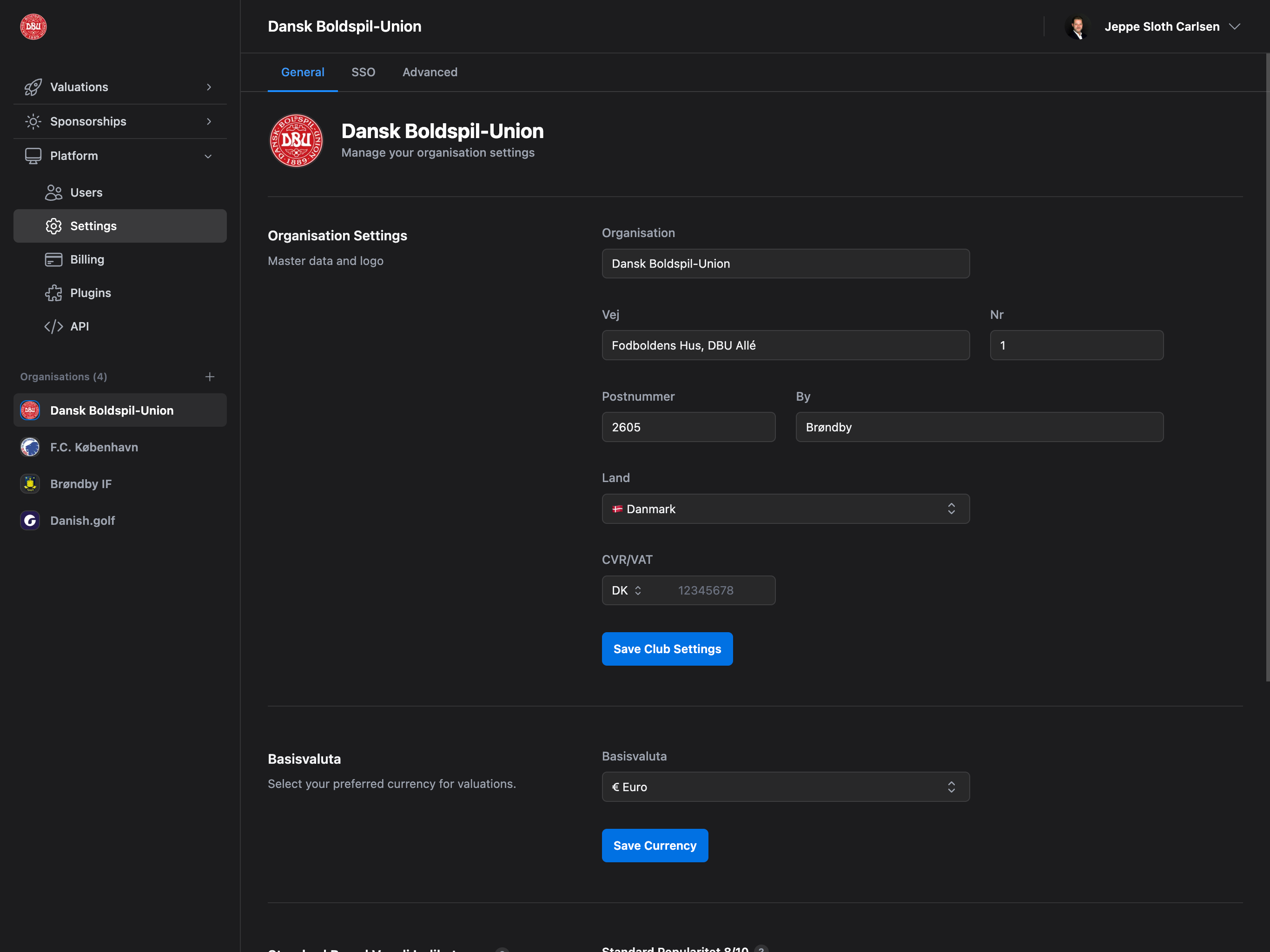 Get started quickly by uploading your organization logo and selecting your base currency for valuations.
## Accessing Settings
Navigate to **Platform** → **Settings** from the sidebar to access full organization settings.
This is a quick setup guide. For complete organization settings documentation including address details, brand values, SSO, audit log, and advanced features, see [Platform → Settings → General](/platform/settings/general).
## Upload Organization Logo
Your logo appears throughout the platform, in reports, and on proposals.
1. Click the **avatar circle** at the top of the Settings page
2. Select an image file (max 2MB)
3. **Crop and adjust** the logo using the crop tool
4. Click "Save" to apply
**Drag & Drop**: You can also drag an image file directly onto the avatar circle to upload.
**Supported formats**: JPG, PNG, GIF, WebP. The image will be automatically cropped to a square format.
Get started quickly by uploading your organization logo and selecting your base currency for valuations.
## Accessing Settings
Navigate to **Platform** → **Settings** from the sidebar to access full organization settings.
This is a quick setup guide. For complete organization settings documentation including address details, brand values, SSO, audit log, and advanced features, see [Platform → Settings → General](/platform/settings/general).
## Upload Organization Logo
Your logo appears throughout the platform, in reports, and on proposals.
1. Click the **avatar circle** at the top of the Settings page
2. Select an image file (max 2MB)
3. **Crop and adjust** the logo using the crop tool
4. Click "Save" to apply
**Drag & Drop**: You can also drag an image file directly onto the avatar circle to upload.
**Supported formats**: JPG, PNG, GIF, WebP. The image will be automatically cropped to a square format.
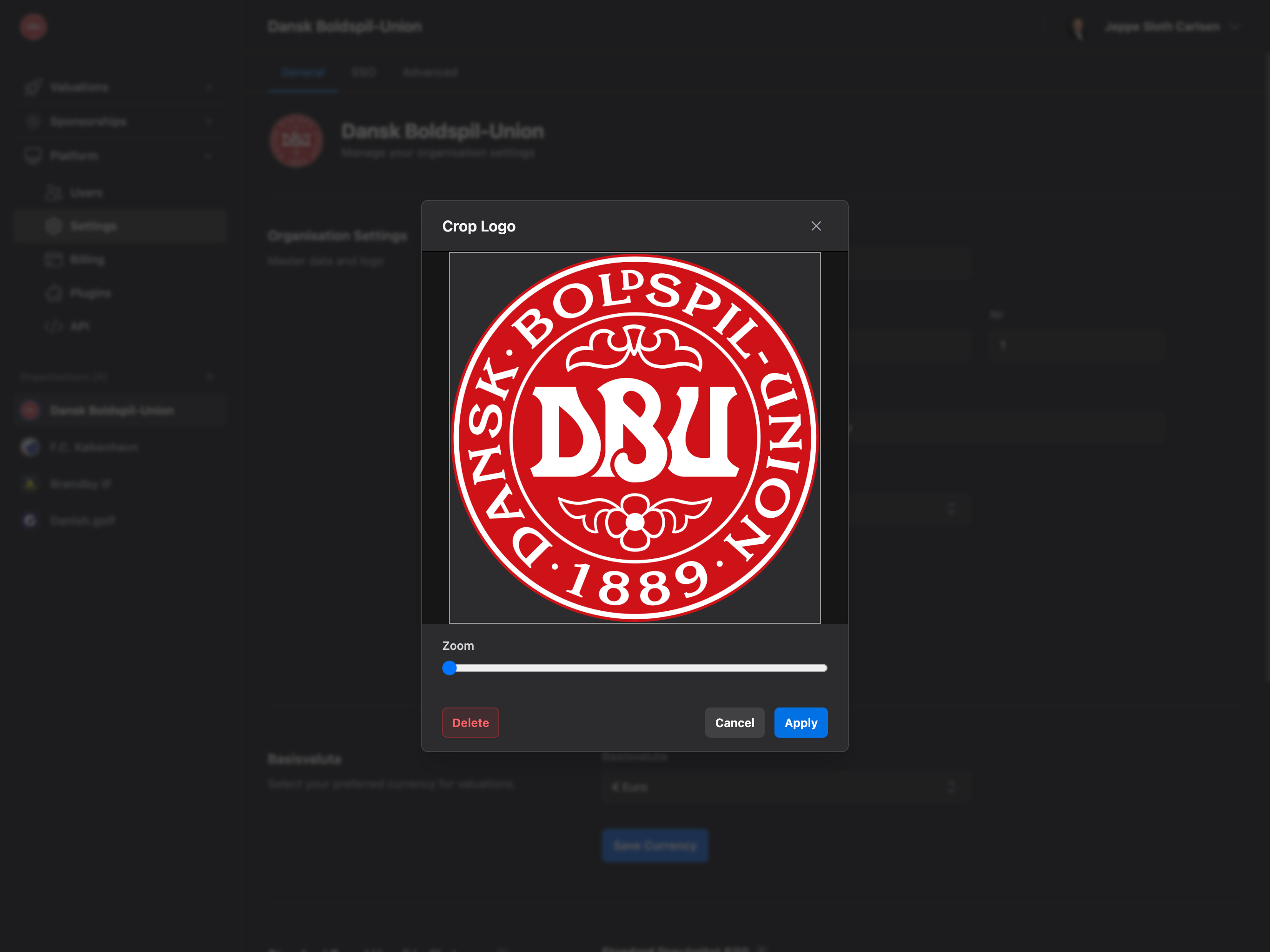 To **remove your logo**:
1. Click the avatar circle with your current logo
2. Click "Delete" in the crop modal
3. Confirm removal
## Base Currency
Select your preferred currency for all valuations and financial calculations.
To **remove your logo**:
1. Click the avatar circle with your current logo
2. Click "Delete" in the crop modal
3. Confirm removal
## Base Currency
Select your preferred currency for all valuations and financial calculations.
%20(1).png?fit=max&auto=format&n=WLUySF7eTItpBXNF&q=85&s=dce828b942156717197c898db1aa1525) 1. Choose from available currencies (EUR, USD, GBP, DKK, etc.)
2. Click **"Save Currency"** to apply
The currency will be used as the default for:
* New valuations
* Sponsorship values
* Financial reports
* Player transfer calculations
**Currency Symbol**: The selected currency's symbol (€, \$, £, etc.) will appear throughout the platform.
## Additional Settings
The Settings page has three tabs with additional configuration options:
### General Tab
* Organization details (name, address, VAT/CVR number)
* Logo upload
* Base currency selection
* Default brand value indicators (Professional/Enterprise)
### SSO Tab (Enterprise only)
* SAML 2.0 configuration
* OAuth 2.0 setup
* OpenID Connect integration
### Advanced Tab
* Audit log (Enterprise only)
* Danger zone: Delete organization
**Full Documentation**: For detailed information about all settings, see [Platform → Settings → General](/platform/settings/general).
## Next Steps
Fill in organization details, address, and VAT number
Add your team and start collaborating
Set default brand indicators for valuations (Professional/Enterprise)
Configure single sign-on for your team (Enterprise only)
1. Choose from available currencies (EUR, USD, GBP, DKK, etc.)
2. Click **"Save Currency"** to apply
The currency will be used as the default for:
* New valuations
* Sponsorship values
* Financial reports
* Player transfer calculations
**Currency Symbol**: The selected currency's symbol (€, \$, £, etc.) will appear throughout the platform.
## Additional Settings
The Settings page has three tabs with additional configuration options:
### General Tab
* Organization details (name, address, VAT/CVR number)
* Logo upload
* Base currency selection
* Default brand value indicators (Professional/Enterprise)
### SSO Tab (Enterprise only)
* SAML 2.0 configuration
* OAuth 2.0 setup
* OpenID Connect integration
### Advanced Tab
* Audit log (Enterprise only)
* Danger zone: Delete organization
**Full Documentation**: For detailed information about all settings, see [Platform → Settings → General](/platform/settings/general).
## Next Steps
Fill in organization details, address, and VAT number
Add your team and start collaborating
Set default brand indicators for valuations (Professional/Enterprise)
Configure single sign-on for your team (Enterprise only)