> ## Documentation Index
> Fetch the complete documentation index at: https://docs.valiyou.com/llms.txt
> Use this file to discover all available pages before exploring further.
# Audit Log
> Track all data changes with comprehensive audit trail for compliance and security
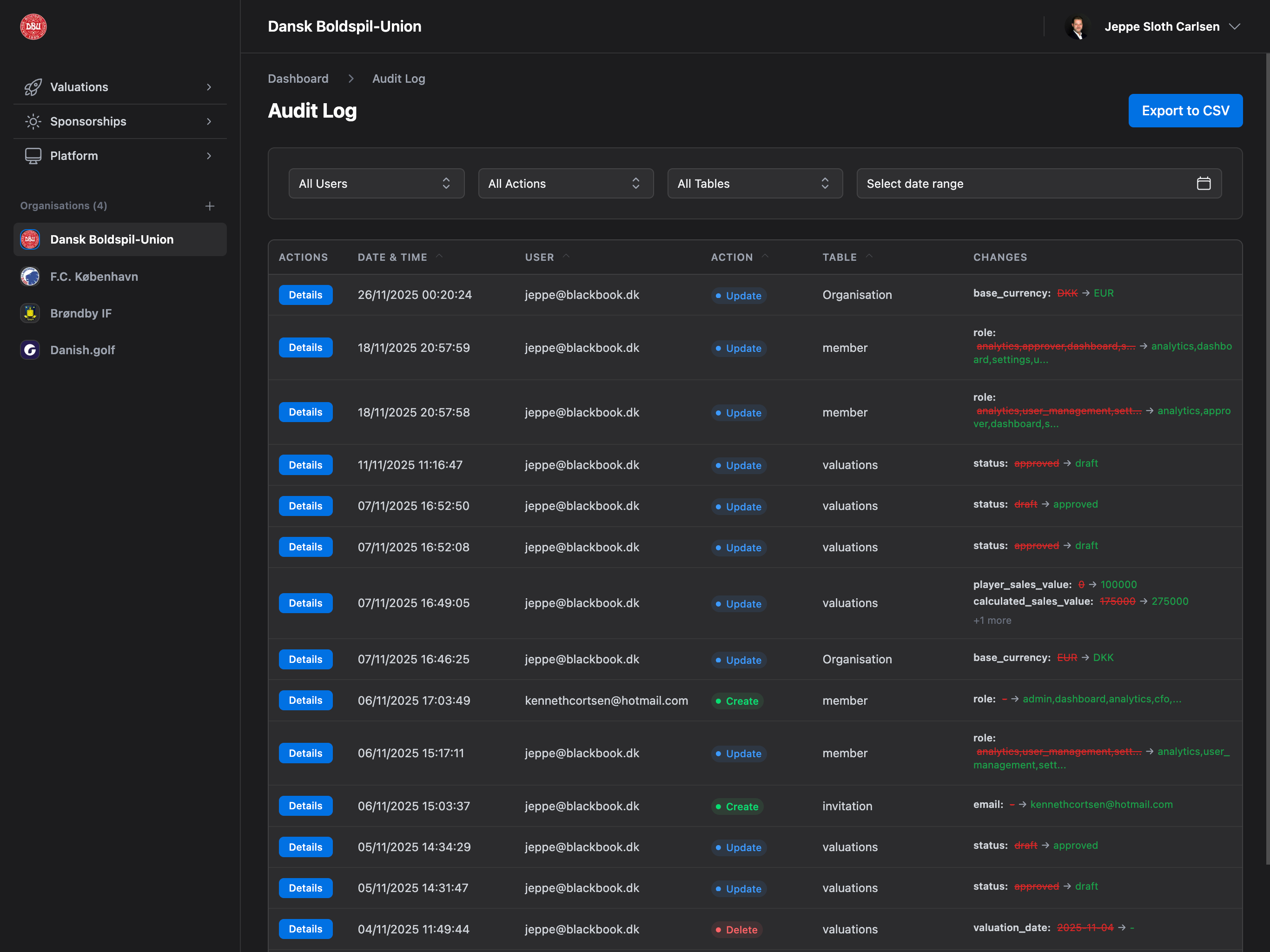 View detailed history of all data changes in your organization with who, what, when, and how tracking for compliance, security investigations, and team monitoring.
## Accessing Audit Log
Navigate to **Platform** → **Audit Log** from the sidebar.
**Plan Required**: Enterprise plan only
**Permission Required**: Admin permission
## What is the Audit Log?
The Audit Log is a comprehensive, immutable record of all data changes in your organization. Every create, update, and delete action is automatically tracked with complete before/after values, user information, and timestamps.
**Tracked Information**:
* **Who**: User email who made the change
* **What**: Complete field-level diff (before → after values)
* **When**: Precise timestamp (date and time to the second)
* **Where**: Table name and record ID
* **How**: Action type (create, update, delete, restore)
**Automatic Tracking**: All changes are automatically logged. No manual action required. Logs cannot be edited or deleted (immutable).
## Page Layout
The Audit Log page has three main sections:
### Page Header
* Title: "Audit Log"
* Breadcrumbs: Dashboard → Audit Log
* **Export to CSV** button (top right)
### Filter Bar
* User filter dropdown
* Action filter dropdown
* Table filter dropdown
* Date range picker (start and end dates)
### Audit Log Table
* Sortable columns
* Paginated (50 entries per page)
* Row click opens detail panel
* Actions column with "Details" button
## Audit Log Table
Comprehensive table showing all logged changes.
### Table Columns
**Actions** (85px width)
* "Details" button (blue)
* Opens detail panel on click
* Always visible
**Date & Time** (180px)
* Format: dd/MM/yyyy HH:mm:ss
* Example: 15/01/2025 14:30:45
* Sortable column
* Defaults to newest first
**User** (200px)
* User email address
* Example: [john.doe@company.com](mailto:john.doe@company.com)
* Sortable column
* Filterable via dropdown
**Action** (120px)
* Badge with action type
* **Create** (green badge)
* **Update** (blue badge)
* **Delete** (red badge)
* **Restore** (purple badge)
* Sortable column
* Filterable via dropdown
**Table** (150px)
* Table name (human-readable)
* Examples: Organisation, valuations, sponsors
* Sortable column
* Filterable via dropdown
**Changes** (300px)
* Shows up to 2 field changes
* Format: `field: old_value → new_value`
* Example: `name: "Old Name" → "New Name"`
* Shows "+X more" if additional changes
* Click row to see full details
### Table Features
**Sorting**:
* Click column headers to sort
* Ascending/descending toggle
* Default sort: Date & Time (newest first)
**Pagination**:
* 50 entries per page
* Page navigation controls at bottom
* Shows "Showing X to Y of Z entries"
**Row Click**:
* Click any row to open detail panel
* Shows full change details
* Desktop: Side panel (two-column layout)
* Mobile: Drawer overlay
**Quick Details**: Click the blue "Details" button or click anywhere on the row to open the detail panel.
## Filter Bar
Comprehensive filtering to find specific audit log entries.
### Filter Options
**All Users Dropdown**:
* Shows all unique users who made changes
* Alphabetically sorted
* "All Users" option (default)
* Updates table instantly
**All Actions Dropdown**:
* All Actions (default)
* Create
* Update
* Delete
* Restore
**All Tables Dropdown**:
* Shows all unique tables with logged changes
* Human-readable names (Organisation, valuations, etc.)
* "All Tables" option (default)
* Alphabetically sorted
**Date Range Picker**:
* Start Date input (optional)
* End Date input (optional)
* Format: YYYY-MM-DD
* Filters by log creation date
* Both dates inclusive
### Filter Behavior
**Real-time Filtering**:
* Filters apply instantly (no submit button)
* Multiple filters combine with AND logic
* Empty filter = no restriction
**Filter Combinations**:
* User + Action: Show specific user's creates
* Action + Table: Show all updates to valuations
* Date Range + User: Show user activity in period
* All filters: Precise targeting
**Saved State**: Filter selections persist during your session. Refresh page to reset all filters.
### Clearing Filters
To clear filters:
1. Select "All Users", "All Actions", or "All Tables" in dropdowns
2. Clear start and end date fields
3. Or refresh page
## Detail Panel
Comprehensive view of a single audit log entry.
### Desktop Layout (>1024px)
**Two-Column Layout**:
* Left: Audit Log table (main)
* Right: Detail panel (450px wide, sticky)
**Panel Features**:
* Sticky positioning (stays visible when scrolling)
* Max height: calc(100vh - 32px)
* Scrollable if content overflows
* Close button (X) in top right
### Mobile Layout (\<1024px)
**Drawer Overlay**:
* Full-screen overlay (darkened background)
* Panel slides in from right
* Close button or backdrop click closes
* Scrollable content
### Panel Contents
**Header Section**:
* Close button (X icon)
* Action type badge (Create, Update, Delete, Restore)
* Date and time
* User email
**Metadata Section**:
* **Table**: Human-readable table name
* **Record ID**: UUID of changed record
* **Action**: Action type with description
**Changes Section**:
* **Title**: "Field Changes" or "Fields Changed"
* List of all field changes
* Each change shows:
* Field name (bold)
* Old value (red, strikethrough)
* Arrow (→)
* New value (green)
**Example Change Display**:
```
name: "Old Organization Name" → "New Organization Name"
email: "old@email.com" → "new@email.com"
status: "pending" → "approved"
```
**Value Formatting**:
* Null/undefined: Shown as "-"
* Objects: JSON stringified
* Strings: Quoted
* Numbers/Booleans: As-is
**Restore Button** (Admin only):
* **Text**: "Restore Previous Version"
* **Color**: Indigo button
* **Visibility**: Only if user is Admin
* **Action**: Opens restore confirmation modal
**Restore Capability**: Only Admins can restore previous versions. Restoring creates a new "restore" action in the audit log.
## Export to CSV
Download audit log entries as CSV file for compliance reporting or external analysis.
**How to Export**:
1. Click **"Export to CSV"** button (top right)
2. Confirmation modal appears:
* Title: "Export Audit Log to CSV?"
* Message: Explains filtered export
* "Export" button
* "Cancel" button
3. Click "Export" to download
**CSV Contents**:
* Headers: Date & Time, User, Action, Table, Changes
* Rows: All currently visible entries (respects filters!)
* Format: Standard CSV (comma-separated)
* Filename: `audit-logs-YYYY-MM-DD.csv`
**Changes Column Format**:
```
"field1: old1 → new1; field2: old2 → new2"
```
**Filtered Export**: Export only includes entries currently visible after applying filters. Use filters to export specific subsets.
**Use Cases**:
* Compliance reporting (GDPR, SOX)
* External audits
* Backup/archive
* Analysis in Excel/spreadsheet
* Security investigations
## Restore Previous Version
Admins can restore previous versions of records directly from the audit log.
**Restore Process**:
1. **Open Detail Panel** for the audit log entry you want to restore
2. **Click "Restore Previous Version"** button (only visible to Admins)
3. **Review Confirmation Modal**:
* Title: "Restore Previous Version?"
* Shows changes that will be restored
* Displays table and action
* "Restore" button (indigo)
* "Cancel" button
4. **Click "Restore"** to confirm
5. **Success Dialog** appears: "Previous version restored successfully!"
**What Happens**:
* Record is reverted to previous state (old values restored)
* New "restore" action logged in audit log
* Original audit log entry remains unchanged
* Change is immediate (no undo)
**Restore Action Logged**:
* Action type: "restore" (purple badge)
* User: Admin who performed restore
* Changes: Shows what was restored
* Links back to original audit log entry
**Admin Only**: Only users with Admin permission can restore previous versions. Regular users see detail panel without restore button.
**Audit Trail Preserved**: Restores create new audit log entries. Full history is always preserved, including restore actions.
## Tracked Resources
The audit log tracks changes to all critical data:
### Organization Data
* Organization settings (name, address, VAT, currency)
* Organization logo changes
* Brand value indicator defaults
* SSO configuration changes
### Valuations
* Create new valuation
* Update valuation fields (status, values, media data)
* Delete valuation
* Brand indicator changes
* Media value updates
### Sponsorships
* Sponsor changes (name, status, value, logo)
* Sponsor contact changes (add, edit, delete)
* Library item changes (name, category, cost, quantity)
* Package changes (name, tier, pricing, items)
* Proposal status changes (sent, approved, rejected)
### User Management
* User permission changes
* Role assignments
* User invitations
* User removals
### Player Transfers
* Create transfer record
* Update transfer details
* Delete transfer
### All Other Data
* Every table with critical business data
* Complete field-level tracking
* Before/after value capture
**Comprehensive Coverage**: If it's in the database and matters for your business, it's tracked in the audit log.
## Permissions
Access to audit log requires specific permissions:
| Permission | Can View Audit Log | Can Export CSV | Can Restore Versions |
| --------------- | ------------------ | -------------- | -------------------- |
| **Admin** | ✅ Yes | ✅ Yes | ✅ Yes |
| **Audit Log** | ✅ Yes | ✅ Yes | ❌ No |
| **Other Roles** | ❌ No | ❌ No | ❌ No |
**Plan Requirement**: All audit log features require Enterprise plan. Professional and Starter plans cannot access audit log.
**Restore Versions**: Only users with **Admin** role can restore previous versions. Users with Audit Log permission can view and export logs, but cannot restore data to prevent accidental data changes.
## Common Use Cases
### Compliance Audit (GDPR, SOX)
1. Navigate to **Platform** → **Audit Log**
2. Set date range filter (audit period)
3. Export to CSV
4. Provide to auditor as evidence of data handling
5. Show immutable audit trail
### Security Investigation
1. **Identify suspicious activity** (unusual data changes)
2. Open **Audit Log**
3. Filter by date range (incident timeframe)
4. Filter by user (if known)
5. Review all actions by that user
6. Check for unauthorized changes
7. Export evidence as CSV
### Team Activity Monitoring
1. Open **Audit Log**
2. Filter by user (team member email)
3. Review their recent actions
4. Check for:
* Correct permissions usage
* Training needs
* Best practices adherence
5. Provide feedback or additional training
### Data Forensics (Error Investigation)
1. **Identify incorrect data** (e.g., wrong valuation value)
2. Open **Audit Log**
3. Filter by table ("valuations")
4. Search for record ID (if known) or date
5. Review change history
6. Identify who made incorrect change and when
7. Restore previous version (if Admin)
8. Contact user for process improvement
### Dispute Resolution
1. **Receive complaint** (e.g., "I didn't change that!")
2. Open **Audit Log**
3. Filter by record type and date range
4. Locate exact change log entry
5. Show user email and timestamp as proof
6. Resolve dispute with evidence
### Training Needs Identification
1. Review audit log for common errors
2. Filter by action type ("update" or "delete")
3. Identify patterns of incorrect changes
4. Group by user to find who needs help
5. Provide targeted training
## Troubleshooting
### Can't Access Audit Log
**Reasons**:
* Not on Enterprise plan
* No Admin, Log, or Settings permission
* Redirected to dashboard automatically
**Fix**:
* Upgrade to Enterprise plan
* Request Admin permission from owner
* Contact owner for access
### Filters Not Working
**Check**:
* Filter values selected correctly
* Date range format: YYYY-MM-DD
* No typos in dropdown selections
**Try**:
* Clear all filters and start over
* Refresh page
* Check that data matching filter exists
### Export CSV Fails
**Reasons**:
* Browser popup blocker
* No data matching current filters
* Network error
**Fix**:
* Disable popup blocker for site
* Clear filters to export all logs
* Check network connection
* Try different browser
### Restore Not Available
**Reasons**:
* Not an Admin
* Record already deleted
* Database constraint prevents restore
**Fix**:
* Request Admin permission
* Contact support if restore critical
* Manual re-entry if restore impossible
### Detail Panel Won't Open
**Try**:
* Click "Details" button instead of row
* Refresh page
* Clear browser cache
* Try different browser
* Check browser console for errors
## Retention Policy
**Indefinite Retention**: Audit logs are retained indefinitely for compliance purposes. Logs are never automatically deleted.
**Exceptions**:
* Organization deletion: Audit logs deleted after 30-day grace period
* Export and backup recommended before deletion
**Storage**:
* Logs stored in secure database
* Encrypted at rest
* Immutable (cannot be edited/deleted)
* Compliant with GDPR and SOX requirements
## Next Steps
Check audit log weekly for unusual activity
Schedule quarterly exports for audit records
Educate team about audit log and accountability
Request alert notifications for critical changes
Use audit log to document change management
**Compliance Ready**: The audit log meets GDPR, SOX, and most financial/healthcare compliance requirements. Contact support for specific compliance questions.
View detailed history of all data changes in your organization with who, what, when, and how tracking for compliance, security investigations, and team monitoring.
## Accessing Audit Log
Navigate to **Platform** → **Audit Log** from the sidebar.
**Plan Required**: Enterprise plan only
**Permission Required**: Admin permission
## What is the Audit Log?
The Audit Log is a comprehensive, immutable record of all data changes in your organization. Every create, update, and delete action is automatically tracked with complete before/after values, user information, and timestamps.
**Tracked Information**:
* **Who**: User email who made the change
* **What**: Complete field-level diff (before → after values)
* **When**: Precise timestamp (date and time to the second)
* **Where**: Table name and record ID
* **How**: Action type (create, update, delete, restore)
**Automatic Tracking**: All changes are automatically logged. No manual action required. Logs cannot be edited or deleted (immutable).
## Page Layout
The Audit Log page has three main sections:
### Page Header
* Title: "Audit Log"
* Breadcrumbs: Dashboard → Audit Log
* **Export to CSV** button (top right)
### Filter Bar
* User filter dropdown
* Action filter dropdown
* Table filter dropdown
* Date range picker (start and end dates)
### Audit Log Table
* Sortable columns
* Paginated (50 entries per page)
* Row click opens detail panel
* Actions column with "Details" button
## Audit Log Table
Comprehensive table showing all logged changes.
### Table Columns
**Actions** (85px width)
* "Details" button (blue)
* Opens detail panel on click
* Always visible
**Date & Time** (180px)
* Format: dd/MM/yyyy HH:mm:ss
* Example: 15/01/2025 14:30:45
* Sortable column
* Defaults to newest first
**User** (200px)
* User email address
* Example: [john.doe@company.com](mailto:john.doe@company.com)
* Sortable column
* Filterable via dropdown
**Action** (120px)
* Badge with action type
* **Create** (green badge)
* **Update** (blue badge)
* **Delete** (red badge)
* **Restore** (purple badge)
* Sortable column
* Filterable via dropdown
**Table** (150px)
* Table name (human-readable)
* Examples: Organisation, valuations, sponsors
* Sortable column
* Filterable via dropdown
**Changes** (300px)
* Shows up to 2 field changes
* Format: `field: old_value → new_value`
* Example: `name: "Old Name" → "New Name"`
* Shows "+X more" if additional changes
* Click row to see full details
### Table Features
**Sorting**:
* Click column headers to sort
* Ascending/descending toggle
* Default sort: Date & Time (newest first)
**Pagination**:
* 50 entries per page
* Page navigation controls at bottom
* Shows "Showing X to Y of Z entries"
**Row Click**:
* Click any row to open detail panel
* Shows full change details
* Desktop: Side panel (two-column layout)
* Mobile: Drawer overlay
**Quick Details**: Click the blue "Details" button or click anywhere on the row to open the detail panel.
## Filter Bar
Comprehensive filtering to find specific audit log entries.
### Filter Options
**All Users Dropdown**:
* Shows all unique users who made changes
* Alphabetically sorted
* "All Users" option (default)
* Updates table instantly
**All Actions Dropdown**:
* All Actions (default)
* Create
* Update
* Delete
* Restore
**All Tables Dropdown**:
* Shows all unique tables with logged changes
* Human-readable names (Organisation, valuations, etc.)
* "All Tables" option (default)
* Alphabetically sorted
**Date Range Picker**:
* Start Date input (optional)
* End Date input (optional)
* Format: YYYY-MM-DD
* Filters by log creation date
* Both dates inclusive
### Filter Behavior
**Real-time Filtering**:
* Filters apply instantly (no submit button)
* Multiple filters combine with AND logic
* Empty filter = no restriction
**Filter Combinations**:
* User + Action: Show specific user's creates
* Action + Table: Show all updates to valuations
* Date Range + User: Show user activity in period
* All filters: Precise targeting
**Saved State**: Filter selections persist during your session. Refresh page to reset all filters.
### Clearing Filters
To clear filters:
1. Select "All Users", "All Actions", or "All Tables" in dropdowns
2. Clear start and end date fields
3. Or refresh page
## Detail Panel
Comprehensive view of a single audit log entry.
### Desktop Layout (>1024px)
**Two-Column Layout**:
* Left: Audit Log table (main)
* Right: Detail panel (450px wide, sticky)
**Panel Features**:
* Sticky positioning (stays visible when scrolling)
* Max height: calc(100vh - 32px)
* Scrollable if content overflows
* Close button (X) in top right
### Mobile Layout (\<1024px)
**Drawer Overlay**:
* Full-screen overlay (darkened background)
* Panel slides in from right
* Close button or backdrop click closes
* Scrollable content
### Panel Contents
**Header Section**:
* Close button (X icon)
* Action type badge (Create, Update, Delete, Restore)
* Date and time
* User email
**Metadata Section**:
* **Table**: Human-readable table name
* **Record ID**: UUID of changed record
* **Action**: Action type with description
**Changes Section**:
* **Title**: "Field Changes" or "Fields Changed"
* List of all field changes
* Each change shows:
* Field name (bold)
* Old value (red, strikethrough)
* Arrow (→)
* New value (green)
**Example Change Display**:
```
name: "Old Organization Name" → "New Organization Name"
email: "old@email.com" → "new@email.com"
status: "pending" → "approved"
```
**Value Formatting**:
* Null/undefined: Shown as "-"
* Objects: JSON stringified
* Strings: Quoted
* Numbers/Booleans: As-is
**Restore Button** (Admin only):
* **Text**: "Restore Previous Version"
* **Color**: Indigo button
* **Visibility**: Only if user is Admin
* **Action**: Opens restore confirmation modal
**Restore Capability**: Only Admins can restore previous versions. Restoring creates a new "restore" action in the audit log.
## Export to CSV
Download audit log entries as CSV file for compliance reporting or external analysis.
**How to Export**:
1. Click **"Export to CSV"** button (top right)
2. Confirmation modal appears:
* Title: "Export Audit Log to CSV?"
* Message: Explains filtered export
* "Export" button
* "Cancel" button
3. Click "Export" to download
**CSV Contents**:
* Headers: Date & Time, User, Action, Table, Changes
* Rows: All currently visible entries (respects filters!)
* Format: Standard CSV (comma-separated)
* Filename: `audit-logs-YYYY-MM-DD.csv`
**Changes Column Format**:
```
"field1: old1 → new1; field2: old2 → new2"
```
**Filtered Export**: Export only includes entries currently visible after applying filters. Use filters to export specific subsets.
**Use Cases**:
* Compliance reporting (GDPR, SOX)
* External audits
* Backup/archive
* Analysis in Excel/spreadsheet
* Security investigations
## Restore Previous Version
Admins can restore previous versions of records directly from the audit log.
**Restore Process**:
1. **Open Detail Panel** for the audit log entry you want to restore
2. **Click "Restore Previous Version"** button (only visible to Admins)
3. **Review Confirmation Modal**:
* Title: "Restore Previous Version?"
* Shows changes that will be restored
* Displays table and action
* "Restore" button (indigo)
* "Cancel" button
4. **Click "Restore"** to confirm
5. **Success Dialog** appears: "Previous version restored successfully!"
**What Happens**:
* Record is reverted to previous state (old values restored)
* New "restore" action logged in audit log
* Original audit log entry remains unchanged
* Change is immediate (no undo)
**Restore Action Logged**:
* Action type: "restore" (purple badge)
* User: Admin who performed restore
* Changes: Shows what was restored
* Links back to original audit log entry
**Admin Only**: Only users with Admin permission can restore previous versions. Regular users see detail panel without restore button.
**Audit Trail Preserved**: Restores create new audit log entries. Full history is always preserved, including restore actions.
## Tracked Resources
The audit log tracks changes to all critical data:
### Organization Data
* Organization settings (name, address, VAT, currency)
* Organization logo changes
* Brand value indicator defaults
* SSO configuration changes
### Valuations
* Create new valuation
* Update valuation fields (status, values, media data)
* Delete valuation
* Brand indicator changes
* Media value updates
### Sponsorships
* Sponsor changes (name, status, value, logo)
* Sponsor contact changes (add, edit, delete)
* Library item changes (name, category, cost, quantity)
* Package changes (name, tier, pricing, items)
* Proposal status changes (sent, approved, rejected)
### User Management
* User permission changes
* Role assignments
* User invitations
* User removals
### Player Transfers
* Create transfer record
* Update transfer details
* Delete transfer
### All Other Data
* Every table with critical business data
* Complete field-level tracking
* Before/after value capture
**Comprehensive Coverage**: If it's in the database and matters for your business, it's tracked in the audit log.
## Permissions
Access to audit log requires specific permissions:
| Permission | Can View Audit Log | Can Export CSV | Can Restore Versions |
| --------------- | ------------------ | -------------- | -------------------- |
| **Admin** | ✅ Yes | ✅ Yes | ✅ Yes |
| **Audit Log** | ✅ Yes | ✅ Yes | ❌ No |
| **Other Roles** | ❌ No | ❌ No | ❌ No |
**Plan Requirement**: All audit log features require Enterprise plan. Professional and Starter plans cannot access audit log.
**Restore Versions**: Only users with **Admin** role can restore previous versions. Users with Audit Log permission can view and export logs, but cannot restore data to prevent accidental data changes.
## Common Use Cases
### Compliance Audit (GDPR, SOX)
1. Navigate to **Platform** → **Audit Log**
2. Set date range filter (audit period)
3. Export to CSV
4. Provide to auditor as evidence of data handling
5. Show immutable audit trail
### Security Investigation
1. **Identify suspicious activity** (unusual data changes)
2. Open **Audit Log**
3. Filter by date range (incident timeframe)
4. Filter by user (if known)
5. Review all actions by that user
6. Check for unauthorized changes
7. Export evidence as CSV
### Team Activity Monitoring
1. Open **Audit Log**
2. Filter by user (team member email)
3. Review their recent actions
4. Check for:
* Correct permissions usage
* Training needs
* Best practices adherence
5. Provide feedback or additional training
### Data Forensics (Error Investigation)
1. **Identify incorrect data** (e.g., wrong valuation value)
2. Open **Audit Log**
3. Filter by table ("valuations")
4. Search for record ID (if known) or date
5. Review change history
6. Identify who made incorrect change and when
7. Restore previous version (if Admin)
8. Contact user for process improvement
### Dispute Resolution
1. **Receive complaint** (e.g., "I didn't change that!")
2. Open **Audit Log**
3. Filter by record type and date range
4. Locate exact change log entry
5. Show user email and timestamp as proof
6. Resolve dispute with evidence
### Training Needs Identification
1. Review audit log for common errors
2. Filter by action type ("update" or "delete")
3. Identify patterns of incorrect changes
4. Group by user to find who needs help
5. Provide targeted training
## Troubleshooting
### Can't Access Audit Log
**Reasons**:
* Not on Enterprise plan
* No Admin, Log, or Settings permission
* Redirected to dashboard automatically
**Fix**:
* Upgrade to Enterprise plan
* Request Admin permission from owner
* Contact owner for access
### Filters Not Working
**Check**:
* Filter values selected correctly
* Date range format: YYYY-MM-DD
* No typos in dropdown selections
**Try**:
* Clear all filters and start over
* Refresh page
* Check that data matching filter exists
### Export CSV Fails
**Reasons**:
* Browser popup blocker
* No data matching current filters
* Network error
**Fix**:
* Disable popup blocker for site
* Clear filters to export all logs
* Check network connection
* Try different browser
### Restore Not Available
**Reasons**:
* Not an Admin
* Record already deleted
* Database constraint prevents restore
**Fix**:
* Request Admin permission
* Contact support if restore critical
* Manual re-entry if restore impossible
### Detail Panel Won't Open
**Try**:
* Click "Details" button instead of row
* Refresh page
* Clear browser cache
* Try different browser
* Check browser console for errors
## Retention Policy
**Indefinite Retention**: Audit logs are retained indefinitely for compliance purposes. Logs are never automatically deleted.
**Exceptions**:
* Organization deletion: Audit logs deleted after 30-day grace period
* Export and backup recommended before deletion
**Storage**:
* Logs stored in secure database
* Encrypted at rest
* Immutable (cannot be edited/deleted)
* Compliant with GDPR and SOX requirements
## Next Steps
Check audit log weekly for unusual activity
Schedule quarterly exports for audit records
Educate team about audit log and accountability
Request alert notifications for critical changes
Use audit log to document change management
**Compliance Ready**: The audit log meets GDPR, SOX, and most financial/healthcare compliance requirements. Contact support for specific compliance questions.