> ## Documentation Index
> Fetch the complete documentation index at: https://docs.valiyou.com/llms.txt
> Use this file to discover all available pages before exploring further.
# Plugins
> Enable and configure powerful extensions for valuations and analytics
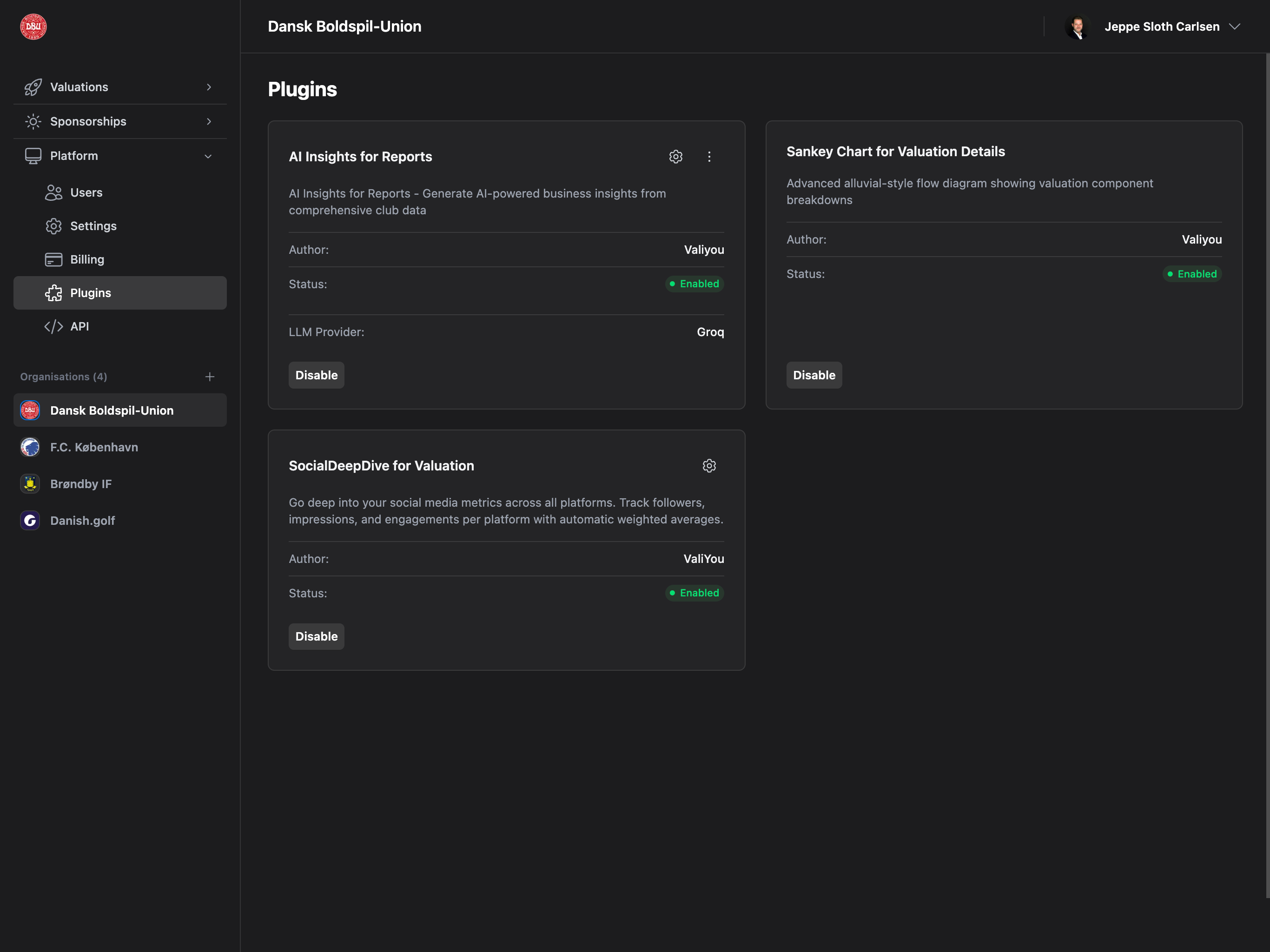 Extend Valiyou with plugins that add AI insights, advanced visualizations, and social media analysis to your valuations and reports.
## Accessing Plugins
Navigate to **Platform** → **Plugins** from the sidebar to manage plugins.
**Permission Required**: Plugins permission or Admin access required to enable/disable and configure plugins.
## Available Plugins
### Universal CSV Importer
Extend Valiyou with plugins that add AI insights, advanced visualizations, and social media analysis to your valuations and reports.
## Accessing Plugins
Navigate to **Platform** → **Plugins** from the sidebar to manage plugins.
**Permission Required**: Plugins permission or Admin access required to enable/disable and configure plugins.
## Available Plugins
### Universal CSV Importer
 **Plan Required**: Professional or Enterprise plan
**Permission Required**: Sponsors permission (write access)
**What it does**: Import sponsors and contacts from Salesforce, HubSpot, Pipedrive, and other CRM systems with intelligent auto-mapping.
**Where it appears**: Sponsorships → Sponsors page → "Import from CSV" button
**Supported CRM Systems**:
* **Salesforce** - Auto-detects and maps Salesforce CSV exports
* **HubSpot** - Auto-detects and maps HubSpot CSV exports
* **Pipedrive** - Auto-detects and maps Pipedrive CSV exports
* **Microsoft Dynamics** - Auto-detects and maps Dynamics CSV exports
* **Zoho CRM** - Auto-detects and maps Zoho CRM exports
* **Excel/Manual CSV** - Custom CSV files with manual field mapping
* **Other** - Generic CSV import
**Features**:
* Multi-file upload (sponsors + contacts)
* Intelligent auto-field mapping
* Confidence level indicators (High, Medium, Low)
* Relationship linking (contacts → sponsors)
* Duplicate detection
* Validation and error handling
* Preview before import
* Import results summary
**Benefits**:
* Migrate from existing CRM to Valiyou
* Import large datasets quickly
* Auto-link contacts to sponsors
* Reduce manual data entry
**Salesforce Users**: Export Account and Contact reports from Salesforce, then import directly into Valiyou with automatic field mapping.
See [Universal CSV Importer](/platform/plugins/universal-importer) for complete documentation.
***
### AI Insights for Reports
**Plan Required**: Professional or Enterprise plan
**Permission Required**: Sponsors permission (write access)
**What it does**: Import sponsors and contacts from Salesforce, HubSpot, Pipedrive, and other CRM systems with intelligent auto-mapping.
**Where it appears**: Sponsorships → Sponsors page → "Import from CSV" button
**Supported CRM Systems**:
* **Salesforce** - Auto-detects and maps Salesforce CSV exports
* **HubSpot** - Auto-detects and maps HubSpot CSV exports
* **Pipedrive** - Auto-detects and maps Pipedrive CSV exports
* **Microsoft Dynamics** - Auto-detects and maps Dynamics CSV exports
* **Zoho CRM** - Auto-detects and maps Zoho CRM exports
* **Excel/Manual CSV** - Custom CSV files with manual field mapping
* **Other** - Generic CSV import
**Features**:
* Multi-file upload (sponsors + contacts)
* Intelligent auto-field mapping
* Confidence level indicators (High, Medium, Low)
* Relationship linking (contacts → sponsors)
* Duplicate detection
* Validation and error handling
* Preview before import
* Import results summary
**Benefits**:
* Migrate from existing CRM to Valiyou
* Import large datasets quickly
* Auto-link contacts to sponsors
* Reduce manual data entry
**Salesforce Users**: Export Account and Contact reports from Salesforce, then import directly into Valiyou with automatic field mapping.
See [Universal CSV Importer](/platform/plugins/universal-importer) for complete documentation.
***
### AI Insights for Reports
 **Plan Required**: Professional or Enterprise plan
**Permission Required**: Reports permission + Plugins permission
**What it does**: Adds AI-generated insights and analysis to multi-valuation comparison reports using Large Language Models (LLMs).
**Where it appears**: Reports page → Compare multiple valuations → AI Insights section (after enabling plugin)
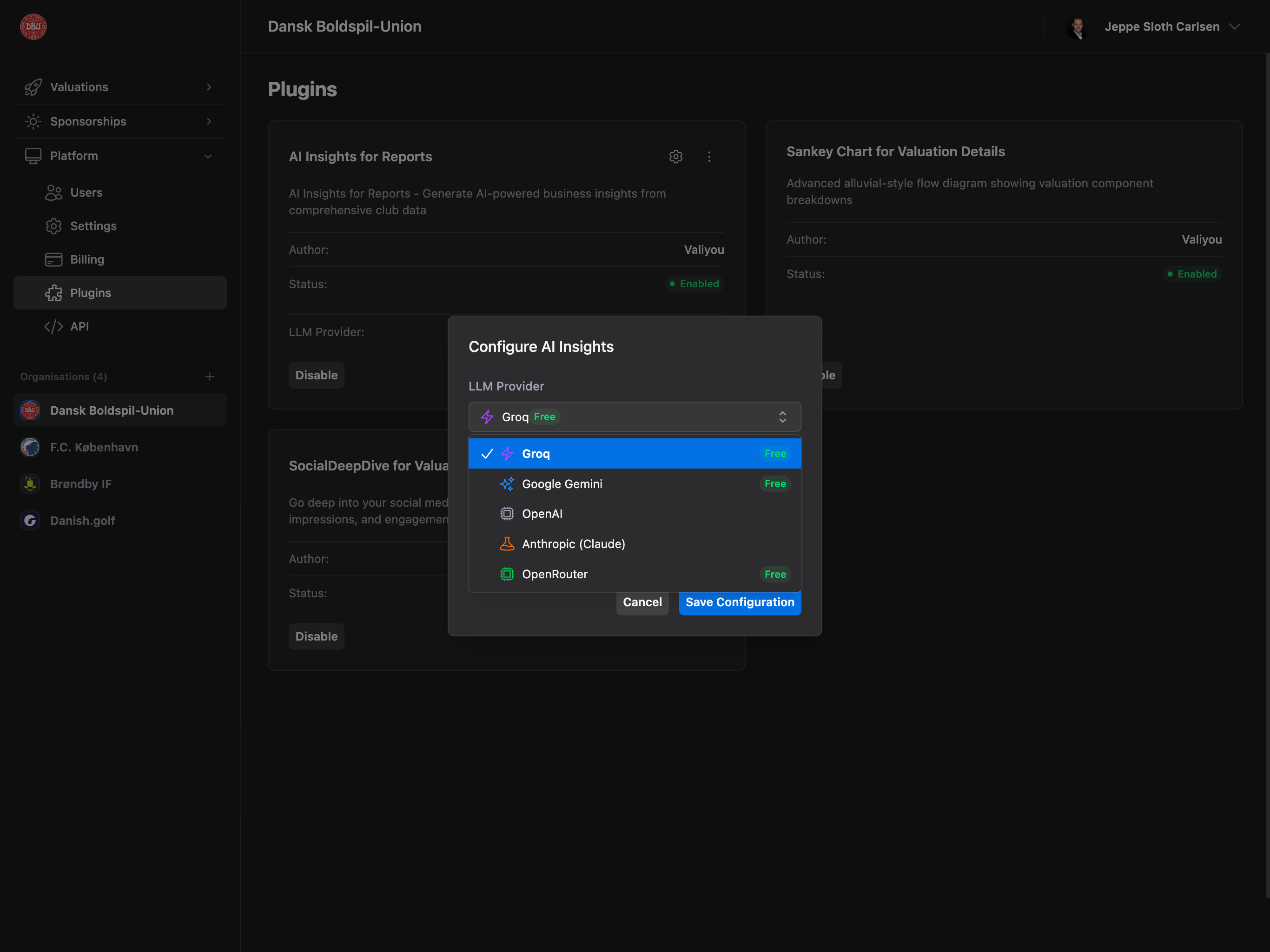
**Supported LLM Providers**:
* **Groq** (Free tier available) - Recommended for speed
* **Google Gemini** (Free tier available) - Good balance
* **OpenRouter** (Free tier available) - Multi-model access
* **OpenAI** (Paid) - GPT-4, GPT-3.5
* **Anthropic** (Paid) - Claude models
**Configuration**:
1. Select LLM Provider (dropdown with icons and "Free" badges)
2. Select Model (each provider has multiple models)
3. Enter API Key for selected provider
4. Save Configuration
**Benefits**:
* Automated insights from valuation data
* Trend analysis across multiple valuations
* Recommendations and observations
* Natural language explanations of patterns
**Free Options**: Groq, Google Gemini, and OpenRouter offer free tiers - perfect for trying AI Insights without cost.
See [Valuations → Reports](/valuations/reports#ai-insights) for usage details.
***
### Cash Flow Visualization (Sankey)
**Plan Required**: Professional or Enterprise plan
**Permission Required**: Reports permission + Plugins permission
**What it does**: Adds AI-generated insights and analysis to multi-valuation comparison reports using Large Language Models (LLMs).
**Where it appears**: Reports page → Compare multiple valuations → AI Insights section (after enabling plugin)
**Supported LLM Providers**:
* **Groq** (Free tier available) - Recommended for speed
* **Google Gemini** (Free tier available) - Good balance
* **OpenRouter** (Free tier available) - Multi-model access
* **OpenAI** (Paid) - GPT-4, GPT-3.5
* **Anthropic** (Paid) - Claude models
**Configuration**:
1. Select LLM Provider (dropdown with icons and "Free" badges)
2. Select Model (each provider has multiple models)
3. Enter API Key for selected provider
4. Save Configuration
**Benefits**:
* Automated insights from valuation data
* Trend analysis across multiple valuations
* Recommendations and observations
* Natural language explanations of patterns
**Free Options**: Groq, Google Gemini, and OpenRouter offer free tiers - perfect for trying AI Insights without cost.
See [Valuations → Reports](/valuations/reports#ai-insights) for usage details.
***
### Cash Flow Visualization (Sankey)
 **Plan Required**: Professional or Enterprise plan
**Permission Required**: Automatically available with plan
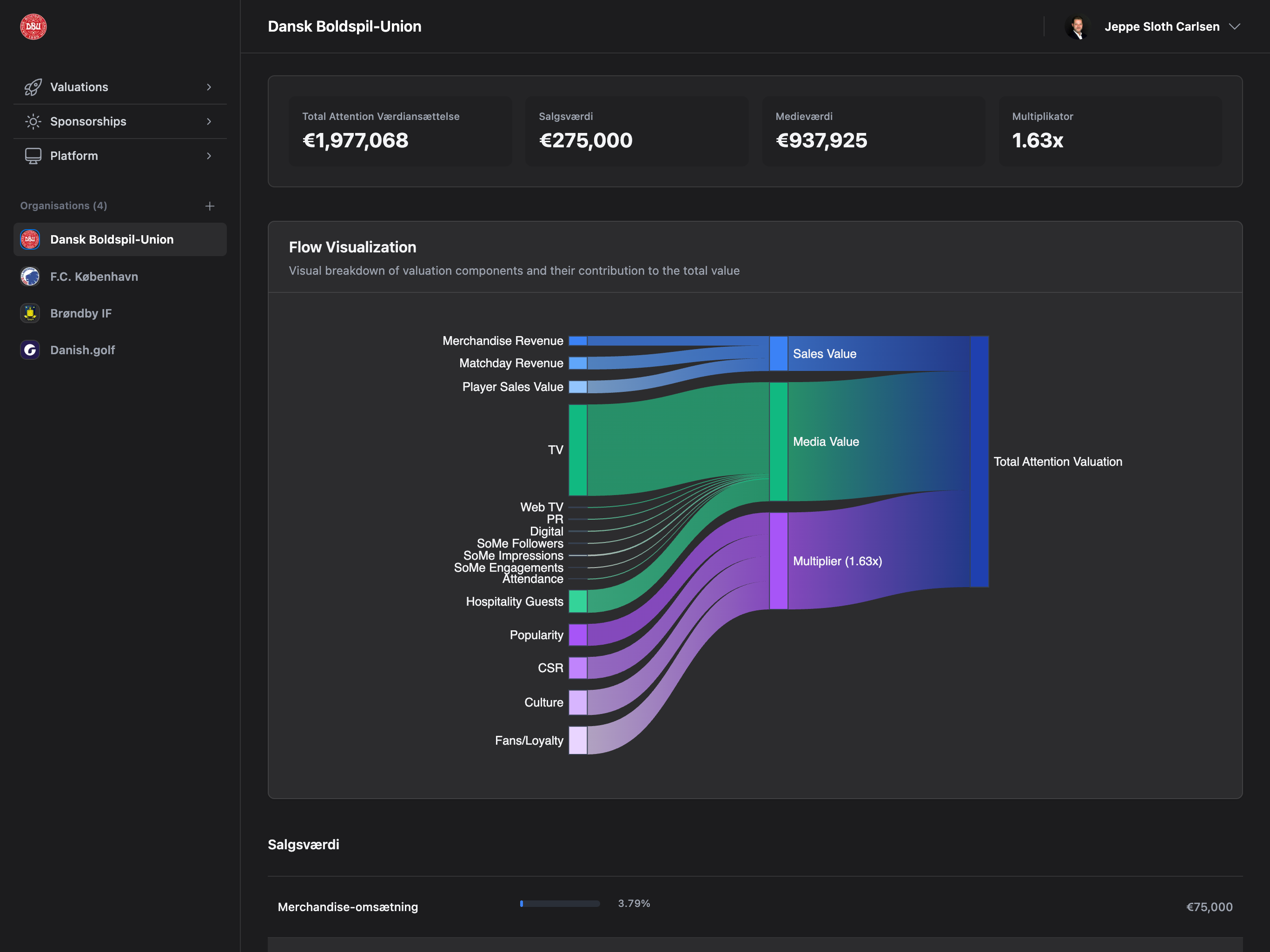
**What it does**: Adds interactive Sankey (flow) charts to valuation details showing revenue flow visualization.
**Where it appears**: Valuation Details page → Sales section (configurable position)
**Chart Types**:
* **Sankey (Alluvial Flow)** - Recommended, shows revenue flow
* **Waterfall** - Traditional waterfall chart
* **Custom** - Custom visualization
**Configuration Options**:
* **Chart Type**: Sankey, Waterfall, or Custom
* **Chart Height**: Pixels (default: 600px)
* **Color Scheme**: Default (multi-color), Blue, Green, Purple, Custom
* **Chart Position**: Before Sales, After Sales, Top of Page, Bottom of Page
* **Show Legend**: Toggle legend visibility
* **Show Tooltips**: Toggle interactive tooltips
* **Show Labels**: Toggle data labels
* **Enable Interactivity**: Toggle click/hover interactions
* **Animation Duration**: Milliseconds (default: 300ms)
**Benefits**:
* Visual revenue flow representation
* Interactive data exploration
* Customizable appearance
* Professional presentation
See [Valuations → Valuation Details](/valuations/valuation-details#cash-flow-visualization) for usage details.
***
### SocialDeepDive
**Plan Required**: Professional or Enterprise plan
**Permission Required**: Automatically available with plan
**What it does**: Adds interactive Sankey (flow) charts to valuation details showing revenue flow visualization.
**Where it appears**: Valuation Details page → Sales section (configurable position)
**Chart Types**:
* **Sankey (Alluvial Flow)** - Recommended, shows revenue flow
* **Waterfall** - Traditional waterfall chart
* **Custom** - Custom visualization
**Configuration Options**:
* **Chart Type**: Sankey, Waterfall, or Custom
* **Chart Height**: Pixels (default: 600px)
* **Color Scheme**: Default (multi-color), Blue, Green, Purple, Custom
* **Chart Position**: Before Sales, After Sales, Top of Page, Bottom of Page
* **Show Legend**: Toggle legend visibility
* **Show Tooltips**: Toggle interactive tooltips
* **Show Labels**: Toggle data labels
* **Enable Interactivity**: Toggle click/hover interactions
* **Animation Duration**: Milliseconds (default: 300ms)
**Benefits**:
* Visual revenue flow representation
* Interactive data exploration
* Customizable appearance
* Professional presentation
See [Valuations → Valuation Details](/valuations/valuation-details#cash-flow-visualization) for usage details.
***
### SocialDeepDive
 **Plan Required**: Professional or Enterprise plan (Feature in development)
**Permission Required**: Plugins permission
**What it does**: Deep social media analytics and engagement tracking across multiple platforms.
**Plan Required**: Professional or Enterprise plan (Feature in development)
**Permission Required**: Plugins permission
**What it does**: Deep social media analytics and engagement tracking across multiple platforms.
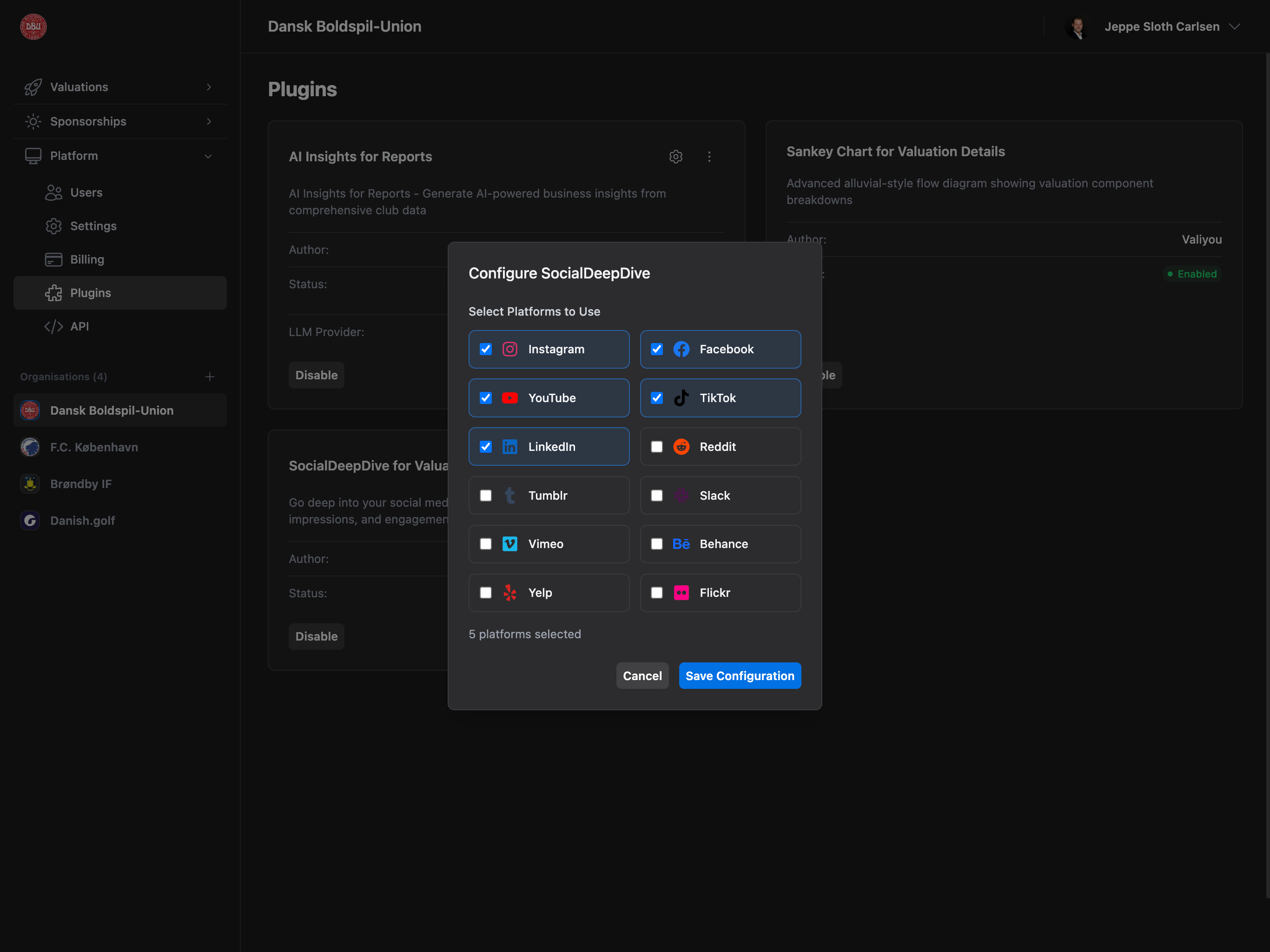
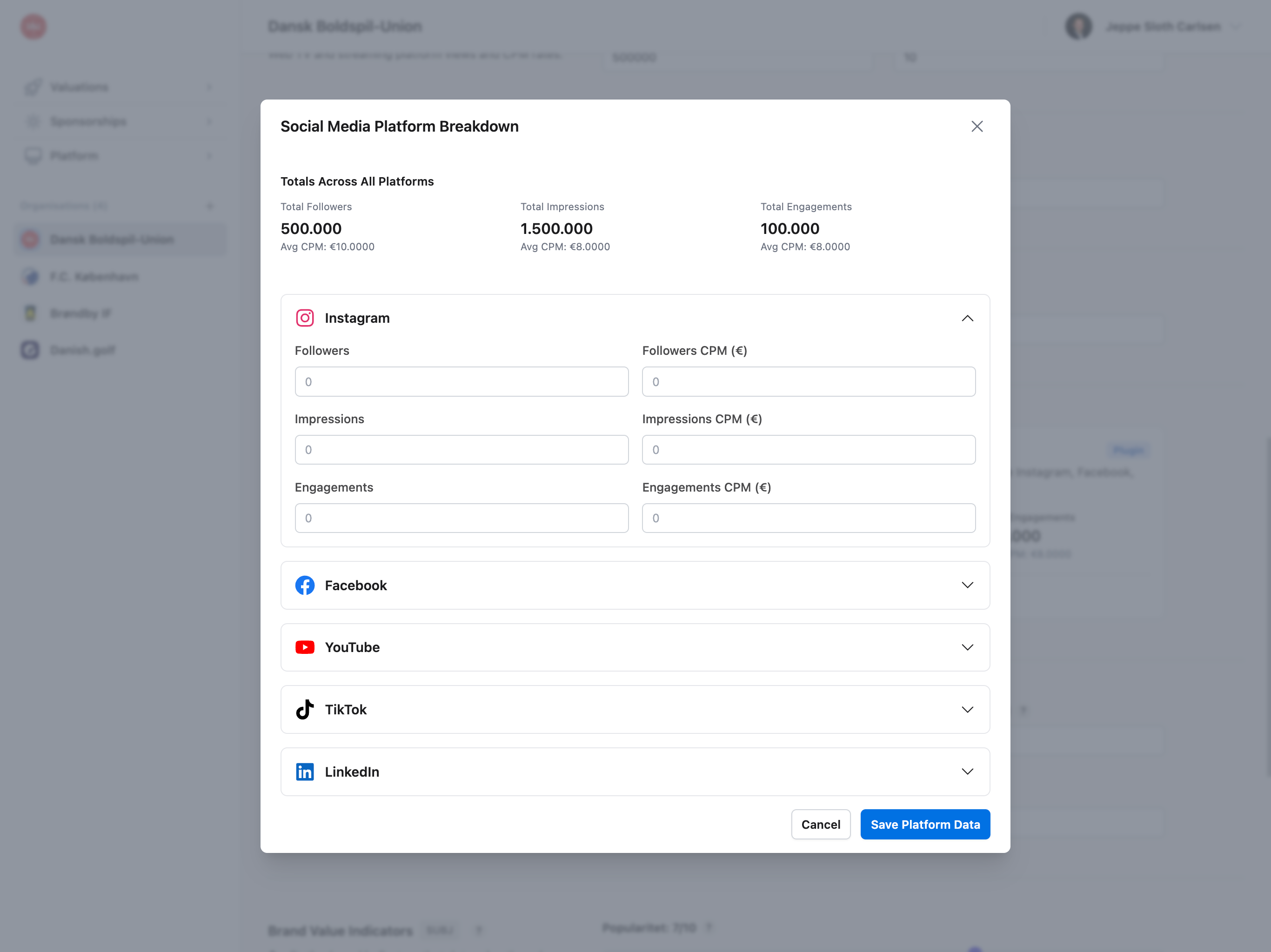 **Supported Platforms**:
* Instagram
* Facebook
* YouTube
* TikTok
* LinkedIn
* Reddit
* Tumblr
* Slack
* Vimeo
* Behance
* Yelp
* Flickr
**Configuration**:
* Enable/disable specific platforms
* Platform-specific settings (separate modal)
**Benefits**:
* Detailed social media insights
* Cross-platform comparison
* Engagement metrics
* Audience analytics
**Coming Soon**: SocialDeepDive is currently in development. Enable the plugin to get early access when available.
***
## Plugin Management
### Enabling a Plugin
**Process**:
1. Navigate to **Platform** → **Plugins**
2. Find the plugin card
3. Click **"Enable"** button (primary blue)
4. Plugin status changes to "Enabled" (green badge)
5. Configure button (gear icon) appears in header
**Requirements**:
* Plugin included in your plan (Professional/Enterprise)
* Required permissions (Reports for AI Insights)
* Not in demo mode
**Demo Mode**: Plugin actions are blocked in demo mode. Upgrade to enable/disable plugins.
### Disabling a Plugin
**Process**:
1. Find enabled plugin card (green "Enabled" badge)
2. Click **"Disable"** button (secondary gray)
3. Confirmation: Plugin disabled
4. Plugin status changes to "Disabled" (gray badge)
5. Feature disappears from pages (e.g., no AI Insights in Reports)
**Reversible**: Disabling a plugin removes features but preserves configuration. Re-enabling restores settings.
### Configuring a Plugin
**Available for**:
* AI Insights for Reports
* Cash Flow Visualization
* SocialDeepDive
**Process**:
1. Find enabled plugin card
2. Click **gear icon** (⚙️) in card header
3. Configuration modal opens
4. Adjust settings
5. Click **"Save Configuration"**
6. Settings applied immediately
**Live Updates**: Configuration changes apply to all future uses immediately. Existing reports/valuations remain unchanged.
## Plugin Cards
Grid layout (2 columns on desktop, 1 on mobile) with detailed plugin information.
### Card Structure
**Card Header**:
* Plugin Name (title)
* Configure button (gear icon, if applicable)
* Edit Prompt button (ellipsis icon, super admin only, AI Insights)
**Card Body**:
* **Description**: What the plugin does
* **Author**: Plugin creator (if specified)
* **Status**: Enabled (green) or Disabled (gray) badge
* **Health**: Health status (if enabled)
* Healthy (green checkmark)
* Degraded (yellow warning)
* Unhealthy (red error)
* **LLM Provider**: Current AI provider (AI Insights only)
* **Plan Warning**: Yellow box if plugin not in current plan
**Card Footer**:
* **Enable** button (primary blue) - If disabled
* **Disable** button (secondary gray) - If enabled
* **Upgrade Required** button (disabled) - If not in plan
### Health Indicators
**Healthy**:
* Green badge + green checkmark icon
* Plugin functioning normally
* No issues detected
**Degraded**:
* Yellow badge + yellow warning icon
* Plugin working but with issues
* May have reduced functionality
* Health message explains issue
**Unhealthy**:
* Red badge + red error icon
* Plugin not functioning properly
* Feature may be unavailable
* Health message explains error
**Unknown**:
* Gray badge + clock icon
* Health status not checked
* Recent enable or disable
**Auto-Check**: Plugin health is checked automatically. Refresh page to see latest status.
## Configuration Modals
### AI Insights Configuration
**Modal Structure**:
* Title: "Configure AI Insights for Reports"
* LLM Provider dropdown with icons:
* Groq (purple bolt icon, "Free" badge)
* Google Gemini (blue sparkle icon, "Free" badge)
* OpenAI (gray chip icon)
* Anthropic/Claude (orange beaker icon)
* OpenRouter (green chip icon, "Free" badge)
* Model dropdown (provider-specific models with badges):
* Badges: Free, Recommended, Latest, Fast, Powerful
* API Key input (SecretInput with view/hide/copy)
* Changes based on provider selection
* Placeholders: sk-..., sk-ant-..., gsk\_..., AIza..., sk-or-...
* Warning alert (if API key missing)
* Cancel and "Save Configuration" buttons
**Validation**:
* API key required for selected provider
* Warning shown if missing: "Please enter a valid \[Provider] API key before saving."
* Cannot save without API key
**Provider-Specific Models**:
**Groq** (Free):
* llama-3.3-70b-versatile (Recommended, Free)
* mixtral-8x7b-32768 (Free)
* gemma2-9b-it (Fast, Free)
**Google Gemini** (Free):
* gemini-2.0-flash-exp (Latest, Free)
* gemini-1.5-pro (Recommended, Free)
* gemini-1.5-flash (Fast, Free)
**OpenAI** (Paid):
* gpt-4o (Recommended)
* gpt-4o-mini (Fast)
* gpt-4-turbo
**Anthropic** (Paid):
* claude-3-5-sonnet-20241022 (Recommended)
* claude-3-5-haiku-20241022 (Fast)
* claude-3-opus-20240229 (Powerful)
**OpenRouter** (Free tier):
* Multiple models with free tier access
**Free Trials**: All providers offer free trials or tiers. Start with Groq or Gemini for cost-free testing.
### Cash Flow Visualization Configuration
**Modal Structure**:
* Title: "Configure Cash Flow Visualization"
* Chart Type dropdown:
* Sankey (Alluvial Flow) - Recommended
* Waterfall
* Custom
* Chart Height input (number, pixels)
* Color Scheme dropdown:
* Default (Multi-color)
* Blue
* Green
* Purple
* Custom
* Chart Position dropdown:
* Before Sales Details - Recommended
* After Sales Details
* Top of Page
* Bottom of Page
* Checkboxes:
* ☑ Show Legend
* ☑ Show Tooltips
* ☑ Show Labels
* ☑ Enable Interactivity
* Animation Duration input (number, milliseconds)
* Cancel and "Save Configuration" buttons
**Defaults**:
* Chart Type: Sankey
* Height: 600px
* Color Scheme: Default (multi-color)
* Position: Before Sales Details
* All checkboxes: Checked
* Animation: 300ms
### SocialDeepDive Configuration
**Modal Structure**:
* Title: "Configure SocialDeepDive"
* Separate specialized modal
* Platform selection checkboxes
* Platform-specific settings
* Cancel and "Save Configuration" buttons
**Platforms**:
* ☑ Instagram
* ☑ Facebook
* ☑ YouTube
* ☑ TikTok
* ☑ LinkedIn
* ☑ Reddit
* ☑ Tumblr
* ☑ Slack
* ☑ Vimeo
* ☑ Behance
* ☑ Yelp
* ☑ Flickr
**Default**: All platforms enabled by default. Uncheck to disable specific platforms.
## Permissions
| Plugin | Plan Required | Permission Required | Can Configure |
| --------------------------- | ----------------------- | ------------------- | ------------- |
| **Universal CSV Importer** | Professional/Enterprise | Sponsors (write) | No |
| **AI Insights** | Professional/Enterprise | Reports + Plugins | Yes |
| **Cash Flow Visualization** | Professional/Enterprise | Plugins | Yes |
| **SocialDeepDive** | Professional/Enterprise | Plugins | Yes |
**Admin Access**: Admins can always enable/disable/configure all plugins regardless of specific permissions.
## Where Plugins Appear
### Universal CSV Importer
* **Location**: Sponsorships → Sponsors page
* **Section**: "Import from CSV" button (top right)
* **Trigger**: Click import button
* **See**: [Universal CSV Importer](/platform/plugins/universal-importer)
### AI Insights
* **Location**: Valuations → Reports page
* **Section**: AI Insights (after enabling plugin and selecting valuations)
* **Trigger**: Compare 2+ valuations
* **See**: [Valuations → Reports](/valuations/reports#ai-insights)
### Cash Flow Visualization
* **Location**: Valuations → Valuation Details page
* **Section**: Sales section (or configured position)
* **Trigger**: View any valuation
* **See**: [Valuations → Valuation Details](/valuations/valuation-details#cash-flow-visualization)
### SocialDeepDive
* **Location**: Valuations → New Valuation, Valuation Details
* **Section**: Social media data input/analysis
* **Trigger**: Creating or viewing valuations
* **See**: [Valuations → Create Valuation](/valuations/create-valuation#social-deepdive)
## Common Use Cases
### Setting Up AI Insights (Free)
1. Navigate to **Platform** → **Plugins**
2. Find "AI Insights for Reports" card
3. Click **"Enable"** button
4. Wait for status to change to "Enabled"
5. Click **gear icon** (⚙️) in card header
6. Select **"Groq"** (free) or **"Google Gemini"** (free)
7. Select recommended model (free badge)
8. Enter API key (get from [Groq](https://console.groq.com) or [Google AI Studio](https://aistudio.google.com))
9. Click **"Save Configuration"**
10. Go to **Valuations** → **Reports**
11. Select 2+ valuations
12. See AI Insights section with analysis
### Customizing Sankey Chart
1. Navigate to **Platform** → **Plugins**
2. Find "Cash Flow Visualization" card
3. If disabled, click **"Enable"** first
4. Click **gear icon** (⚙️) in card header
5. Adjust settings:
* Chart Type: Keep as Sankey
* Height: 800px (taller chart)
* Color Scheme: Blue (brand colors)
* Position: Before Sales Details
* Keep all checkboxes checked
6. Click **"Save Configuration"**
7. Open any **Valuation Details** page
8. See customized Sankey chart
### Disabling Unused Plugin
1. Navigate to **Platform** → **Plugins**
2. Find enabled plugin (green "Enabled" badge)
3. Click **"Disable"** button
4. Plugin status changes to "Disabled"
5. Feature removed from pages
6. Configuration preserved for future re-enable
## Troubleshooting
### Can't Enable Plugin
**Reasons**:
* Plugin not included in plan (upgrade required)
* No Plugins permission (request from admin)
* In demo mode (upgrade to paid plan)
* Missing required permission (e.g., Reports for AI Insights)
**Fix**:
* Check plan tier (Professional/Enterprise required)
* Purchase plugin add-on: [Platform → Billing](/platform/billing/billing)
* Request Plugins permission from admin
* Upgrade from demo mode
* Request missing permissions (Reports, etc.)
### Configuration Not Saving
**Check**:
* API key provided (AI Insights)
* Valid format (numbers, no negatives for height/duration)
* Network connection stable
* Not in demo mode
**Try**:
* Ensure API key is complete (starts with correct prefix)
* Use positive numbers for pixel/millisecond values
* Refresh page and try again
* Check browser console for errors
### Plugin Showing "Unhealthy"
**Reasons**:
* API key invalid or expired (AI Insights)
* Service temporarily unavailable
* Rate limit exceeded
* Configuration error
**Fix**:
* Re-enter API key (check validity)
* Wait and try again later
* Check usage limits on provider dashboard
* Re-configure plugin with correct settings
* Disable and re-enable plugin
### AI Insights Not Appearing
**Check**:
* Plugin enabled (green "Enabled" badge)
* Reports permission granted
* Professional/Enterprise plan active
* Multiple valuations selected (2+ required)
* API key configured correctly
**Fix**:
* Enable AI Insights plugin
* Request Reports permission
* Upgrade plan
* Select at least 2 valuations
* Reconfigure API key
### Sankey Chart Not Showing
**Check**:
* Plugin enabled
* Professional/Enterprise plan
* Viewing Valuation Details page (not list)
* Chart position setting (might be bottom of page)
**Fix**:
* Enable Cash Flow Visualization plugin
* Upgrade plan
* Open a single valuation details page
* Check configuration position setting
* Scroll down if position set to bottom
## Next Steps
Get free API keys and try AI-generated insights
Adjust visualization to match your brand
Enable for future social media features
Import sponsors and contacts from CRM systems
Use AI Insights in your valuation reports
**Start Free**: All AI Insights providers offer free tiers or trials. Try Groq or Google Gemini first to test AI Insights without cost.
**Supported Platforms**:
* Instagram
* Facebook
* YouTube
* TikTok
* LinkedIn
* Reddit
* Tumblr
* Slack
* Vimeo
* Behance
* Yelp
* Flickr
**Configuration**:
* Enable/disable specific platforms
* Platform-specific settings (separate modal)
**Benefits**:
* Detailed social media insights
* Cross-platform comparison
* Engagement metrics
* Audience analytics
**Coming Soon**: SocialDeepDive is currently in development. Enable the plugin to get early access when available.
***
## Plugin Management
### Enabling a Plugin
**Process**:
1. Navigate to **Platform** → **Plugins**
2. Find the plugin card
3. Click **"Enable"** button (primary blue)
4. Plugin status changes to "Enabled" (green badge)
5. Configure button (gear icon) appears in header
**Requirements**:
* Plugin included in your plan (Professional/Enterprise)
* Required permissions (Reports for AI Insights)
* Not in demo mode
**Demo Mode**: Plugin actions are blocked in demo mode. Upgrade to enable/disable plugins.
### Disabling a Plugin
**Process**:
1. Find enabled plugin card (green "Enabled" badge)
2. Click **"Disable"** button (secondary gray)
3. Confirmation: Plugin disabled
4. Plugin status changes to "Disabled" (gray badge)
5. Feature disappears from pages (e.g., no AI Insights in Reports)
**Reversible**: Disabling a plugin removes features but preserves configuration. Re-enabling restores settings.
### Configuring a Plugin
**Available for**:
* AI Insights for Reports
* Cash Flow Visualization
* SocialDeepDive
**Process**:
1. Find enabled plugin card
2. Click **gear icon** (⚙️) in card header
3. Configuration modal opens
4. Adjust settings
5. Click **"Save Configuration"**
6. Settings applied immediately
**Live Updates**: Configuration changes apply to all future uses immediately. Existing reports/valuations remain unchanged.
## Plugin Cards
Grid layout (2 columns on desktop, 1 on mobile) with detailed plugin information.
### Card Structure
**Card Header**:
* Plugin Name (title)
* Configure button (gear icon, if applicable)
* Edit Prompt button (ellipsis icon, super admin only, AI Insights)
**Card Body**:
* **Description**: What the plugin does
* **Author**: Plugin creator (if specified)
* **Status**: Enabled (green) or Disabled (gray) badge
* **Health**: Health status (if enabled)
* Healthy (green checkmark)
* Degraded (yellow warning)
* Unhealthy (red error)
* **LLM Provider**: Current AI provider (AI Insights only)
* **Plan Warning**: Yellow box if plugin not in current plan
**Card Footer**:
* **Enable** button (primary blue) - If disabled
* **Disable** button (secondary gray) - If enabled
* **Upgrade Required** button (disabled) - If not in plan
### Health Indicators
**Healthy**:
* Green badge + green checkmark icon
* Plugin functioning normally
* No issues detected
**Degraded**:
* Yellow badge + yellow warning icon
* Plugin working but with issues
* May have reduced functionality
* Health message explains issue
**Unhealthy**:
* Red badge + red error icon
* Plugin not functioning properly
* Feature may be unavailable
* Health message explains error
**Unknown**:
* Gray badge + clock icon
* Health status not checked
* Recent enable or disable
**Auto-Check**: Plugin health is checked automatically. Refresh page to see latest status.
## Configuration Modals
### AI Insights Configuration
**Modal Structure**:
* Title: "Configure AI Insights for Reports"
* LLM Provider dropdown with icons:
* Groq (purple bolt icon, "Free" badge)
* Google Gemini (blue sparkle icon, "Free" badge)
* OpenAI (gray chip icon)
* Anthropic/Claude (orange beaker icon)
* OpenRouter (green chip icon, "Free" badge)
* Model dropdown (provider-specific models with badges):
* Badges: Free, Recommended, Latest, Fast, Powerful
* API Key input (SecretInput with view/hide/copy)
* Changes based on provider selection
* Placeholders: sk-..., sk-ant-..., gsk\_..., AIza..., sk-or-...
* Warning alert (if API key missing)
* Cancel and "Save Configuration" buttons
**Validation**:
* API key required for selected provider
* Warning shown if missing: "Please enter a valid \[Provider] API key before saving."
* Cannot save without API key
**Provider-Specific Models**:
**Groq** (Free):
* llama-3.3-70b-versatile (Recommended, Free)
* mixtral-8x7b-32768 (Free)
* gemma2-9b-it (Fast, Free)
**Google Gemini** (Free):
* gemini-2.0-flash-exp (Latest, Free)
* gemini-1.5-pro (Recommended, Free)
* gemini-1.5-flash (Fast, Free)
**OpenAI** (Paid):
* gpt-4o (Recommended)
* gpt-4o-mini (Fast)
* gpt-4-turbo
**Anthropic** (Paid):
* claude-3-5-sonnet-20241022 (Recommended)
* claude-3-5-haiku-20241022 (Fast)
* claude-3-opus-20240229 (Powerful)
**OpenRouter** (Free tier):
* Multiple models with free tier access
**Free Trials**: All providers offer free trials or tiers. Start with Groq or Gemini for cost-free testing.
### Cash Flow Visualization Configuration
**Modal Structure**:
* Title: "Configure Cash Flow Visualization"
* Chart Type dropdown:
* Sankey (Alluvial Flow) - Recommended
* Waterfall
* Custom
* Chart Height input (number, pixels)
* Color Scheme dropdown:
* Default (Multi-color)
* Blue
* Green
* Purple
* Custom
* Chart Position dropdown:
* Before Sales Details - Recommended
* After Sales Details
* Top of Page
* Bottom of Page
* Checkboxes:
* ☑ Show Legend
* ☑ Show Tooltips
* ☑ Show Labels
* ☑ Enable Interactivity
* Animation Duration input (number, milliseconds)
* Cancel and "Save Configuration" buttons
**Defaults**:
* Chart Type: Sankey
* Height: 600px
* Color Scheme: Default (multi-color)
* Position: Before Sales Details
* All checkboxes: Checked
* Animation: 300ms
### SocialDeepDive Configuration
**Modal Structure**:
* Title: "Configure SocialDeepDive"
* Separate specialized modal
* Platform selection checkboxes
* Platform-specific settings
* Cancel and "Save Configuration" buttons
**Platforms**:
* ☑ Instagram
* ☑ Facebook
* ☑ YouTube
* ☑ TikTok
* ☑ LinkedIn
* ☑ Reddit
* ☑ Tumblr
* ☑ Slack
* ☑ Vimeo
* ☑ Behance
* ☑ Yelp
* ☑ Flickr
**Default**: All platforms enabled by default. Uncheck to disable specific platforms.
## Permissions
| Plugin | Plan Required | Permission Required | Can Configure |
| --------------------------- | ----------------------- | ------------------- | ------------- |
| **Universal CSV Importer** | Professional/Enterprise | Sponsors (write) | No |
| **AI Insights** | Professional/Enterprise | Reports + Plugins | Yes |
| **Cash Flow Visualization** | Professional/Enterprise | Plugins | Yes |
| **SocialDeepDive** | Professional/Enterprise | Plugins | Yes |
**Admin Access**: Admins can always enable/disable/configure all plugins regardless of specific permissions.
## Where Plugins Appear
### Universal CSV Importer
* **Location**: Sponsorships → Sponsors page
* **Section**: "Import from CSV" button (top right)
* **Trigger**: Click import button
* **See**: [Universal CSV Importer](/platform/plugins/universal-importer)
### AI Insights
* **Location**: Valuations → Reports page
* **Section**: AI Insights (after enabling plugin and selecting valuations)
* **Trigger**: Compare 2+ valuations
* **See**: [Valuations → Reports](/valuations/reports#ai-insights)
### Cash Flow Visualization
* **Location**: Valuations → Valuation Details page
* **Section**: Sales section (or configured position)
* **Trigger**: View any valuation
* **See**: [Valuations → Valuation Details](/valuations/valuation-details#cash-flow-visualization)
### SocialDeepDive
* **Location**: Valuations → New Valuation, Valuation Details
* **Section**: Social media data input/analysis
* **Trigger**: Creating or viewing valuations
* **See**: [Valuations → Create Valuation](/valuations/create-valuation#social-deepdive)
## Common Use Cases
### Setting Up AI Insights (Free)
1. Navigate to **Platform** → **Plugins**
2. Find "AI Insights for Reports" card
3. Click **"Enable"** button
4. Wait for status to change to "Enabled"
5. Click **gear icon** (⚙️) in card header
6. Select **"Groq"** (free) or **"Google Gemini"** (free)
7. Select recommended model (free badge)
8. Enter API key (get from [Groq](https://console.groq.com) or [Google AI Studio](https://aistudio.google.com))
9. Click **"Save Configuration"**
10. Go to **Valuations** → **Reports**
11. Select 2+ valuations
12. See AI Insights section with analysis
### Customizing Sankey Chart
1. Navigate to **Platform** → **Plugins**
2. Find "Cash Flow Visualization" card
3. If disabled, click **"Enable"** first
4. Click **gear icon** (⚙️) in card header
5. Adjust settings:
* Chart Type: Keep as Sankey
* Height: 800px (taller chart)
* Color Scheme: Blue (brand colors)
* Position: Before Sales Details
* Keep all checkboxes checked
6. Click **"Save Configuration"**
7. Open any **Valuation Details** page
8. See customized Sankey chart
### Disabling Unused Plugin
1. Navigate to **Platform** → **Plugins**
2. Find enabled plugin (green "Enabled" badge)
3. Click **"Disable"** button
4. Plugin status changes to "Disabled"
5. Feature removed from pages
6. Configuration preserved for future re-enable
## Troubleshooting
### Can't Enable Plugin
**Reasons**:
* Plugin not included in plan (upgrade required)
* No Plugins permission (request from admin)
* In demo mode (upgrade to paid plan)
* Missing required permission (e.g., Reports for AI Insights)
**Fix**:
* Check plan tier (Professional/Enterprise required)
* Purchase plugin add-on: [Platform → Billing](/platform/billing/billing)
* Request Plugins permission from admin
* Upgrade from demo mode
* Request missing permissions (Reports, etc.)
### Configuration Not Saving
**Check**:
* API key provided (AI Insights)
* Valid format (numbers, no negatives for height/duration)
* Network connection stable
* Not in demo mode
**Try**:
* Ensure API key is complete (starts with correct prefix)
* Use positive numbers for pixel/millisecond values
* Refresh page and try again
* Check browser console for errors
### Plugin Showing "Unhealthy"
**Reasons**:
* API key invalid or expired (AI Insights)
* Service temporarily unavailable
* Rate limit exceeded
* Configuration error
**Fix**:
* Re-enter API key (check validity)
* Wait and try again later
* Check usage limits on provider dashboard
* Re-configure plugin with correct settings
* Disable and re-enable plugin
### AI Insights Not Appearing
**Check**:
* Plugin enabled (green "Enabled" badge)
* Reports permission granted
* Professional/Enterprise plan active
* Multiple valuations selected (2+ required)
* API key configured correctly
**Fix**:
* Enable AI Insights plugin
* Request Reports permission
* Upgrade plan
* Select at least 2 valuations
* Reconfigure API key
### Sankey Chart Not Showing
**Check**:
* Plugin enabled
* Professional/Enterprise plan
* Viewing Valuation Details page (not list)
* Chart position setting (might be bottom of page)
**Fix**:
* Enable Cash Flow Visualization plugin
* Upgrade plan
* Open a single valuation details page
* Check configuration position setting
* Scroll down if position set to bottom
## Next Steps
Get free API keys and try AI-generated insights
Adjust visualization to match your brand
Enable for future social media features
Import sponsors and contacts from CRM systems
Use AI Insights in your valuation reports
**Start Free**: All AI Insights providers offer free tiers or trials. Try Groq or Google Gemini first to test AI Insights without cost.