> ## Documentation Index
> Fetch the complete documentation index at: https://docs.valiyou.com/llms.txt
> Use this file to discover all available pages before exploring further.
# AI Insights for Reports
> Generate AI-powered business insights from comprehensive valuation data using Large Language Models
 AI Insights adds AI-generated analysis and recommendations to multi-valuation comparison reports using Large Language Models (LLMs).
## Overview
**Plan Required**: Professional or Enterprise plan
**Permission Required**: Reports permission + Plugins permission
**What it does**: Adds AI-generated insights and analysis to multi-valuation comparison reports using Large Language Models (LLMs).
**Where it appears**: Reports page → Compare multiple valuations → AI Insights section (after enabling plugin)
**Author**: Valiyou
## Supported LLM Providers
### Free Providers
**Best for**: Speed
**Models**:
* llama-3.3-70b-versatile (Recommended)
* mixtral-8x7b-32768
* gemma2-9b-it (Fast)
**Free Tier**: Yes ✅
**Best for**: Balance
**Models**:
* gemini-2.0-flash-exp (Latest)
* gemini-1.5-pro (Recommended)
* gemini-1.5-flash (Fast)
**Free Tier**: Yes ✅
**Best for**: Multi-model access
**Models**:
* Multiple models with free tier
**Free Tier**: Yes ✅
### Paid Providers
**Models**:
* gpt-4o (Recommended)
* gpt-4o-mini (Fast)
* gpt-4-turbo
**Pricing**: Pay per token
**Models**:
* claude-3-5-sonnet-20241022 (Recommended)
* claude-3-5-haiku-20241022 (Fast)
* claude-3-opus-20240229 (Powerful)
**Pricing**: Pay per token
**Start Free**: All AI Insights providers offer free tiers or trials. Try Groq or Google Gemini first to test AI Insights without cost.
## Configuration
### Step 1: Enable Plugin
1. Navigate to **Platform** → **Plugins**
2. Find "AI Insights for Reports" card
3. Click **"Enable"** button
4. Wait for status to change to "Enabled"
### Step 2: Get API Key
Before configuring, you need an API key from your chosen LLM provider.
**How to get an API Key**:
1. **Log in** to the LLM provider:
* **OpenAI**: [https://platform.openai.com/](https://platform.openai.com/)
* **Anthropic**: [https://console.anthropic.com/](https://console.anthropic.com/)
* **Groq**: [https://console.groq.com/keys](https://console.groq.com/keys)
* **Google Gemini**: [https://aistudio.google.com/](https://aistudio.google.com/)
* **OpenRouter**: [https://openrouter.ai/](https://openrouter.ai/)
2. **Navigate** to "API Keys" in the menu
3. **Click** "Create Key" or "Create API Key"
4. **Copy** the key (it's only shown once!)
**Save Your Key**: API keys are only shown once. Copy and save it immediately. If you lose it, you'll need to create a new one.
### Step 3: Configure Provider
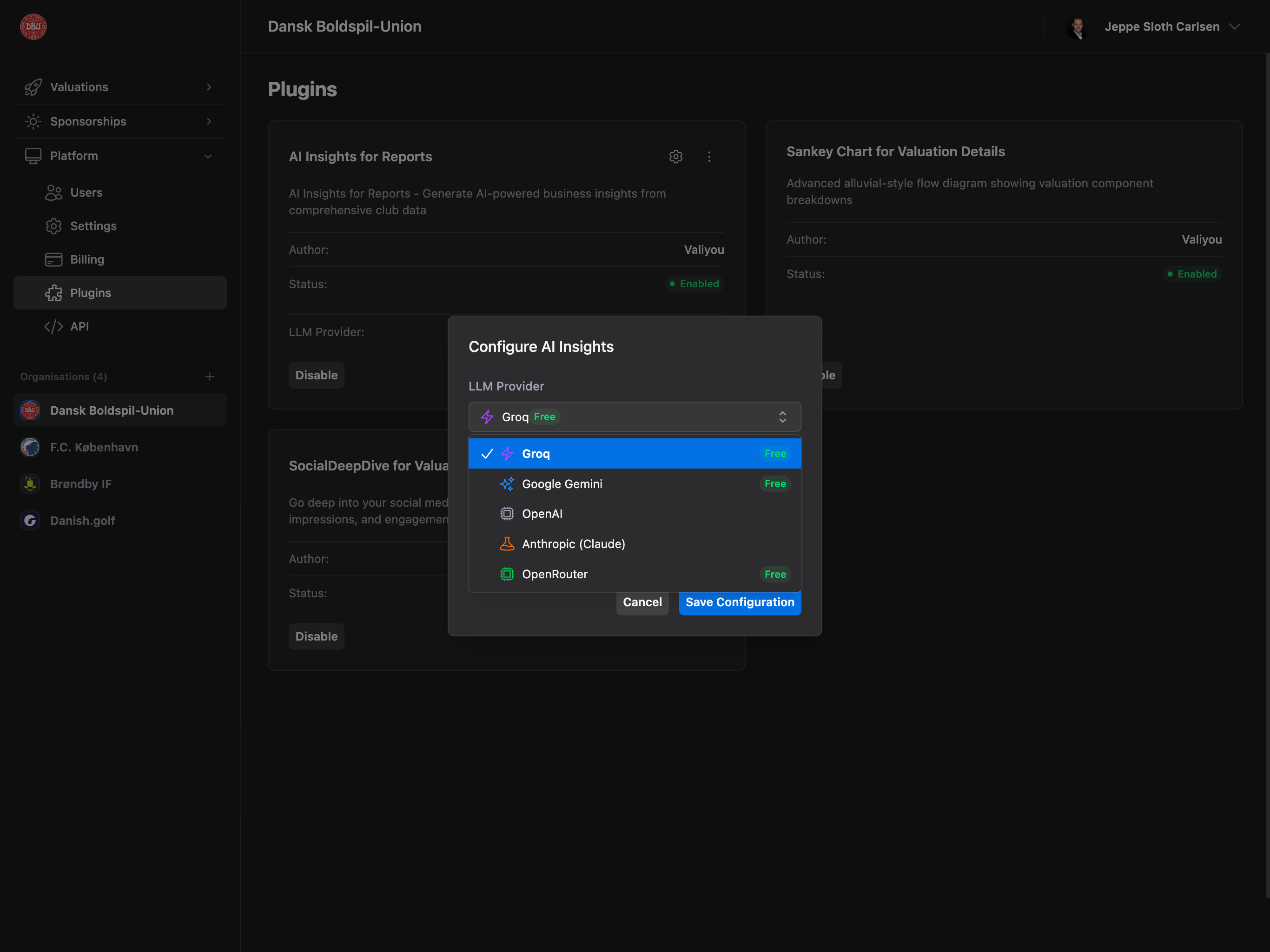
1. Click **gear icon** (⚙️) in plugin card header
2. Configuration modal opens
AI Insights adds AI-generated analysis and recommendations to multi-valuation comparison reports using Large Language Models (LLMs).
## Overview
**Plan Required**: Professional or Enterprise plan
**Permission Required**: Reports permission + Plugins permission
**What it does**: Adds AI-generated insights and analysis to multi-valuation comparison reports using Large Language Models (LLMs).
**Where it appears**: Reports page → Compare multiple valuations → AI Insights section (after enabling plugin)
**Author**: Valiyou
## Supported LLM Providers
### Free Providers
**Best for**: Speed
**Models**:
* llama-3.3-70b-versatile (Recommended)
* mixtral-8x7b-32768
* gemma2-9b-it (Fast)
**Free Tier**: Yes ✅
**Best for**: Balance
**Models**:
* gemini-2.0-flash-exp (Latest)
* gemini-1.5-pro (Recommended)
* gemini-1.5-flash (Fast)
**Free Tier**: Yes ✅
**Best for**: Multi-model access
**Models**:
* Multiple models with free tier
**Free Tier**: Yes ✅
### Paid Providers
**Models**:
* gpt-4o (Recommended)
* gpt-4o-mini (Fast)
* gpt-4-turbo
**Pricing**: Pay per token
**Models**:
* claude-3-5-sonnet-20241022 (Recommended)
* claude-3-5-haiku-20241022 (Fast)
* claude-3-opus-20240229 (Powerful)
**Pricing**: Pay per token
**Start Free**: All AI Insights providers offer free tiers or trials. Try Groq or Google Gemini first to test AI Insights without cost.
## Configuration
### Step 1: Enable Plugin
1. Navigate to **Platform** → **Plugins**
2. Find "AI Insights for Reports" card
3. Click **"Enable"** button
4. Wait for status to change to "Enabled"
### Step 2: Get API Key
Before configuring, you need an API key from your chosen LLM provider.
**How to get an API Key**:
1. **Log in** to the LLM provider:
* **OpenAI**: [https://platform.openai.com/](https://platform.openai.com/)
* **Anthropic**: [https://console.anthropic.com/](https://console.anthropic.com/)
* **Groq**: [https://console.groq.com/keys](https://console.groq.com/keys)
* **Google Gemini**: [https://aistudio.google.com/](https://aistudio.google.com/)
* **OpenRouter**: [https://openrouter.ai/](https://openrouter.ai/)
2. **Navigate** to "API Keys" in the menu
3. **Click** "Create Key" or "Create API Key"
4. **Copy** the key (it's only shown once!)
**Save Your Key**: API keys are only shown once. Copy and save it immediately. If you lose it, you'll need to create a new one.
### Step 3: Configure Provider
1. Click **gear icon** (⚙️) in plugin card header
2. Configuration modal opens
 **Configuration Modal Fields**:
1. **LLM Provider** (dropdown with icons):
* Groq (purple bolt icon, "Free" badge)
* Google Gemini (blue sparkle icon, "Free" badge)
* OpenAI (gray chip icon)
* Anthropic/Claude (orange beaker icon)
* OpenRouter (green chip icon, "Free" badge)
2. **Model** (provider-specific models with badges):
* Badges: Free, Recommended, Latest, Fast, Powerful
* Each provider has 3-5 models to choose from
3. **API Key** (SecretInput with view/hide/copy):
* Paste your API key from Step 2
* Changes placeholder based on provider
* Examples: `sk-...`, `sk-ant-...`, `gsk_...`, `AIza...`, `sk-or-...`
4. Click **"Save Configuration"**
**API Key Required**: You must enter a valid API key before saving. Warning shown if missing: "Please enter a valid \[Provider] API key before saving."
**Example Configuration**:
```
LLM Provider: Groq (Free badge)
Model: Llama 3.3 70B Versatile (Recommended badge)
Groq API Key: gsk_••••••••••••••••••••••••
```
### Detailed API Key Instructions
Need more detailed instructions? Expand your provider below for step-by-step guidance:
1. Visit [Groq Console](https://console.groq.com)
2. Sign up or log in
3. Navigate to **API Keys**
4. Click **"Create API Key"**
5. Copy key (starts with `gsk_...`)
6. Paste into Valiyou configuration
1. Visit [Google AI Studio](https://aistudio.google.com)
2. Sign in with Google account
3. Click **"Get API Key"**
4. Create new project or select existing
5. Copy key (starts with `AIza...`)
6. Paste into Valiyou configuration
1. Visit [OpenAI Platform](https://platform.openai.com)
2. Sign up or log in
3. Navigate to **API Keys**
4. Click **"Create new secret key"**
5. Copy key (starts with `sk-...`)
6. Paste into Valiyou configuration
**Note**: Requires payment method on file
1. Visit [Anthropic Console](https://console.anthropic.com)
2. Sign up or log in
3. Navigate to **API Keys**
4. Click **"Create Key"**
5. Copy key (starts with `sk-ant-...`)
6. Paste into Valiyou configuration
**Note**: Requires payment method on file
1. Visit [OpenRouter](https://openrouter.ai)
2. Sign up or log in
3. Navigate to **Keys**
4. Click **"Create Key"**
5. Copy key (starts with `sk-or-...`)
6. Paste into Valiyou configuration
## Using AI Insights
### Step 1: Navigate to Reports
Go to **Valuations** → **Reports**
### Step 2: Select Multiple Valuations
**Configuration Modal Fields**:
1. **LLM Provider** (dropdown with icons):
* Groq (purple bolt icon, "Free" badge)
* Google Gemini (blue sparkle icon, "Free" badge)
* OpenAI (gray chip icon)
* Anthropic/Claude (orange beaker icon)
* OpenRouter (green chip icon, "Free" badge)
2. **Model** (provider-specific models with badges):
* Badges: Free, Recommended, Latest, Fast, Powerful
* Each provider has 3-5 models to choose from
3. **API Key** (SecretInput with view/hide/copy):
* Paste your API key from Step 2
* Changes placeholder based on provider
* Examples: `sk-...`, `sk-ant-...`, `gsk_...`, `AIza...`, `sk-or-...`
4. Click **"Save Configuration"**
**API Key Required**: You must enter a valid API key before saving. Warning shown if missing: "Please enter a valid \[Provider] API key before saving."
**Example Configuration**:
```
LLM Provider: Groq (Free badge)
Model: Llama 3.3 70B Versatile (Recommended badge)
Groq API Key: gsk_••••••••••••••••••••••••
```
### Detailed API Key Instructions
Need more detailed instructions? Expand your provider below for step-by-step guidance:
1. Visit [Groq Console](https://console.groq.com)
2. Sign up or log in
3. Navigate to **API Keys**
4. Click **"Create API Key"**
5. Copy key (starts with `gsk_...`)
6. Paste into Valiyou configuration
1. Visit [Google AI Studio](https://aistudio.google.com)
2. Sign in with Google account
3. Click **"Get API Key"**
4. Create new project or select existing
5. Copy key (starts with `AIza...`)
6. Paste into Valiyou configuration
1. Visit [OpenAI Platform](https://platform.openai.com)
2. Sign up or log in
3. Navigate to **API Keys**
4. Click **"Create new secret key"**
5. Copy key (starts with `sk-...`)
6. Paste into Valiyou configuration
**Note**: Requires payment method on file
1. Visit [Anthropic Console](https://console.anthropic.com)
2. Sign up or log in
3. Navigate to **API Keys**
4. Click **"Create Key"**
5. Copy key (starts with `sk-ant-...`)
6. Paste into Valiyou configuration
**Note**: Requires payment method on file
1. Visit [OpenRouter](https://openrouter.ai)
2. Sign up or log in
3. Navigate to **Keys**
4. Click **"Create Key"**
5. Copy key (starts with `sk-or-...`)
6. Paste into Valiyou configuration
## Using AI Insights
### Step 1: Navigate to Reports
Go to **Valuations** → **Reports**
### Step 2: Select Multiple Valuations
 * Select **2 or more valuations** from the dropdown
* AI Insights requires at least 2 valuations for comparison
### Step 3: View AI Insights
* Select **2 or more valuations** from the dropdown
* AI Insights requires at least 2 valuations for comparison
### Step 3: View AI Insights
 The AI Insights section appears below the comparison charts with:
* **Key Insights** - Main observations and trends
* **Recommendations** - Actionable suggestions
* **Pattern Analysis** - Data patterns and correlations
* **Natural Language Explanations** - Easy-to-understand summaries
## What AI Insights Analyzes
The AI receives comprehensive data from all selected valuations:
### Financial Metrics
* Total valuation amounts
* Sales revenue (transfers, merchandise, tickets)
* Growth rates and trends
* Revenue mix analysis
### Media Metrics
* Media impressions (print, digital, social, broadcast)
* Media value calculations
* Platform-specific performance
* Engagement rates
### Brand Metrics
* Brand exposure value
* Sponsorship coverage
* Marketing effectiveness
* Brand visibility trends
### Comparative Analysis
* Year-over-year changes
* Performance benchmarks
* Trend identification
* Anomaly detection
## Benefits
Get instant insights without manual data analysis
Identify patterns and trends across valuations
Receive actionable suggestions for improvement
Understand complex data through clear explanations
## Model Selection Guide
### Groq (Free - Recommended for Speed)
**Best for**: Fast analysis with good quality
| Model | Speed | Quality | Cost |
| ----------------------- | -------------- | --------- | ------- |
| llama-3.3-70b-versatile | ⚡⚡⚡ Fast | ⭐⭐⭐⭐ High | 🆓 Free |
| mixtral-8x7b-32768 | ⚡⚡ Medium | ⭐⭐⭐ Good | 🆓 Free |
| gemma2-9b-it | ⚡⚡⚡⚡ Very Fast | ⭐⭐ Fair | 🆓 Free |
**Recommendation**: Use `llama-3.3-70b-versatile` for best balance
### Google Gemini (Free - Recommended for Balance)
**Best for**: Balanced speed and quality
| Model | Speed | Quality | Cost |
| -------------------- | -------------- | --------------- | ------- |
| gemini-2.0-flash-exp | ⚡⚡⚡ Fast | ⭐⭐⭐⭐⭐ Excellent | 🆓 Free |
| gemini-1.5-pro | ⚡⚡ Medium | ⭐⭐⭐⭐ High | 🆓 Free |
| gemini-1.5-flash | ⚡⚡⚡⚡ Very Fast | ⭐⭐⭐ Good | 🆓 Free |
**Recommendation**: Use `gemini-1.5-pro` for best results
### OpenAI (Paid - Highest Quality)
**Best for**: Maximum quality and reliability
| Model | Speed | Quality | Cost |
| ----------- | --------- | --------------- | ----------- |
| gpt-4o | ⚡⚡ Medium | ⭐⭐⭐⭐⭐ Excellent | 💰 \$\$\$ |
| gpt-4o-mini | ⚡⚡⚡ Fast | ⭐⭐⭐⭐ High | 💰 \$ |
| gpt-4-turbo | ⚡⚡ Medium | ⭐⭐⭐⭐⭐ Excellent | 💰 \$\$\$\$ |
**Recommendation**: Use `gpt-4o` for production reports
### Anthropic/Claude (Paid - Best Reasoning)
**Best for**: Complex analysis and reasoning
| Model | Speed | Quality | Cost |
| ----------------- | -------------- | --------------- | ----------- |
| claude-3-5-sonnet | ⚡⚡ Medium | ⭐⭐⭐⭐⭐ Excellent | 💰 \$\$\$ |
| claude-3-5-haiku | ⚡⚡⚡⚡ Very Fast | ⭐⭐⭐ Good | 💰 \$ |
| claude-3-opus | ⚡ Slow | ⭐⭐⭐⭐⭐ Excellent | 💰 \$\$\$\$ |
**Recommendation**: Use `claude-3-5-sonnet` for detailed analysis
## Troubleshooting
### AI Insights Not Appearing
**Check**:
* ✅ Plugin enabled (green "Enabled" badge)
* ✅ Reports permission granted
* ✅ Professional/Enterprise plan active
* ✅ Multiple valuations selected (2+ required)
* ✅ API key configured correctly
**Fix**:
1. Enable AI Insights plugin
2. Request Reports permission from admin
3. Upgrade plan if needed
4. Select at least 2 valuations
5. Reconfigure API key
### "Invalid API Key" Error
**Causes**:
* API key expired or revoked
* Wrong provider selected
* Copy/paste error (extra spaces)
* API key from wrong provider
**Fix**:
1. Verify provider selection matches your API key
2. Check for extra spaces when pasting
3. Generate new API key from provider
4. Ensure API key starts with correct prefix:
* Groq: `gsk_...`
* Gemini: `AIza...`
* OpenAI: `sk-...`
* Anthropic: `sk-ant-...`
* OpenRouter: `sk-or-...`
### Plugin Shows "Unhealthy"
**Causes**:
* API key invalid or expired
* Rate limit exceeded
* Provider service unavailable
* Insufficient credits (paid providers)
**Fix**:
1. Check API key validity in provider dashboard
2. Wait for rate limit reset (usually hourly)
3. Check provider status page
4. Add credits to account (paid providers)
5. Try different provider temporarily
### Slow Analysis
**Causes**:
* Large number of valuations selected
* Slow model selected (e.g., claude-3-opus)
* Provider experiencing high load
**Fix**:
1. Select fewer valuations (2-5 optimal)
2. Switch to faster model:
* Groq: gemma2-9b-it
* Gemini: gemini-1.5-flash
* OpenAI: gpt-4o-mini
* Claude: claude-3-5-haiku
3. Try again during off-peak hours
## Best Practices
### 1. Start with Free Providers
Test AI Insights with Groq or Google Gemini before committing to paid providers:
* Zero cost to experiment
* Good quality results
* Fast response times
* Easy to switch later
### 2. Compare 3-5 Valuations
Optimal number for meaningful insights:
* 2 valuations: Basic comparison
* 3-5 valuations: Trend analysis (recommended)
* 6+ valuations: May slow analysis
### 3. Use Consistent Date Ranges
For best trend analysis:
* Select valuations from similar time periods
* Compare same season/quarter when possible
* Avoid mixing different valuation types
### 4. Review and Interpret
AI insights are suggestions, not directives:
* ✅ Use as starting point for analysis
* ✅ Verify insights against actual data
* ✅ Apply domain knowledge and context
* ❌ Don't blindly follow all recommendations
### 5. Monitor API Usage
Track your API usage to avoid surprises:
* Check provider dashboard regularly
* Set up usage alerts if available
* Consider upgrading to paid tier for high usage
* Switch to free provider if budget constrained
## FAQ
**For beginners**: Start with **Groq** (free, fast, good quality)
**For best results**: Use **Google Gemini 1.5 Pro** (free, excellent quality)
**For production**: Use **OpenAI GPT-4o** or **Claude 3.5 Sonnet** (paid, highest quality)
Yes, valuation data is sent to the LLM provider's API for analysis. All major providers (Groq, OpenAI, Anthropic, Google) have strict data privacy policies and do not train models on API data.
**Security measures**:
* Data encrypted in transit (HTTPS)
* Providers do not store or train on API data
* No data retention beyond analysis
* SOC 2 Type II certified providers
Yes! You can change providers at any time:
1. Open plugin configuration
2. Select new provider
3. Enter new API key
4. Save configuration
Previous insights remain unchanged, but new analyses will use the new provider.
**Free Options**:
* Groq: Free tier available
* Google Gemini: Free tier available
* OpenRouter: Free tier available
**Paid Options**:
* OpenAI: \~\$0.01-0.05 per analysis (GPT-4o)
* Anthropic: \~\$0.01-0.03 per analysis (Claude)
Valiyou does not charge extra for AI Insights (Professional/Enterprise plan required).
You can configure one provider at a time. To use different providers:
1. Reconfigure plugin with new provider
2. Generate insights
3. Switch back to original provider if desired
Tip: Use free providers for testing, paid providers for important reports.
**Free providers**:
* Rate limits apply (e.g., 30 requests/minute)
* Wait for limit reset or upgrade to paid tier
**Paid providers**:
* Soft limits can be increased
* Hard limits require credit top-up
**Solution**: Use multiple providers or wait for limit reset.
## Related Documentation
* [Plugins Overview](/platform/plugins) - All available plugins
* [Reports](/valuations/reports) - Multi-valuation comparison reports
* [Valuation Details](/valuations/valuation-details) - Single valuation analysis
* [Team Management](/platform/team-management) - Manage user permissions
The AI Insights section appears below the comparison charts with:
* **Key Insights** - Main observations and trends
* **Recommendations** - Actionable suggestions
* **Pattern Analysis** - Data patterns and correlations
* **Natural Language Explanations** - Easy-to-understand summaries
## What AI Insights Analyzes
The AI receives comprehensive data from all selected valuations:
### Financial Metrics
* Total valuation amounts
* Sales revenue (transfers, merchandise, tickets)
* Growth rates and trends
* Revenue mix analysis
### Media Metrics
* Media impressions (print, digital, social, broadcast)
* Media value calculations
* Platform-specific performance
* Engagement rates
### Brand Metrics
* Brand exposure value
* Sponsorship coverage
* Marketing effectiveness
* Brand visibility trends
### Comparative Analysis
* Year-over-year changes
* Performance benchmarks
* Trend identification
* Anomaly detection
## Benefits
Get instant insights without manual data analysis
Identify patterns and trends across valuations
Receive actionable suggestions for improvement
Understand complex data through clear explanations
## Model Selection Guide
### Groq (Free - Recommended for Speed)
**Best for**: Fast analysis with good quality
| Model | Speed | Quality | Cost |
| ----------------------- | -------------- | --------- | ------- |
| llama-3.3-70b-versatile | ⚡⚡⚡ Fast | ⭐⭐⭐⭐ High | 🆓 Free |
| mixtral-8x7b-32768 | ⚡⚡ Medium | ⭐⭐⭐ Good | 🆓 Free |
| gemma2-9b-it | ⚡⚡⚡⚡ Very Fast | ⭐⭐ Fair | 🆓 Free |
**Recommendation**: Use `llama-3.3-70b-versatile` for best balance
### Google Gemini (Free - Recommended for Balance)
**Best for**: Balanced speed and quality
| Model | Speed | Quality | Cost |
| -------------------- | -------------- | --------------- | ------- |
| gemini-2.0-flash-exp | ⚡⚡⚡ Fast | ⭐⭐⭐⭐⭐ Excellent | 🆓 Free |
| gemini-1.5-pro | ⚡⚡ Medium | ⭐⭐⭐⭐ High | 🆓 Free |
| gemini-1.5-flash | ⚡⚡⚡⚡ Very Fast | ⭐⭐⭐ Good | 🆓 Free |
**Recommendation**: Use `gemini-1.5-pro` for best results
### OpenAI (Paid - Highest Quality)
**Best for**: Maximum quality and reliability
| Model | Speed | Quality | Cost |
| ----------- | --------- | --------------- | ----------- |
| gpt-4o | ⚡⚡ Medium | ⭐⭐⭐⭐⭐ Excellent | 💰 \$\$\$ |
| gpt-4o-mini | ⚡⚡⚡ Fast | ⭐⭐⭐⭐ High | 💰 \$ |
| gpt-4-turbo | ⚡⚡ Medium | ⭐⭐⭐⭐⭐ Excellent | 💰 \$\$\$\$ |
**Recommendation**: Use `gpt-4o` for production reports
### Anthropic/Claude (Paid - Best Reasoning)
**Best for**: Complex analysis and reasoning
| Model | Speed | Quality | Cost |
| ----------------- | -------------- | --------------- | ----------- |
| claude-3-5-sonnet | ⚡⚡ Medium | ⭐⭐⭐⭐⭐ Excellent | 💰 \$\$\$ |
| claude-3-5-haiku | ⚡⚡⚡⚡ Very Fast | ⭐⭐⭐ Good | 💰 \$ |
| claude-3-opus | ⚡ Slow | ⭐⭐⭐⭐⭐ Excellent | 💰 \$\$\$\$ |
**Recommendation**: Use `claude-3-5-sonnet` for detailed analysis
## Troubleshooting
### AI Insights Not Appearing
**Check**:
* ✅ Plugin enabled (green "Enabled" badge)
* ✅ Reports permission granted
* ✅ Professional/Enterprise plan active
* ✅ Multiple valuations selected (2+ required)
* ✅ API key configured correctly
**Fix**:
1. Enable AI Insights plugin
2. Request Reports permission from admin
3. Upgrade plan if needed
4. Select at least 2 valuations
5. Reconfigure API key
### "Invalid API Key" Error
**Causes**:
* API key expired or revoked
* Wrong provider selected
* Copy/paste error (extra spaces)
* API key from wrong provider
**Fix**:
1. Verify provider selection matches your API key
2. Check for extra spaces when pasting
3. Generate new API key from provider
4. Ensure API key starts with correct prefix:
* Groq: `gsk_...`
* Gemini: `AIza...`
* OpenAI: `sk-...`
* Anthropic: `sk-ant-...`
* OpenRouter: `sk-or-...`
### Plugin Shows "Unhealthy"
**Causes**:
* API key invalid or expired
* Rate limit exceeded
* Provider service unavailable
* Insufficient credits (paid providers)
**Fix**:
1. Check API key validity in provider dashboard
2. Wait for rate limit reset (usually hourly)
3. Check provider status page
4. Add credits to account (paid providers)
5. Try different provider temporarily
### Slow Analysis
**Causes**:
* Large number of valuations selected
* Slow model selected (e.g., claude-3-opus)
* Provider experiencing high load
**Fix**:
1. Select fewer valuations (2-5 optimal)
2. Switch to faster model:
* Groq: gemma2-9b-it
* Gemini: gemini-1.5-flash
* OpenAI: gpt-4o-mini
* Claude: claude-3-5-haiku
3. Try again during off-peak hours
## Best Practices
### 1. Start with Free Providers
Test AI Insights with Groq or Google Gemini before committing to paid providers:
* Zero cost to experiment
* Good quality results
* Fast response times
* Easy to switch later
### 2. Compare 3-5 Valuations
Optimal number for meaningful insights:
* 2 valuations: Basic comparison
* 3-5 valuations: Trend analysis (recommended)
* 6+ valuations: May slow analysis
### 3. Use Consistent Date Ranges
For best trend analysis:
* Select valuations from similar time periods
* Compare same season/quarter when possible
* Avoid mixing different valuation types
### 4. Review and Interpret
AI insights are suggestions, not directives:
* ✅ Use as starting point for analysis
* ✅ Verify insights against actual data
* ✅ Apply domain knowledge and context
* ❌ Don't blindly follow all recommendations
### 5. Monitor API Usage
Track your API usage to avoid surprises:
* Check provider dashboard regularly
* Set up usage alerts if available
* Consider upgrading to paid tier for high usage
* Switch to free provider if budget constrained
## FAQ
**For beginners**: Start with **Groq** (free, fast, good quality)
**For best results**: Use **Google Gemini 1.5 Pro** (free, excellent quality)
**For production**: Use **OpenAI GPT-4o** or **Claude 3.5 Sonnet** (paid, highest quality)
Yes, valuation data is sent to the LLM provider's API for analysis. All major providers (Groq, OpenAI, Anthropic, Google) have strict data privacy policies and do not train models on API data.
**Security measures**:
* Data encrypted in transit (HTTPS)
* Providers do not store or train on API data
* No data retention beyond analysis
* SOC 2 Type II certified providers
Yes! You can change providers at any time:
1. Open plugin configuration
2. Select new provider
3. Enter new API key
4. Save configuration
Previous insights remain unchanged, but new analyses will use the new provider.
**Free Options**:
* Groq: Free tier available
* Google Gemini: Free tier available
* OpenRouter: Free tier available
**Paid Options**:
* OpenAI: \~\$0.01-0.05 per analysis (GPT-4o)
* Anthropic: \~\$0.01-0.03 per analysis (Claude)
Valiyou does not charge extra for AI Insights (Professional/Enterprise plan required).
You can configure one provider at a time. To use different providers:
1. Reconfigure plugin with new provider
2. Generate insights
3. Switch back to original provider if desired
Tip: Use free providers for testing, paid providers for important reports.
**Free providers**:
* Rate limits apply (e.g., 30 requests/minute)
* Wait for limit reset or upgrade to paid tier
**Paid providers**:
* Soft limits can be increased
* Hard limits require credit top-up
**Solution**: Use multiple providers or wait for limit reset.
## Related Documentation
* [Plugins Overview](/platform/plugins) - All available plugins
* [Reports](/valuations/reports) - Multi-valuation comparison reports
* [Valuation Details](/valuations/valuation-details) - Single valuation analysis
* [Team Management](/platform/team-management) - Manage user permissions