> ## Documentation Index
> Fetch the complete documentation index at: https://docs.valiyou.com/llms.txt
> Use this file to discover all available pages before exploring further.
# Settings - Sponsorships
> Configure custom negotiator labels, contribution margin indicators, and visual cues for package builder. Enterprise settings for profit margin tracking.
# Sponsorship Settings & Negotiator
 **Plan Required**: Enterprise plan only
**The Sponsorships Settings tab allows Enterprise users to configure the Negotiator feature with custom labels, emojis, colors, and visual indicators for contribution margin ratios in the Package Builder.** This powerful customization tool helps sales teams quickly assess sponsorship deal profitability through color-coded coverage percentages and custom visual cues. Configure up to 21 different margin ranges with personalized indicators to match your organization's pricing strategy.
## Negotiator Settings
**Plan Required**: Enterprise plan only
**The Sponsorships Settings tab allows Enterprise users to configure the Negotiator feature with custom labels, emojis, colors, and visual indicators for contribution margin ratios in the Package Builder.** This powerful customization tool helps sales teams quickly assess sponsorship deal profitability through color-coded coverage percentages and custom visual cues. Configure up to 21 different margin ranges with personalized indicators to match your organization's pricing strategy.
## Negotiator Settings
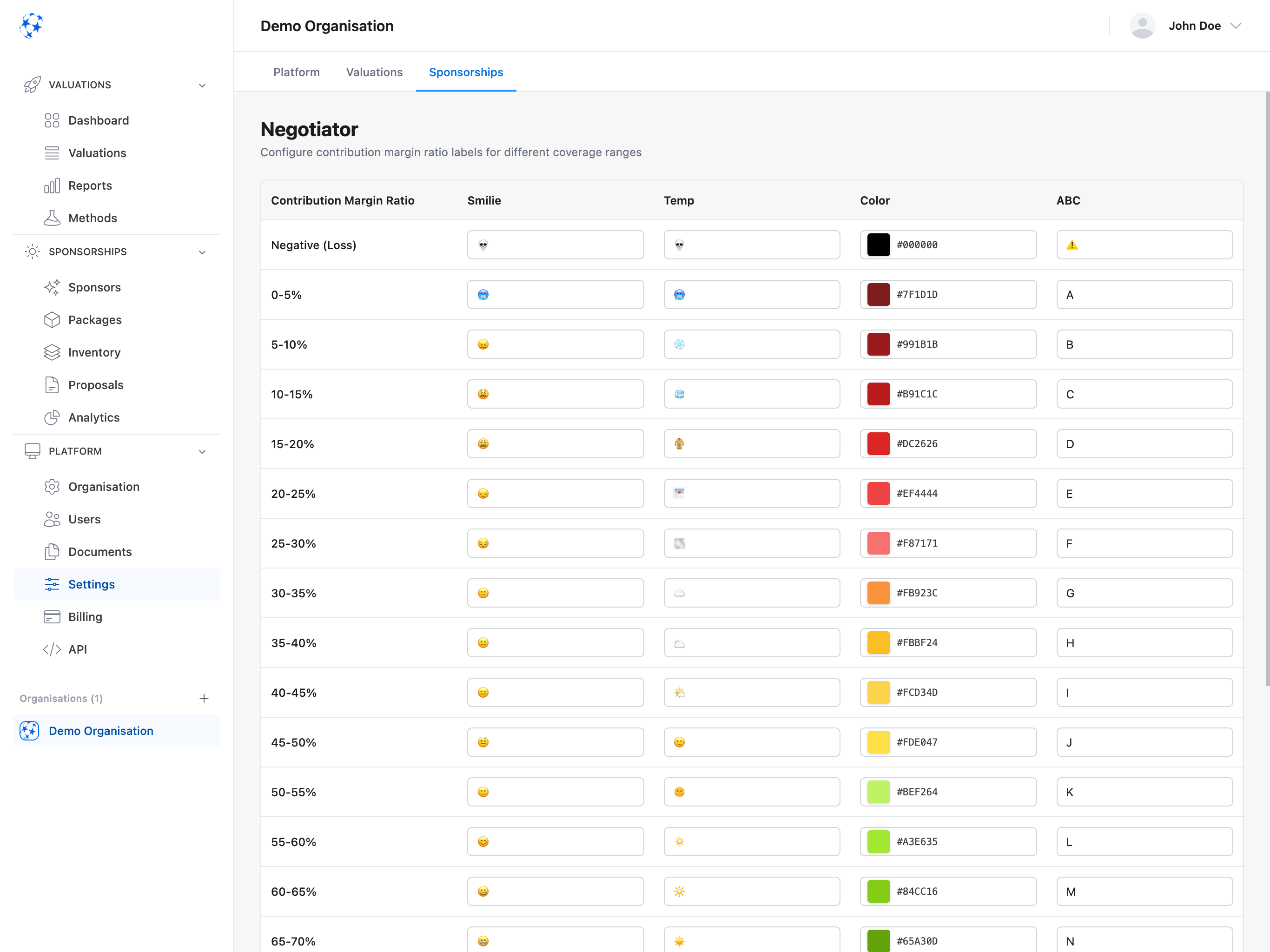
Nagotiator.png?fit=max&auto=format&n=vnpJAix9SRbfvyDB&q=85&s=1a54a18bcfc0a1f3251df17dcdcfd9f7) Configure contribution margin ratio labels, emojis, colors, and temperature indicators for different coverage percentage ranges.
**Purpose**: Define custom visual indicators that appear in Package Builder's negotiator mode to help you quickly assess deal profitability.
### Coverage Ranges
The negotiator uses 21 different coverage ranges from negative (loss) to 95-100% contribution margin:
| Range | Default Label | Purpose |
| ------------------- | ---------------- | -------------------- |
| **Negative (Loss)** | 💀 Black | Deal is losing money |
| **0-5%** | 🥶 Dark Red | Very low margin |
| **5-10%** | 😖 Red | Low margin |
| **10-15%** | 😫 Red | Below target |
| ... | ... | ... |
| **40-45%** | 😑 Yellow | Acceptable |
| **45-50%** | 🤨 Yellow-Green | Good |
| **50-55%** | 🙂 Light Green | Very good |
| ... | ... | ... |
| **85-90%** | 😍 Dark Green | Excellent |
| **90-95%** | 🤯 Darker Green | Outstanding |
| **95-100%** | 🥳 Darkest Green | Perfect |
### Customizable Indicators
For each coverage range, you can customize four types of indicators:
1. **Smilie** (Emoji)
* Visual emotion indicator
* Examples: 😖 (low), 😐 (medium), 😊 (good), 🤩 (excellent)
* Shows deal quality at a glance
2. **Temp** (Temperature)
* Temperature-based indicator
* Examples: 🥶 (cold), ☁️ (neutral), 🌞 (warm), 🔥 (hot)
* Alternative visual metaphor
3. **Color** (Hex Code)
* Background color for indicator
* Gradient from red (bad) → yellow (medium) → green (good)
* Examples: `#DC2626` (red), `#FBBF24` (yellow), `#84CC16` (green)
4. **ABC** (Free Text)
* Custom text label
* Examples: "A" (best), "B", "C", ..., "T" (worst)
* Letter grading system
### How to Configure
1. Navigate to **Platform** → **Settings** → **Sponsorships** tab
2. Review the table with 21 coverage ranges
3. Edit any of the four columns for each range:
* Click input field to edit
* Enter emoji, hex color, or text
4. Click **"Save Negotiator Settings"** button
5. Click **"Reset to Defaults"** to restore original values
**Color Picker**: Click the color input to open a visual color picker. You can also paste hex
codes directly (e.g., `#FF0000` for red).
## Display Modes
The negotiator can display indicators in four different modes (configured per user in Package Builder):
1. **Emoji Mode** - Shows smilie column (😖, 😐, 😊, 🤩)
2. **Temperature Mode** - Shows temp column (🥶, ☁️, 🌞, 🔥)
3. **Color Mode** - Shows color background only
4. **Free Text Mode** - Shows ABC column (A, B, C, D, ...)
**Per-User Setting**: Each user chooses their preferred display mode in Package Builder. The
settings here define what appears in each mode.
## Where Negotiator Is Used
**Package Builder Negotiator Mode**:
* Special view mode that hides unit costs
* Shows contribution margin coverage percentages
* Displays visual indicators based on your settings
* Helps assess deal profitability quickly
* Useful for proposal-based pricing strategies
**Floating Indicator**:
* Real-time indicator shown while building packages
* Updates as you adjust items and pricing
* Uses your configured labels and colors
* Appears in bottom corner of Package Builder
## Permission Requirements
**Plan & Permission Required**: - Enterprise plan subscription (Sponsorship Packages feature) -
"Settings" permission to access and edit If you don't see the Sponsorships tab, upgrade your plan
or contact your admin.
## Common Use Cases
### Initial Setup for Sales Team
**Scenario**: Configure negotiator for your sales team's preferences
1. Navigate to **Platform** → **Settings** → **Sponsorships** tab
2. Review default ranges
3. Customize labels to match your organization's language
4. Adjust color gradient if needed (e.g., more orange for medium ranges)
5. Set ABC labels (A for best deals, T for worst)
6. Click "Save Negotiator Settings"
7. Test in Package Builder to verify appearance
### Adjusting for Different Pricing Strategy
**Scenario**: Your target margin is 60% instead of 50%
1. Open **Settings** → **Sponsorships** tab
2. Adjust emoji/color ranges:
* Move "good" indicators (😊, 🙂) to 60-70% range
* Keep "excellent" (🤩, 😍) for 70%+ range
3. Adjust color gradient accordingly
4. Click "Save Negotiator Settings"
5. Inform team about new target thresholds
### Using Temperature Theme Instead of Emojis
**Scenario**: Team prefers temperature metaphor
1. Open **Settings** → **Sponsorships** tab
2. Focus on **Temp** column
3. Customize temperature emojis for each range
4. Ensure gradient from cold (❄️, 🥶) to hot (🔥, 🥵)
5. Click "Save Negotiator Settings"
6. In Package Builder, users switch display mode to "Temperature"
### Reset to Defaults After Experiment
1. Open **Settings** → **Sponsorships** tab
2. Click **"Reset to Defaults"** button
3. Confirmation message appears: "Reset to defaults. Click 'Save' to persist changes."
4. Click **"Save Negotiator Settings"** to confirm
5. All indicators return to original values
## Troubleshooting
### Sponsorships Tab Not Visible
**Reasons**:
* On Starter or Professional plan (not included)
* No Settings permission
* Sponsorship Packages feature not enabled
**Fix**:
* Upgrade to Enterprise plan
* Request Settings permission from admin
* Contact support to enable Sponsorship Packages feature
### Changes Not Appearing in Package Builder
**Check**:
* Settings saved successfully (confirmation message)
* Package Builder page refreshed
* Correct display mode selected in Package Builder
**Try**:
* Re-save negotiator settings
* Hard refresh Package Builder page (Cmd+Shift+R / Ctrl+Shift+R)
* Clear browser cache
* Verify display mode matches edited column (e.g., emoji mode for smilie edits)
### Color Not Displaying Correctly
**Reasons**:
* Invalid hex code format
* Browser cache showing old colors
* Dark mode affecting color visibility
**Fix**:
* Use proper hex format: `#RRGGBB` (e.g., `#FF0000`)
* Use color picker instead of typing hex code
* Test in both light and dark mode
* Refresh Package Builder after saving
### Reset Button Not Working
**Check**:
* Must click "Save Negotiator Settings" AFTER clicking "Reset to Defaults"
* Reset only prepares changes, save confirms them
**Process**:
1. Click "Reset to Defaults"
2. See confirmation message
3. Click "Save Negotiator Settings"
4. Verify defaults restored
## Best Practices
### Consistent Color Gradient
* Use logical color progression (red → yellow → green)
* Avoid jarring color jumps between adjacent ranges
* Test visibility in both light and dark mode
### Meaningful Labels
* Choose emojis that match your team's culture
* Use consistent metaphor (emotions, temperature, or letters)
* Avoid confusing similar emojis for adjacent ranges
### Target-Based Ranges
* Align "good" range with your organization's target margin
* Mark anything above target as "excellent"
* Keep "acceptable" range clearly defined
### Team Communication
* Inform team about custom ranges and what they mean
* Document target margins and expectations
* Train users on display mode options
## Frequently Asked Questions
The Negotiator is an Enterprise-level feature in the Package Builder that displays visual indicators for contribution margin ratios. It helps sales teams quickly assess sponsorship deal profitability through color-coded coverage percentages, emoji indicators, temperature symbols, or custom labels. The feature hides unit costs while showing margin coverage, making it ideal for proposal-based pricing strategies.
Navigate to Platform → Settings → Sponsorships tab to access the negotiator settings table. You
can customize four types of indicators for each of the 21 coverage ranges: emoji indicators
(smilie), temperature symbols (temp), hex color codes (color), and free text labels (ABC). Simply
click any field to edit it, then click "Save Negotiator Settings" to apply your changes.
Sponsorship settings are exclusive to Enterprise plan subscribers and include the Package Builder
Negotiator feature, custom contribution margin labels, configurable visual indicators across 21
coverage ranges, four display modes (emoji, temperature, color, free text), and the ability to
reset to default settings. You also need the "Settings" permission to access and modify these
configurations.
Yes, the negotiator supports four different display modes that users can switch between in Package
Builder: Emoji Mode (shows emotion indicators), Temperature Mode (shows temperature symbols),
Color Mode (shows background colors only), and Free Text Mode (shows custom ABC labels). Each user
can choose their preferred mode while the settings you configure determine what appears in each
mode.
Contribution margin coverage percentages represent the profitability of a sponsorship deal,
ranging from negative (loss) to 95-100% (maximum profit). The negotiator divides this range into
21 segments, each with customizable visual indicators. For example, 0-5% might show a red color
and cold emoji indicating very low margin, while 85-90% might display green with a hot emoji for
excellent profitability.
Clicking "Reset to Defaults" restores all 21 coverage ranges to their original factory settings,
including default emojis, temperature symbols, color codes, and ABC labels. However, you must
click "Save Negotiator Settings" after resetting to persist these changes. The reset does not
happen automatically and gives you a chance to review before confirming.
Color-coded indicators provide instant visual feedback on deal profitability using a gradient
system from red (poor margins) through yellow (acceptable) to green (excellent margins). This
allows sales teams to quickly assess whether a sponsorship package meets profit targets without
calculating percentages manually. The color gradient makes it easy to spot underperforming deals
at a glance.
Absolutely. You can customize coverage range indicators to align with your organization's specific
profit targets. For example, if your target margin is 60% instead of 50%, you can move "good"
indicators to the 60-70% range and adjust colors accordingly. This flexibility allows the
negotiator to reflect your unique pricing strategy and margin expectations.
The Sponsorships tab is only visible to Enterprise plan subscribers with the "Settings"
permission. If you're on Starter or Professional plans, you'll need to upgrade to Enterprise.
Additionally, the Sponsorship Packages feature must be enabled for your organization. Contact your
administrator to request the necessary permission or support to upgrade your plan.
Custom ABC labels allow you to create a letter grading system for deal profitability. You can enter any text in the ABC column for each coverage range - typically letters like "A" for best deals down to "T" for worst. When users select Free Text Mode in Package Builder, these labels display instead of emojis or colors, providing a familiar grading metaphor for assessing sponsorship packages.
## Next Steps
Create sponsorship bundles using negotiator mode
Learn how to use negotiator mode in Package Builder
Configure items and pricing for packages
Assign sponsors to tiers for proper item availability
Configure contribution margin ratio labels, emojis, colors, and temperature indicators for different coverage percentage ranges.
**Purpose**: Define custom visual indicators that appear in Package Builder's negotiator mode to help you quickly assess deal profitability.
### Coverage Ranges
The negotiator uses 21 different coverage ranges from negative (loss) to 95-100% contribution margin:
| Range | Default Label | Purpose |
| ------------------- | ---------------- | -------------------- |
| **Negative (Loss)** | 💀 Black | Deal is losing money |
| **0-5%** | 🥶 Dark Red | Very low margin |
| **5-10%** | 😖 Red | Low margin |
| **10-15%** | 😫 Red | Below target |
| ... | ... | ... |
| **40-45%** | 😑 Yellow | Acceptable |
| **45-50%** | 🤨 Yellow-Green | Good |
| **50-55%** | 🙂 Light Green | Very good |
| ... | ... | ... |
| **85-90%** | 😍 Dark Green | Excellent |
| **90-95%** | 🤯 Darker Green | Outstanding |
| **95-100%** | 🥳 Darkest Green | Perfect |
### Customizable Indicators
For each coverage range, you can customize four types of indicators:
1. **Smilie** (Emoji)
* Visual emotion indicator
* Examples: 😖 (low), 😐 (medium), 😊 (good), 🤩 (excellent)
* Shows deal quality at a glance
2. **Temp** (Temperature)
* Temperature-based indicator
* Examples: 🥶 (cold), ☁️ (neutral), 🌞 (warm), 🔥 (hot)
* Alternative visual metaphor
3. **Color** (Hex Code)
* Background color for indicator
* Gradient from red (bad) → yellow (medium) → green (good)
* Examples: `#DC2626` (red), `#FBBF24` (yellow), `#84CC16` (green)
4. **ABC** (Free Text)
* Custom text label
* Examples: "A" (best), "B", "C", ..., "T" (worst)
* Letter grading system
### How to Configure
1. Navigate to **Platform** → **Settings** → **Sponsorships** tab
2. Review the table with 21 coverage ranges
3. Edit any of the four columns for each range:
* Click input field to edit
* Enter emoji, hex color, or text
4. Click **"Save Negotiator Settings"** button
5. Click **"Reset to Defaults"** to restore original values
**Color Picker**: Click the color input to open a visual color picker. You can also paste hex
codes directly (e.g., `#FF0000` for red).
## Display Modes
The negotiator can display indicators in four different modes (configured per user in Package Builder):
1. **Emoji Mode** - Shows smilie column (😖, 😐, 😊, 🤩)
2. **Temperature Mode** - Shows temp column (🥶, ☁️, 🌞, 🔥)
3. **Color Mode** - Shows color background only
4. **Free Text Mode** - Shows ABC column (A, B, C, D, ...)
**Per-User Setting**: Each user chooses their preferred display mode in Package Builder. The
settings here define what appears in each mode.
## Where Negotiator Is Used
**Package Builder Negotiator Mode**:
* Special view mode that hides unit costs
* Shows contribution margin coverage percentages
* Displays visual indicators based on your settings
* Helps assess deal profitability quickly
* Useful for proposal-based pricing strategies
**Floating Indicator**:
* Real-time indicator shown while building packages
* Updates as you adjust items and pricing
* Uses your configured labels and colors
* Appears in bottom corner of Package Builder
## Permission Requirements
**Plan & Permission Required**: - Enterprise plan subscription (Sponsorship Packages feature) -
"Settings" permission to access and edit If you don't see the Sponsorships tab, upgrade your plan
or contact your admin.
## Common Use Cases
### Initial Setup for Sales Team
**Scenario**: Configure negotiator for your sales team's preferences
1. Navigate to **Platform** → **Settings** → **Sponsorships** tab
2. Review default ranges
3. Customize labels to match your organization's language
4. Adjust color gradient if needed (e.g., more orange for medium ranges)
5. Set ABC labels (A for best deals, T for worst)
6. Click "Save Negotiator Settings"
7. Test in Package Builder to verify appearance
### Adjusting for Different Pricing Strategy
**Scenario**: Your target margin is 60% instead of 50%
1. Open **Settings** → **Sponsorships** tab
2. Adjust emoji/color ranges:
* Move "good" indicators (😊, 🙂) to 60-70% range
* Keep "excellent" (🤩, 😍) for 70%+ range
3. Adjust color gradient accordingly
4. Click "Save Negotiator Settings"
5. Inform team about new target thresholds
### Using Temperature Theme Instead of Emojis
**Scenario**: Team prefers temperature metaphor
1. Open **Settings** → **Sponsorships** tab
2. Focus on **Temp** column
3. Customize temperature emojis for each range
4. Ensure gradient from cold (❄️, 🥶) to hot (🔥, 🥵)
5. Click "Save Negotiator Settings"
6. In Package Builder, users switch display mode to "Temperature"
### Reset to Defaults After Experiment
1. Open **Settings** → **Sponsorships** tab
2. Click **"Reset to Defaults"** button
3. Confirmation message appears: "Reset to defaults. Click 'Save' to persist changes."
4. Click **"Save Negotiator Settings"** to confirm
5. All indicators return to original values
## Troubleshooting
### Sponsorships Tab Not Visible
**Reasons**:
* On Starter or Professional plan (not included)
* No Settings permission
* Sponsorship Packages feature not enabled
**Fix**:
* Upgrade to Enterprise plan
* Request Settings permission from admin
* Contact support to enable Sponsorship Packages feature
### Changes Not Appearing in Package Builder
**Check**:
* Settings saved successfully (confirmation message)
* Package Builder page refreshed
* Correct display mode selected in Package Builder
**Try**:
* Re-save negotiator settings
* Hard refresh Package Builder page (Cmd+Shift+R / Ctrl+Shift+R)
* Clear browser cache
* Verify display mode matches edited column (e.g., emoji mode for smilie edits)
### Color Not Displaying Correctly
**Reasons**:
* Invalid hex code format
* Browser cache showing old colors
* Dark mode affecting color visibility
**Fix**:
* Use proper hex format: `#RRGGBB` (e.g., `#FF0000`)
* Use color picker instead of typing hex code
* Test in both light and dark mode
* Refresh Package Builder after saving
### Reset Button Not Working
**Check**:
* Must click "Save Negotiator Settings" AFTER clicking "Reset to Defaults"
* Reset only prepares changes, save confirms them
**Process**:
1. Click "Reset to Defaults"
2. See confirmation message
3. Click "Save Negotiator Settings"
4. Verify defaults restored
## Best Practices
### Consistent Color Gradient
* Use logical color progression (red → yellow → green)
* Avoid jarring color jumps between adjacent ranges
* Test visibility in both light and dark mode
### Meaningful Labels
* Choose emojis that match your team's culture
* Use consistent metaphor (emotions, temperature, or letters)
* Avoid confusing similar emojis for adjacent ranges
### Target-Based Ranges
* Align "good" range with your organization's target margin
* Mark anything above target as "excellent"
* Keep "acceptable" range clearly defined
### Team Communication
* Inform team about custom ranges and what they mean
* Document target margins and expectations
* Train users on display mode options
## Frequently Asked Questions
The Negotiator is an Enterprise-level feature in the Package Builder that displays visual indicators for contribution margin ratios. It helps sales teams quickly assess sponsorship deal profitability through color-coded coverage percentages, emoji indicators, temperature symbols, or custom labels. The feature hides unit costs while showing margin coverage, making it ideal for proposal-based pricing strategies.
Navigate to Platform → Settings → Sponsorships tab to access the negotiator settings table. You
can customize four types of indicators for each of the 21 coverage ranges: emoji indicators
(smilie), temperature symbols (temp), hex color codes (color), and free text labels (ABC). Simply
click any field to edit it, then click "Save Negotiator Settings" to apply your changes.
Sponsorship settings are exclusive to Enterprise plan subscribers and include the Package Builder
Negotiator feature, custom contribution margin labels, configurable visual indicators across 21
coverage ranges, four display modes (emoji, temperature, color, free text), and the ability to
reset to default settings. You also need the "Settings" permission to access and modify these
configurations.
Yes, the negotiator supports four different display modes that users can switch between in Package
Builder: Emoji Mode (shows emotion indicators), Temperature Mode (shows temperature symbols),
Color Mode (shows background colors only), and Free Text Mode (shows custom ABC labels). Each user
can choose their preferred mode while the settings you configure determine what appears in each
mode.
Contribution margin coverage percentages represent the profitability of a sponsorship deal,
ranging from negative (loss) to 95-100% (maximum profit). The negotiator divides this range into
21 segments, each with customizable visual indicators. For example, 0-5% might show a red color
and cold emoji indicating very low margin, while 85-90% might display green with a hot emoji for
excellent profitability.
Clicking "Reset to Defaults" restores all 21 coverage ranges to their original factory settings,
including default emojis, temperature symbols, color codes, and ABC labels. However, you must
click "Save Negotiator Settings" after resetting to persist these changes. The reset does not
happen automatically and gives you a chance to review before confirming.
Color-coded indicators provide instant visual feedback on deal profitability using a gradient
system from red (poor margins) through yellow (acceptable) to green (excellent margins). This
allows sales teams to quickly assess whether a sponsorship package meets profit targets without
calculating percentages manually. The color gradient makes it easy to spot underperforming deals
at a glance.
Absolutely. You can customize coverage range indicators to align with your organization's specific
profit targets. For example, if your target margin is 60% instead of 50%, you can move "good"
indicators to the 60-70% range and adjust colors accordingly. This flexibility allows the
negotiator to reflect your unique pricing strategy and margin expectations.
The Sponsorships tab is only visible to Enterprise plan subscribers with the "Settings"
permission. If you're on Starter or Professional plans, you'll need to upgrade to Enterprise.
Additionally, the Sponsorship Packages feature must be enabled for your organization. Contact your
administrator to request the necessary permission or support to upgrade your plan.
Custom ABC labels allow you to create a letter grading system for deal profitability. You can enter any text in the ABC column for each coverage range - typically letters like "A" for best deals down to "T" for worst. When users select Free Text Mode in Package Builder, these labels display instead of emojis or colors, providing a familiar grading metaphor for assessing sponsorship packages.
## Next Steps
Create sponsorship bundles using negotiator mode
Learn how to use negotiator mode in Package Builder
Configure items and pricing for packages
Assign sponsors to tiers for proper item availability