

Accessing API Management
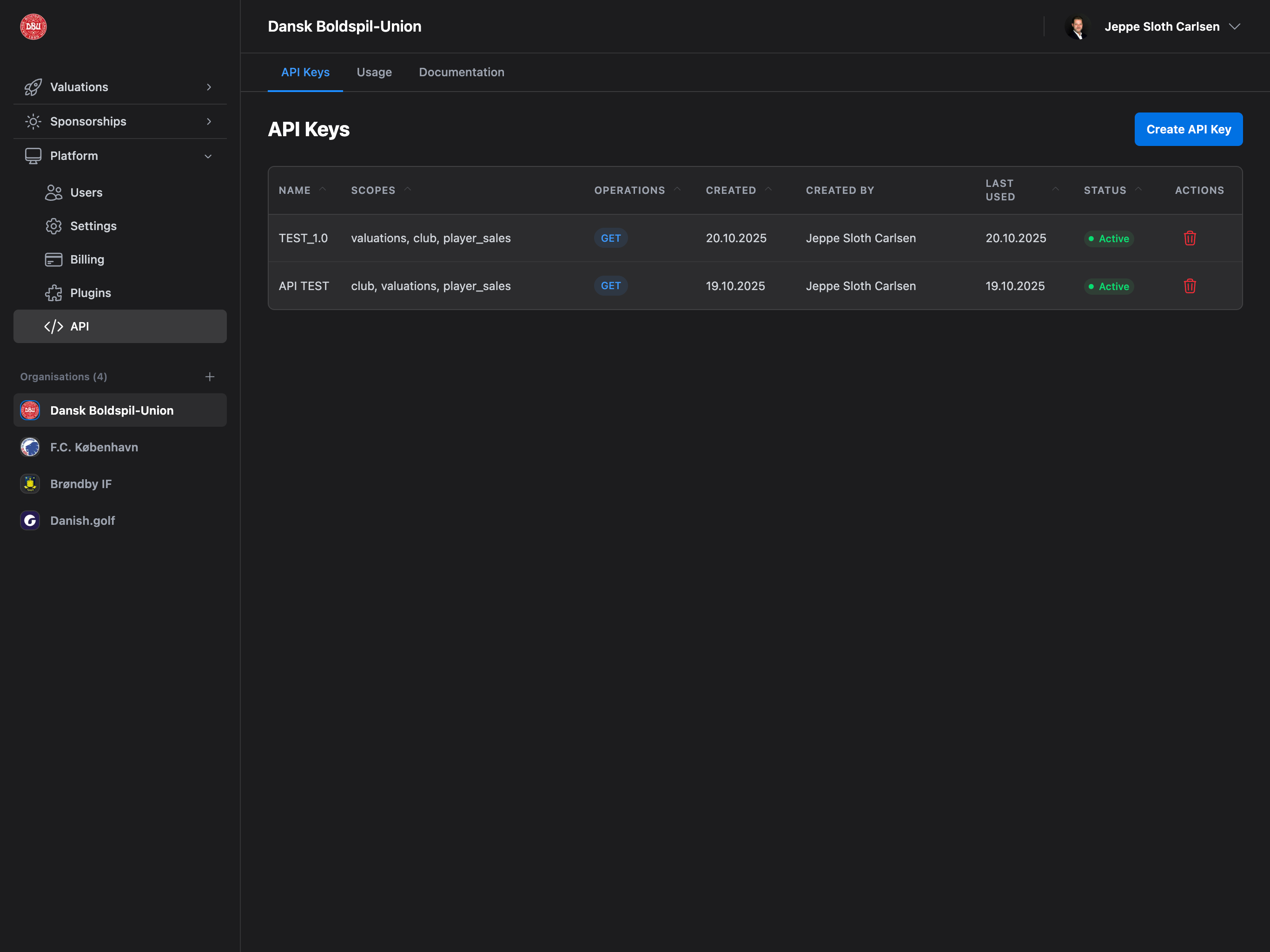
Navigate to Platform → API from the sidebar to manage your API keys.Permission Required: API permission or Admin access required to create and manage API keys.
Page Layout
The API Management page has 3 tabs:API Keys Tab
- View: All API keys with details (name, scopes, operations, status)
- Create: Generate new API keys with custom permissions
- Revoke: Delete API keys to remove access
Usage Tab
- Charts: Visual analytics of API usage over time (30 days)
- Metrics: Total requests, success rate, response time
- Endpoints: Breakdown of requests per endpoint
Documentation Tab
- Integration Guides: Power BI, Excel integration steps
- Authentication: How to use API keys in requests
- Operations: HTTP methods (GET, POST, PUT, DELETE)
- Endpoints: Complete API reference with examples
API Keys Tab
API Keys Table
Comprehensive table showing all active and inactive API keys. Columns:- Name: API key name (descriptive identifier)
- Scopes: Resources the key can access (valuations, player-sales, clubs)
- Operations: HTTP methods allowed (GET, POST, PUT, DELETE) with color chips
- Blue (GET) - Read
- Green (POST) - Create
- Yellow (PUT) - Update
- Red (DELETE) - Delete
- Created: Date key was created
- Created By: User who created the key (name or email)
- Last Used: Last time key was used (or “Never”)
- Status: Active (green) or Inactive (gray) badge
- Actions: Revoke button (red trash icon)
Empty State
When no API keys exist:- Icon: Key icon
- Title: “No API keys yet”
- Message: “Create your first API key to get started”
- Action: Click “Create API Key” button in header
Create API Key
Generate a new API key with custom name, description, scopes, and operations.Opening Create Modal
Triggers:- Click “Create API Key” button (page header, top right)
- Available on all tabs (button always visible)
- If in demo mode, shows “Upgrade Required” modal instead
- Must upgrade to paid plan to create API keys
Create API Key Modal
Modal Structure:- Title: “Create API Key”
- Close button: X (top right)
- Form fields: Name, Description, Scopes, Operations
- Action buttons: Cancel, Create API Key
Form Fields
1. Name (Required):- Label: “Key Name”
- Placeholder: “My Integration Key”
- Validation:
- Required field
- Must be unique (checks against existing keys)
- Max 50 characters
- Label: “Description”
- Placeholder: “What this key will be used for…”
- Helper: “Describe the purpose of this API key”
- Max: 200 characters
- Label: “Scopes”
- Helper: “Select which resources this key can access”
- Options: Checkboxes for each scope
- ☑ Valuations - Access valuation data
- ☑ Player Sales - Access player transfer data
- ☑ Clubs - Access club information
- Validation: At least one scope required
- Label: “Operations”
- Helper: “Select which HTTP operations this key can perform”
- Options: Checkboxes for each operation
- ☑ GET (Read) - Retrieve data
- ☑ POST (Create) - Create new records
- ☑ PUT (Update) - Modify existing records
- ☑ DELETE (Delete) - Remove records
- Validation: At least one operation required
API Key Creation Process
Step 1: Fill Form- Enter unique key name
- Add optional description
- Select scopes (resources)
- Select operations (HTTP methods)
- Click “Create API Key”
- API key is generated and displayed in a modal
- Format:
vly_<random_string>(e.g.,vly_abc123def456...) - Copy Button: Click to copy key to clipboard
- Important Warning: “This is the only time you’ll see this key. Copy it now and store it securely.”
- Store key in password manager or secure storage
- Never commit to version control
- Never share publicly
- Cannot view key again after closing modal
- New key appears in API Keys table
- Status: Active (green badge)
- Last Used: Never (not yet used)
- All selected scopes and operations visible
Security Best Practice: Treat API keys like passwords. If a key is compromised, revoke it immediately and create a new one.
Revoking API Keys
Remove access by deleting an API key.Revoke Process
Step 1: Click Revoke- Find API key in table
- Click red trash icon (Actions column)
- Confirmation modal appears
- Title: “Revoke API Key”
- Message: “Are you sure you want to revoke the API key ‘[Name]’? This action cannot be undone and any applications using this key will immediately lose access.”
- Buttons:
- Revoke (red, destructive)
- Cancel (gray)
- API key deleted from database
- Key removed from table
- All requests using this key will fail with 401 Unauthorized
Usage Tab
Monitor API usage with visual analytics and metrics.Requests Over Time Chart
Line Chart showing API requests for the last 30 days. Features:- X-axis: Date (last 30 days)
- Y-axis: Number of requests
- Line: Blue line with dots for each day
- Hover: Tooltip shows exact request count
- Grid: Cartesian grid for easy reading
- Icon: Chart icon
- Title: “No API usage data yet”
- Message: “Start making API requests to see usage statistics”
Summary Metrics Cards
Three metric cards showing key statistics: 1. Total Requests- Value: Total API requests (last 30 days)
- Change: Percentage increase/decrease from previous period
- Trend: Up (green) or Down (red) indicator
- Value: Percentage of successful requests (200-299 status)
- Format: “98.5%”
- No trend indicator
- Value: Average API response time in milliseconds
- Format: “125ms”
- No trend indicator
Success Rate: A healthy API should have >95% success rate. Lower rates may indicate authentication issues, invalid requests, or rate limiting.
Requests by Endpoint
Breakdown showing which endpoints are most used. For Each Endpoint:- Endpoint: Full endpoint path (e.g.,
/api/v1/valuations) - Request Count: Number of requests
- Success Rate: Percentage successful (green text)
- Progress Bar: Visual representation of usage (width = % of total)
Documentation Tab
Complete API reference with integration guides and endpoint documentation.Integration Guides
Step-by-step guides for popular tools.Power BI Integration
Icon: Yellow chart icon Steps:- Open Power BI Desktop
- Get Data → Web
- Enter API URL with your API key
- Transform data as needed
- Create visualizations
Excel Integration
Icon: Green table icon Steps:- Data → Get Data → From Web
- Enter API URL
- Power Query Editor opens
- Load to worksheet
Authentication
All API requests require authentication with an API key. Method: Query Parameter Format:api_key- Your API key (required)club_id- Your organization ID (required)
HTTP Operations
API keys can be configured with different operation permissions:GET (Read)
- Method: GET
- Chip Color: Blue
- Purpose: Retrieve and read data from your organization
- Use Case: Read-only integrations (Power BI, Excel, analytics)
POST (Create)
- Method: POST
- Chip Color: Green
- Purpose: Create new records in your organization
- Use Case: Automated data entry, imports
PUT (Update)
- Method: PUT
- Chip Color: Yellow
- Purpose: Update existing records in your organization
- Use Case: Data synchronization, corrections
DELETE (Delete)
- Method: DELETE
- Chip Color: Red
- Purpose: Delete records from your organization
- Use Case: Cleanup, data management
Operation Permissions: Each API key can have different operations enabled. For security, only grant operations that are needed.
API Endpoints
Complete reference for all available endpoints.GET /api/v1/clubs
Get club information (name, address, base currency). Parameters:api_key(string, required) - Your API keyclub_id(string, required) - Your club ID
name(string) - Club nameaddress(string) - Full club address (street, postal code, city, country)base_currency(string) - Base currency code (e.g., EUR, USD, DKK)
GET /api/v1/valuations
Get all valuations for your organization. Parameters:api_key(string, required) - Your API keyclub_id(string, required) - Your club IDfrom_date(string, optional) - Filter from date (YYYY-MM-DD)to_date(string, optional) - Filter to date (YYYY-MM-DD)
id(string) - Valuation unique IDclub_id(string) - Club IDvaluation_date(string) - Date of the valuation (YYYY-MM-DD)created_at(string) - Creation timestampmerch_revenue(number) - Merchandise revenuematchday_revenue(number) - Matchday revenueplayer_sales_value(number) - Total player sales valuetv_duration_min(number) - TV exposure duration in minutestv_size_category(string) - TV logo size (S, M, L, XL)tv_cpm(number) - TV cost per thousand impressionstv_viewers(number) - TV viewers countwebtv_views(number) - Web TV viewswebtv_cpm(number) - Web TV CPMpr_reach(number) - PR reachpr_cpm(number) - PR CPMdigital_impressions(number) - Digital impressionsdigital_cpm(number) - Digital CPMsocial_followers(number) - Social media followerssocial_followers_cpm(number) - Social followers CPMsocial_impressions(number) - Social media impressionssocial_impressions_cpm(number) - Social impressions CPMsocial_engagements(number) - Social media engagementssocial_cpm(number) - Social engagements CPMattendance(number) - Match attendanceattendance_cpm(number) - Attendance CPMhospitality_guests(number) - Hospitality guests counthospitality_value_per_guest(number) - Value per hospitality guestbrand_popularity(number) - Brand popularity score (1-10)brand_csr(number) - Brand CSR score (1-10)brand_culture(number) - Brand culture score (1-10)brand_loyalty(number) - Brand loyalty score (1-10)calculated_sales_value(number) - Calculated total sales valuecalculated_media_value(number) - Calculated total media valuequalitative_multiplier(number) - Brand quality multiplierfinal_total_value(number) - Final total attention valuation
GET /api/v1/player-sales
Get all player sales with valuation information. Parameters:api_key(string, required) - Your API keyclub_id(string, required) - Your club IDfrom_date(string, optional) - Filter from date (YYYY-MM-DD)to_date(string, optional) - Filter to date (YYYY-MM-DD)
id(string) - Player sale unique IDvaluation_id(string) - Associated valuation IDvaluation_date(string) - Date of the valuation (YYYY-MM-DD)player_name(string) - Name of the playersale_value(number) - Sale/transfer valuecreated_at(string) - Creation timestampupdated_at(string) - Last update timestamp
Rate Limits
API usage is monitored but not currently rate-limited for paid accounts. Current Status:- ✅ Unlimited Requests: No rate limits for Professional/Enterprise plans
- ⚠️ Fair Use: Excessive usage may be flagged for review
- 📊 Monitoring: All requests are logged for usage analytics
- Potential per-minute or per-hour limits
- Different tiers based on plan
- Will be communicated in advance if implemented
Error Handling
API returns standard HTTP status codes.Success Responses
- 200 OK - Request successful, data returned
- 201 Created - Resource created successfully (POST)
- 204 No Content - Request successful, no data returned (DELETE)
Client Errors (4xx)
- 400 Bad Request - Invalid request format or parameters
- 401 Unauthorized - Invalid or missing API key
- 403 Forbidden - API key doesn’t have required scope/operation
- 404 Not Found - Endpoint or resource doesn’t exist
- 429 Too Many Requests - Rate limit exceeded (if implemented)
Server Errors (5xx)
- 500 Internal Server Error - Unexpected server error
- 503 Service Unavailable - Temporary service disruption
Permissions
Access to API Management requires specific permissions:API Permission: Users with API permission have full access to create, view, and revoke keys. This is equivalent to Admin access for the API Management page.
Common Use Cases
Power BI Integration
- Navigate to Platform → API
- Click “Create API Key”
- Enter name: “Power BI Dashboard”
- Description: “Read-only access for Power BI reports”
- Select scopes: ☑ Valuations, ☑ Player Sales, ☑ Clubs
- Select operations: ☑ GET (Read only)
- Click “Create API Key”
- Copy generated key (e.g.,
vly_abc123...) - Store key securely
- Open Power BI Desktop
- Get Data → Web
- Enter URL:
https://valiyou.com/api/v1/valuations?api_key=vly_abc123&club_id=org_xyz - Transform data in Power Query
- Create visualizations
Excel Integration
- Create API key (same as Power BI steps 1-9)
- Open Excel
- Data → Get Data → From Web
- Enter URL with API key and club ID
- Power Query Editor opens
- Transform data as needed
- Click “Close & Load” to load to worksheet
- Set up automatic refresh (optional)
Data Export for Analysis
- Create API key with GET operation
- Use curl or programming language to fetch data:
- Process JSON data in your analytics tool
- Schedule regular exports with cron job or task scheduler
Automated Data Entry
- Create API key with POST operation
- Select specific scopes (e.g., Valuations)
- Build integration to create valuations automatically:
Troubleshooting
Can’t Access API Page
Reasons:- No API permission
- Not an Admin
- Request API permission from Admin
- Ask owner to grant Admin role
Can’t Create API Key (Demo Mode)
Reasons:- Organization is in demo mode
- Free trial expired
- Upgrade to paid plan: Platform → Billing
- Contact sales for Enterprise plan
401 Unauthorized Errors
Reasons:- API key invalid or typo
- API key revoked
- API key not included in request
- Using wrong club_id
- Verify API key is correct (copy-paste carefully)
- Check if key is still active in API Keys table
- Ensure
api_keyparameter is in URL - Verify
club_idmatches your organization
- Create new API key if current one is revoked
- Double-check URL format and parameters
- Test with curl to isolate integration issues
403 Forbidden Errors
Reasons:- API key doesn’t have required scope
- API key doesn’t have required operation
- Trying to access another organization’s data
- Review key’s scopes in API Keys table
- Review key’s operations in API Keys table
- Verify club_id matches your organization
- Create new API key with required scopes/operations
- Or revoke old key and create replacement with broader permissions
No Data Returned (Empty Array)
Reasons:- No data matches filter criteria
- Date range filter too restrictive
- Organization has no valuations yet
- Remove date filters and try again
- Verify organization has created valuations
- Check if data exists in Valiyou platform
- Adjust date range:
from_dateandto_dateparameters - Create valuations if none exist
- Test with
/api/v1/clubsendpoint to verify connectivity
Usage Statistics Not Showing
Reasons:- No API requests made yet
- Statistics cache not updated (updates every 5 minutes)
- Network error fetching usage data
- Make some API requests first
- Wait 5 minutes for cache to refresh
- Refresh browser page
- Check browser console for errors
Security Best Practices
API Key Management:- ✅ Create separate keys for each integration
- ✅ Use descriptive names (e.g., “Power BI Production”, “Excel Finance”)
- ✅ Grant minimum required scopes and operations
- ✅ Store keys in password managers or environment variables
- ✅ Revoke unused or compromised keys immediately
- ❌ Never commit keys to version control
- ❌ Never share keys via email or chat
- ❌ Never log keys in application logs
- ✅ Always use HTTPS for API requests
- ✅ Implement error handling for failed requests
- ✅ Use retry logic with exponential backoff
- ✅ Monitor API usage regularly
- ❌ Don’t hardcode keys in application code
- ❌ Don’t expose keys in client-side JavaScript
- ❌ Don’t reuse keys across environments (dev/staging/prod)
- Review API keys quarterly
- Remove keys for terminated integrations
- Check “Last Used” column for inactive keys
- Monitor “Usage” tab for unusual activity
Next Steps
Create First Key
Start by creating a read-only key for Power BI or Excel
Test Endpoints
Use curl to test API responses before building integrations
Monitor Usage
Check Usage tab regularly to understand API usage patterns
Explore Documentation
Read complete API reference and integration guides
Build Integrations
Use API keys to automate data flows and reporting
Support: Need help with API integration? Contact support at support@valiyou.com with your use case and we’ll help you get started.