

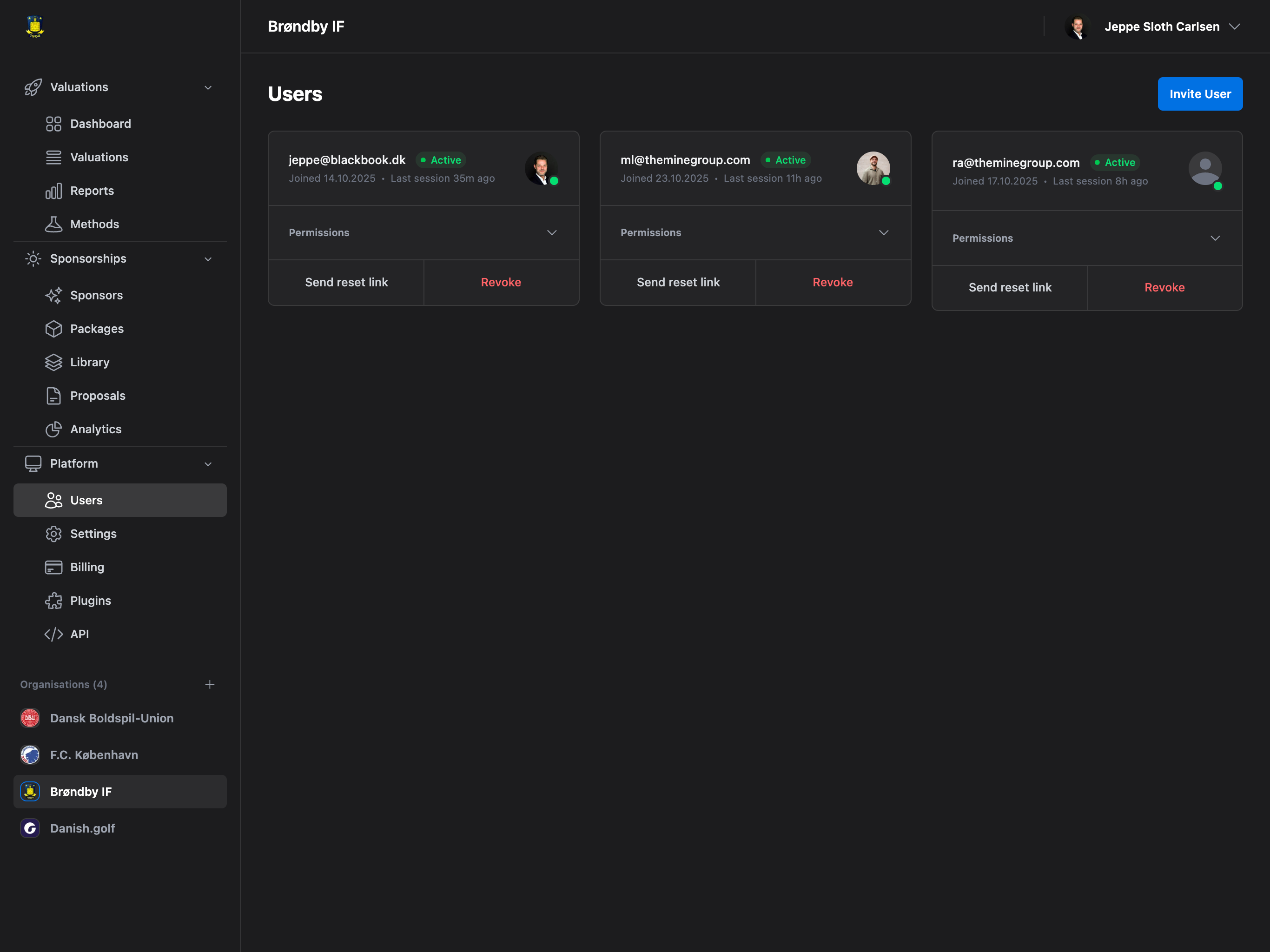
This is a quick start guide for invitations. For comprehensive team management including permission control, removing users, and troubleshooting, see Platform → Team Management.
Sending an Invitation
- Navigate to Platform → Users
- Click “Invite User” button (top right)
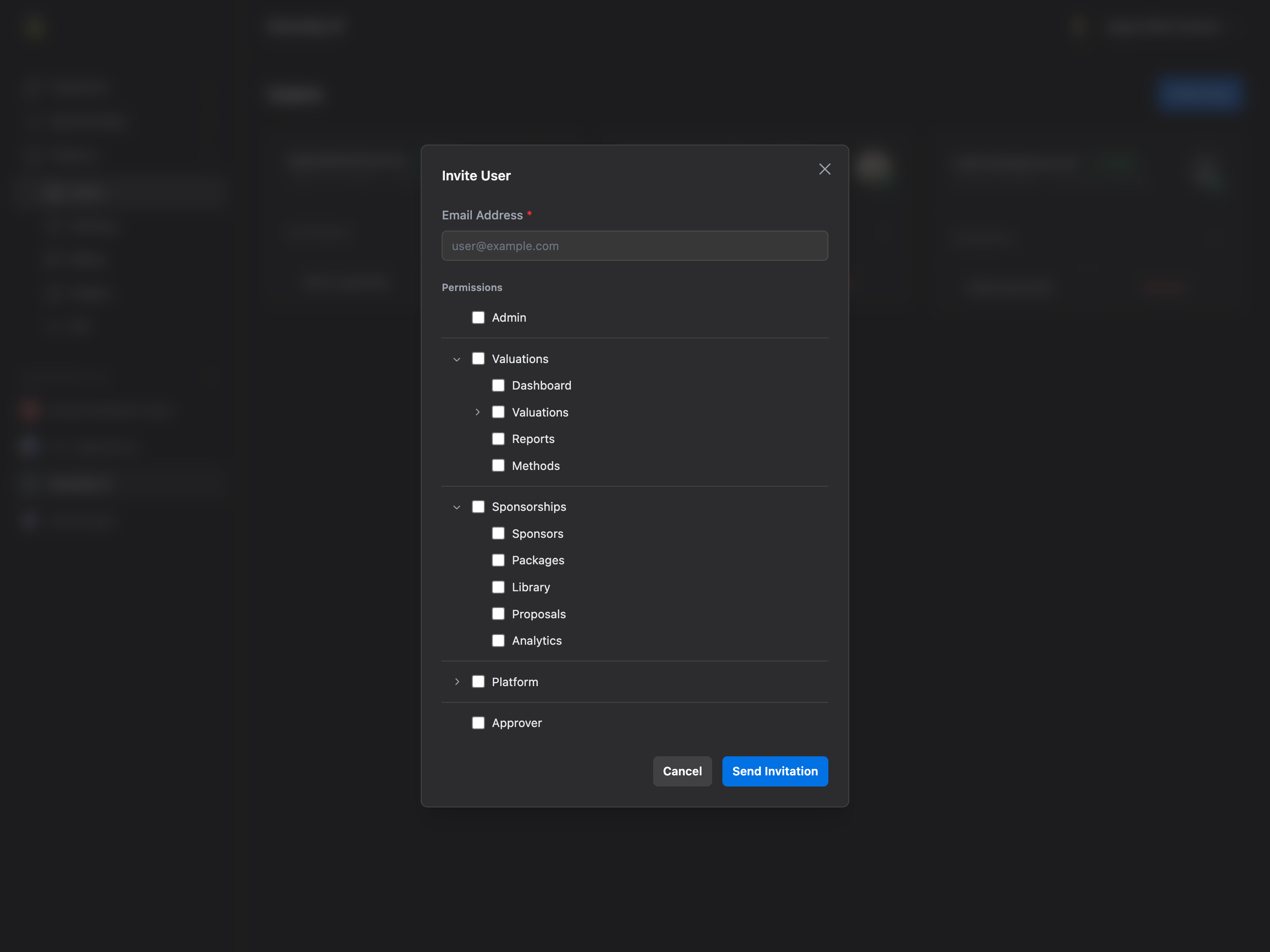
- Enter team member’s email address
- Select roles and permissions in the tree:
- Admin: Full access to everything
- Valuations
- Dashboard: Access valuation dashboard
- Valuations: Create and manage valuations
- Edit Sales Value: Modify sales values
- Edit Transfer Value: Modify transfer values
- Edit Marketing Value: Modify marketing values
- Edit Brand Value: Modify brand values
- Reports: View valuation reports
- Methods: Configure valuation methods
- Sponsorships
- Sponsors: Manage sponsors
- Packages: Create and manage packages
- Inventory: Access item inventory
- Proposals: Send and manage proposals
- Analytics: View sponsorship analytics
- Platform
- Users: Invite and manage team members
- Organisation: Modify organisation settings
- Billing: Access billing and subscription
- Plugins: Manage integrations
- API: Manage API keys
- Approver: Approve valuations (independent role)
- Click “Send Invitation”
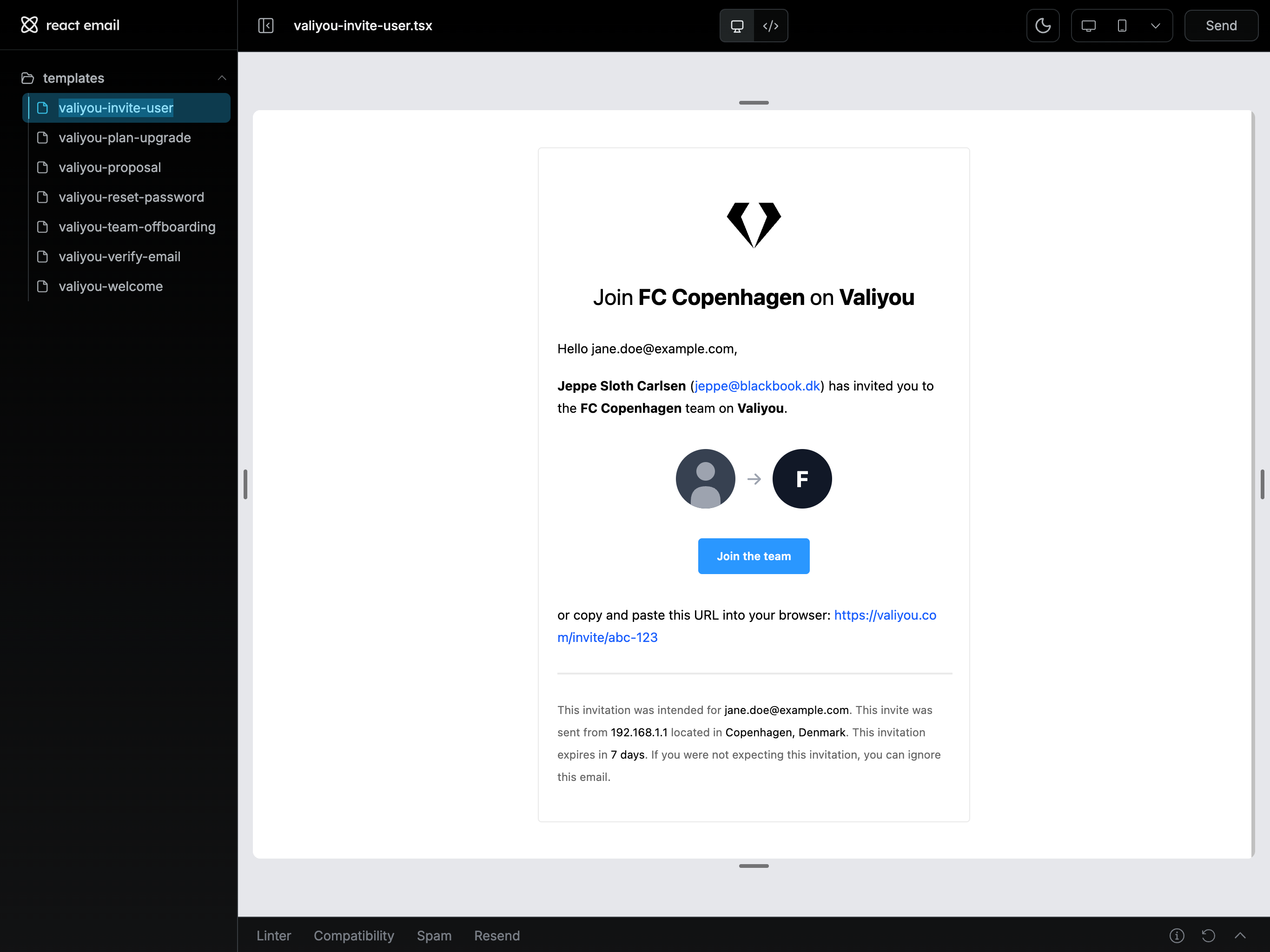
Team Member Receives Invitation
Your team member receives an email containing:- Organization name
- Inviter’s name
- Assigned roles/permissions
- Invitation link
- Expiration date
Accepting the Invitation
Youre_Invited.png?fit=max&auto=format&n=OzC7CqzrePqs6ab1&q=85&s=c666faaf48268cb179a270df22ad7ab7)
If They Have an Account
- Click the invitation link
- Log in with the same email address that received the invitation
- Click “Accept Invitation”
- Automatically redirected to the organization dashboard
If They’re New to Valiyou
- Click the invitation link
- Click “Sign Up”
- Create an account using the invited email address
- Verify their email
- Return to the invitation link
- Click “Accept Invitation”
Create-your-account.png?fit=max&auto=format&n=OzC7CqzrePqs6ab1&q=85&s=d18b51276e0abf5bc2e17980bdf0e501)
Common Issues
Wrong Email Address
If logged in with a different email:- See “Wrong Account” message
- Log out
- Log in with correct email
- Click invitation link again
Wrong-Account.png?fit=max&auto=format&n=OzC7CqzrePqs6ab1&q=85&s=8fb1f3d324e5d23fcacc05d66891fe94)
Invitation Expired
If invitation has expired:- Contact organization admin
- Request new invitation
- Accept promptly
Invitation Already Accepted
Link shows error message - this is a security feature. User should log in normally.Next Steps
Manage Team
Full documentation for team management and permissions
Assign Permissions
Edit roles and permissions after acceptance
Remove Users
Revoke access when team members leave
Seat Limits
Check plan limits and upgrade if needed