

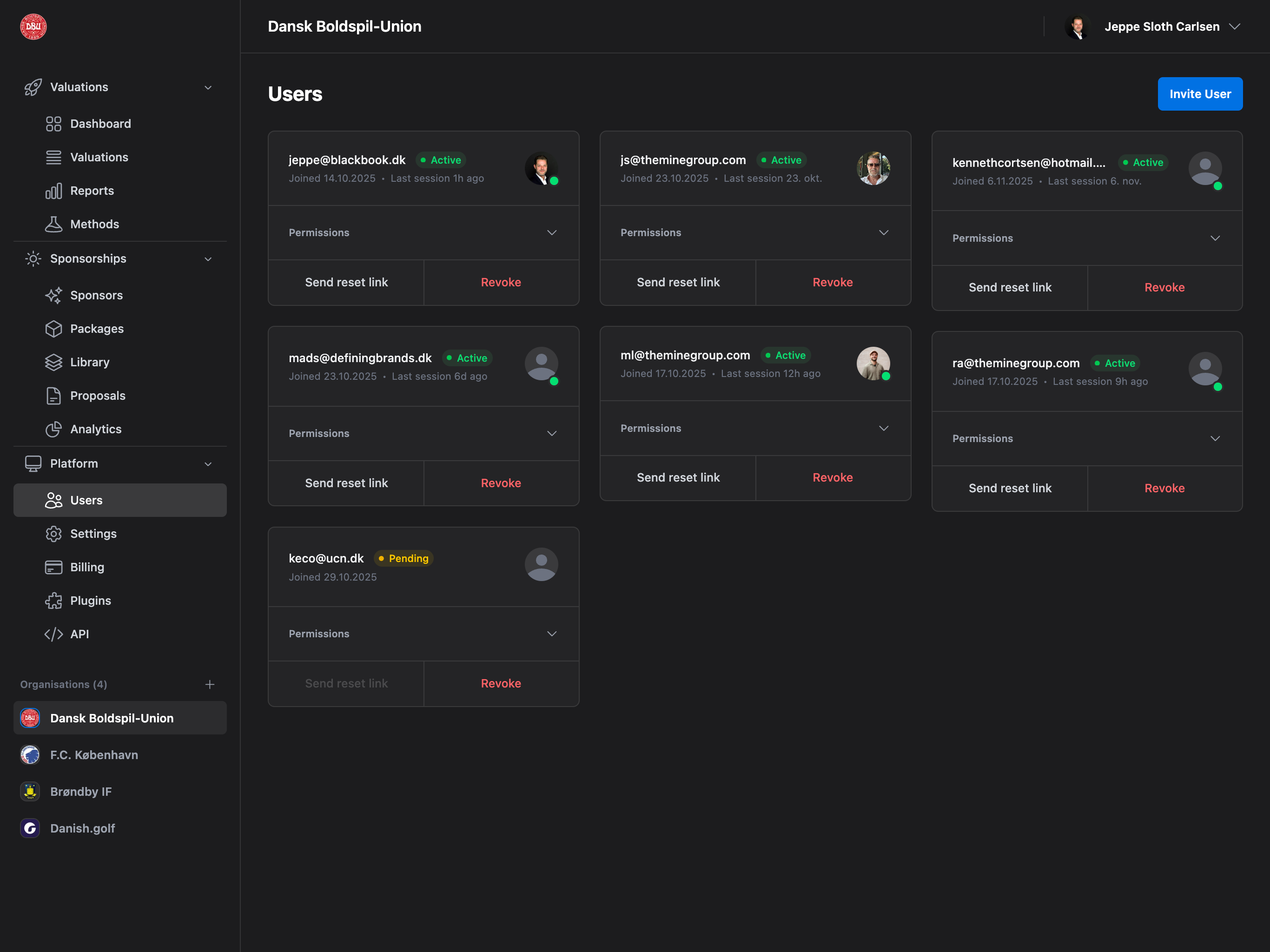
Accessing Team Management
Navigate to Platform → Users from the sidebar to access team management.Permission Required: User Management permission or Admin access required to view and manage team members.
Page Layout
Page Header
- Title: “Users”
- Invite User Button: Top right (primary blue button, rounded)
- Disabled if seat limit reached (shows “Limit reached”)
- Opens Invite User modal
Users Grid
- Masonry grid layout (responsive columns)
- User cards with permissions and actions
- Sorted: Active users first, then by email alphabetically
Empty State
- Icon: Users icon
- Title: “No users yet”
- Message: “Get started by inviting your first user”
- Action: “Invite User” button
User Cards
Masonry grid of user cards with comprehensive user information.Grid Layout
Responsive Columns:- Desktop (>1280px): 3 columns
- Tablet (1024-1280px): 2 columns
- Mobile (<640px): 1 column
Card Structure
Each user card displays:Header Section
User Information (Left):- Email Address: Primary identifier (bold, medium text)
- Status Badge: Active (green) or Pending (yellow) with dot indicator
- Joined Date: “Joined DD/MM/YYYY” format
- Last Session: “Last session X ago” (active users only)
- 40×40px circular avatar
- Shows uploaded profile picture or default user icon
- Admin Indicator: Green dot badge on bottom-right if user has Admin role
Permissions Section
Collapsible Permissions:- Header: “Permissions” label with up/down chevron
- Click to Expand: Shows full permissions tree
- Default: Collapsed (click to expand)
- Full permissions tree with all roles
- Checkboxes for each permission
- Nested structure (Admin → Sub-roles)
- Real-time toggle (optimistic updates)
Admin Auto-Check: Enabling Admin automatically grants all sub-permissions. Disabling Admin only removes the Admin flag, keeping other permissions intact.
Actions Section
Two Action Buttons (bottom of card): Send Reset Link (Left):- Text: “Send reset link”
- Action: Sends password reset email to user
- Disabled: For pending invitations (not yet active)
- Confirmation modal: “Send Password Reset Link”
- Text: “Revoke” (red text)
- Action: Removes user from organization or cancels invitation
- Active Users: “Remove User” confirmation
- Pending Invitations: “Cancel Invitation” confirmation
- Destructive action (requires confirmation)
Invite User
Add new team members to your organization via email invitation.Opening Invite Modal
Triggers:- Click “Invite User” button (page header)
- Click “Invite User” in empty state
- Keyboard shortcut (if configured)
- If limit reached: Shows “Limit Reached” modal instead
- If under limit: Opens Invite User modal
Invite User Modal
Modal Structure:- Title: “Invite User”
- Close button (X, top right)
- Email input field
- Permissions tree selector
- Cancel and Send Invitation buttons
- Label: “Email Address”
- Placeholder: “colleague@company.com”
- Validation: Must be valid email format
- Required field
- Same structure as user card permissions
- Pre-select appropriate roles
- Admin Auto-Select: Checking Admin checks all sub-roles
- Approver: Independent checkbox (not under Admin)
- Cancel: Close without sending
- Send Invitation: Send invitation email (primary blue button)
Invitation Process
Step 1: Submit Invitation:- Enter email address
- Select permissions/roles
- Click “Send Invitation”
- Modal closes on success
- User added to grid with “Pending” status (yellow badge)
- Invitation email sent to recipient
- Card shows pending state (no “Send reset link” button)
- Email contains:
- Organization name
- Inviter’s name
- Assigned roles/permissions
- Invitation link
- Expiration date
- Click invitation link
- Log in or sign up with same email
- Accept invitation
- User status changes to “Active” (green badge)
- Card enables all features
Managing Permissions
Control what team members can access and do in your organization.Permission Roles
Admin:- Full access to everything
- Can manage all users and settings
- Automatically includes all sub-permissions
- Green indicator dot on avatar
- View dashboard overview
- See organization metrics
- Access valuation reports
- View analytics
- Manage sales value in valuations
- View financial data
- Manage player transfers
- Edit transfer values
- Manage marketing value
- Edit media data
- Manage brand indicators
- Edit brand multiplier
- Invite and manage team members
- Assign permissions (except Admin)
- Remove users
- Access billing page
- Manage subscription
- View invoices
- Edit organization settings
- Configure defaults
- Enable/disable plugins
- Configure integrations
- View audit trail
- Export logs
- Create API keys
- Manage API access
- Approve valuations
- Review reports
- Not auto-granted with Admin
Granular Control: Assign only the permissions each team member needs. Follow principle of least privilege for security.
Granting Permissions
Method 1: During Invitation:- Open Invite User modal
- Check desired permissions in tree
- Send invitation
- User receives those permissions on acceptance
- Find user card
- Click “Permissions” to expand
- Check/uncheck permissions
- Changes save automatically (optimistic update)
- Confirmation modal appears for each change
- Title: “Grant Permission” or “Revoke Permission”
- Message: “Grant ‘[Role Name]’ permission to [email]?”
- Buttons: “Grant”/“Revoke” (destructive for revoke) or “Cancel”
Revoking Permissions
Process:- Expand permissions on user card
- Uncheck permission checkbox
- Confirmation modal appears
- Click “Revoke” to confirm
- Permission removed instantly (optimistic update)
- Admin Removal: Removes only Admin flag, keeps other permissions
- All Permissions: Removing all permissions leaves user with no access (valid state)
- Pending Users: Cannot modify permissions (must wait for acceptance)
Permission Hierarchy
Admin Behavior:- Granting Admin: Automatically grants all sub-permissions
- Revoking Admin: Only removes Admin flag, preserves other permissions
- Manual Grant All: If user has all sub-permissions, Admin is auto-granted
- Before: User has [Reports, Sales]
- Action: Check Admin
- After: User has [Admin, Dashboard, Reports, Sales, Transfer, Marketing, Brand, Users, Billing, Settings, Plugins, Log, API]
- Before: User has [Admin, Dashboard, Reports, Sales, … all]
- Action: Uncheck Admin
- After: User has [Dashboard, Reports, Sales, … all except Admin]
- Before: User has [Dashboard, Reports, Sales, Transfer, Marketing, Brand, Users, Billing]
- Action: Check Settings, Plugins, Log, API (now has all)
- After: User automatically gets [Admin, … all]
Removing Users
Remove team members or cancel pending invitations.Removing Active Users
Process:- Find user card
- Click “Revoke” button (red text)
- Confirmation modal appears:
- Title: “Remove User”
- Message: “Remove [email] from organization?”
- Buttons: “Revoke” (red) or “Cancel”
- Click “Revoke” to confirm
- User removed from organization
- Card disappears from grid
- User loses access to organization immediately
- User’s data (valuations, edits) remains intact
- User receives notification email (optional)
- Can be re-invited later
Canceling Pending Invitations
Process:- Find pending user card (yellow “Pending” badge)
- Click “Revoke” button
- Confirmation modal appears:
- Title: “Cancel Invitation”
- Message: “Cancel invitation for [email]?”
- Buttons: “Cancel” (red) or “Cancel” (gray)
- Click red “Cancel” to confirm
- Invitation cancelled
- Card disappears from grid
- Invitation link becomes invalid
- Pending user can no longer accept
- Must send new invitation to re-invite
Sending Password Reset Links
Help team members reset their passwords without admin intervention. Process:- Find user card (must be Active, not Pending)
- Click “Send reset link” button
- Confirmation modal appears:
- Title: “Send Password Reset Link”
- Message: “Send password reset link to [email]?”
- Buttons: “Send” or “Cancel”
- Click “Send” to confirm
- Password reset email sent
- Success notification appears
- Password reset link
- Expiration time (usually 1 hour)
- Instructions
- Click link in email
- Enter new password
- Confirm new password
- Password updated
- Redirected to login
Seat Limits
Organization plans have seat limits for team members.Understanding Seat Limits
Seat Calculation:- Active Users: Count towards limit
- Pending Invitations: Count towards limit
- Owner: Always counts (cannot be removed)
- Starter: 3 seats
- Professional: 10 seats
- Enterprise: Unlimited (or custom limit)
- Shown in Limit Reached modal
- Format: “X / Y seats used”
Limit Reached Modal
Triggered When:- Clicking “Invite User” when at seat limit
- Attempting to invite beyond limit
- Title: “Seat Limit Reached”
- Message: “You’ve reached your plan’s seat limit”
- Current usage: “X / Y seats”
- Upgrade prompt (if applicable)
- Buttons: “Upgrade Plan” or “Close”
- Upgrade Plan: Redirects to billing page (if permission)
- Close: Closes modal
- Remove Users: Free up seats by removing inactive users
Manage Seats: Remove inactive users or pending invitations to free up seats without upgrading.
Permissions
Different permissions control access to team management:Admin Assignment: Only Admins can grant or revoke Admin permission. Users with User Management permission cannot modify Admin status.
Common Use Cases
Onboarding New Team Member
- Navigate to Platform → Users
- Click “Invite User”
- Enter team member’s email
- Select appropriate permissions:
- New analyst: Reports, Dashboard
- Sales manager: Sales, Dashboard, Reports
- Full access: Admin (grants all)
- Click “Send Invitation”
- Inform team member to check email
- Wait for acceptance (card shows “Active” when done)
Promoting User to Admin
- Find user card
- Click “Permissions” to expand
- Check “Admin” checkbox
- Confirmation modal appears
- Click “Grant”
- User now has full access (green dot on avatar)
Demoting Admin to Regular User
- Find admin user card (has green dot)
- Expand permissions
- Uncheck “Admin” checkbox
- Confirmation modal appears
- Click “Revoke”
- User keeps other permissions, loses Admin status
- Green dot disappears from avatar
Removing Inactive User
- Find inactive user card
- Click “Revoke” button
- Confirmation: “Remove [email] from organization?”
- Click red “Revoke” to confirm
- User removed, seat freed up
Troubleshooting Forgotten Password
- User contacts you about forgotten password
- Find their card in Users page
- Click “Send reset link” button
- Confirm sending
- User checks email for reset link
- User resets password via link
Managing Seat Limits
- Check current usage (number of active + pending users)
- If at limit:
- Option 1: Remove inactive/pending users
- Option 2: Purchase additional seats via Platform → Billing
- Option 3: Upgrade plan via Platform → Billing
- Invite new user after freeing seats
Troubleshooting
Can’t Access Users Page
Reasons:- No User Management permission
- Not an Admin
- Request User Management permission from Admin
- Ask owner to grant Admin role
Invite Button Disabled (“Limit reached”)
Reasons:- Seat limit reached
- No billing permission to upgrade
- Remove inactive users or cancel pending invitations
- Purchase additional seats via Platform → Billing
- Upgrade plan via Platform → Billing
- Contact organization owner
Can’t Modify Admin Permission
Reasons:- User has User Management permission (not Admin)
- Cannot grant/revoke Admin without being Admin
- Request Admin permission
- Ask current Admin to make the change
Permission Changes Not Saving
Check:- Network connection stable
- User is Active (not Pending)
- You have permission to edit that role
- Refresh page
- Clear browser cache
- Check browser console for errors
- Try again
User Can’t Accept Invitation
Common Issues:-
Wrong Email: Must log in with invited email
- Solution: Log out, use correct email
-
Invitation Expired: Link no longer valid
- Solution: Cancel old invitation, send new one
-
Already Accepted: Link already used
- Solution: User should log in normally
-
Email Not Received: Spam folder or typo
- Solution: Check spam, verify email address, resend
Send Reset Link Not Working
Reasons:- User status is “Pending” (must be Active)
- Email service temporarily unavailable
- User’s email invalid
- Wait for user to accept invitation first
- Try again in a few minutes
- Verify email address is correct
- Check with user if email was received (spam folder)
Next Steps
Assign Roles
Give team members appropriate permissions
Remove Inactive Users
Clean up old users to free seats
Upgrade Plan
Get more seats if needed
Invite Team Members
Add new team members to your organization
Audit Log
Review user activity and permission changes