

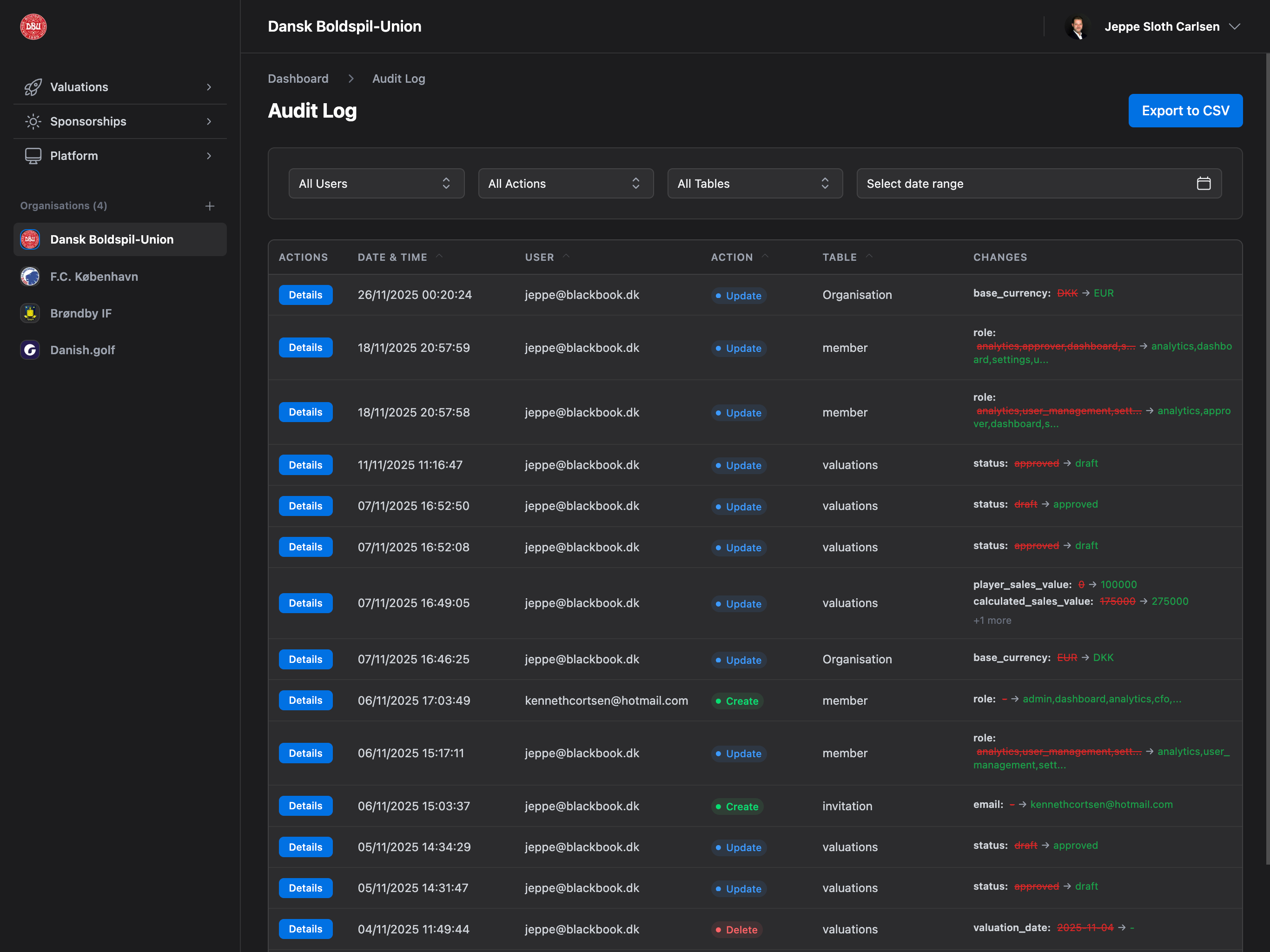
Accessing Audit Log
Navigate to Platform → Audit Log from the sidebar.Plan Required: Enterprise plan only
Permission Required: Admin permission
What is the Audit Log?
The Audit Log is a comprehensive, immutable record of all data changes in your organization. Every create, update, and delete action is automatically tracked with complete before/after values, user information, and timestamps. Tracked Information:- Who: User email who made the change
- What: Complete field-level diff (before → after values)
- When: Precise timestamp (date and time to the second)
- Where: Table name and record ID
- How: Action type (create, update, delete, restore)
Automatic Tracking: All changes are automatically logged. No manual action required. Logs cannot be edited or deleted (immutable).
Page Layout
The Audit Log page has three main sections:Page Header
- Title: “Audit Log”
- Breadcrumbs: Dashboard → Audit Log
- Export to CSV button (top right)
Filter Bar
- User filter dropdown
- Action filter dropdown
- Table filter dropdown
- Date range picker (start and end dates)
Audit Log Table
- Sortable columns
- Paginated (50 entries per page)
- Row click opens detail panel
- Actions column with “Details” button
Audit Log Table
Comprehensive table showing all logged changes.Table Columns
Actions (85px width)- “Details” button (blue)
- Opens detail panel on click
- Always visible
- Format: dd/MM/yyyy HH:mm:ss
- Example: 15/01/2025 14:30:45
- Sortable column
- Defaults to newest first
- User email address
- Example: john.doe@company.com
- Sortable column
- Filterable via dropdown
- Badge with action type
- Create (green badge)
- Update (blue badge)
- Delete (red badge)
- Restore (purple badge)
- Sortable column
- Filterable via dropdown
- Table name (human-readable)
- Examples: Organisation, valuations, sponsors
- Sortable column
- Filterable via dropdown
- Shows up to 2 field changes
- Format:
field: old_value → new_value - Example:
name: "Old Name" → "New Name" - Shows “+X more” if additional changes
- Click row to see full details
Table Features
Sorting:- Click column headers to sort
- Ascending/descending toggle
- Default sort: Date & Time (newest first)
- 50 entries per page
- Page navigation controls at bottom
- Shows “Showing X to Y of Z entries”
- Click any row to open detail panel
- Shows full change details
- Desktop: Side panel (two-column layout)
- Mobile: Drawer overlay
Filter Bar
Comprehensive filtering to find specific audit log entries.Filter Options
All Users Dropdown:- Shows all unique users who made changes
- Alphabetically sorted
- “All Users” option (default)
- Updates table instantly
- All Actions (default)
- Create
- Update
- Delete
- Restore
- Shows all unique tables with logged changes
- Human-readable names (Organisation, valuations, etc.)
- “All Tables” option (default)
- Alphabetically sorted
- Start Date input (optional)
- End Date input (optional)
- Format: YYYY-MM-DD
- Filters by log creation date
- Both dates inclusive
Filter Behavior
Real-time Filtering:- Filters apply instantly (no submit button)
- Multiple filters combine with AND logic
- Empty filter = no restriction
- User + Action: Show specific user’s creates
- Action + Table: Show all updates to valuations
- Date Range + User: Show user activity in period
- All filters: Precise targeting
Saved State: Filter selections persist during your session. Refresh page to reset all filters.
Clearing Filters
To clear filters:- Select “All Users”, “All Actions”, or “All Tables” in dropdowns
- Clear start and end date fields
- Or refresh page
Detail Panel
Comprehensive view of a single audit log entry.Desktop Layout (>1024px)
Two-Column Layout:- Left: Audit Log table (main)
- Right: Detail panel (450px wide, sticky)
- Sticky positioning (stays visible when scrolling)
- Max height: calc(100vh - 32px)
- Scrollable if content overflows
- Close button (X) in top right
Mobile Layout (<1024px)
Drawer Overlay:- Full-screen overlay (darkened background)
- Panel slides in from right
- Close button or backdrop click closes
- Scrollable content
Panel Contents
Header Section:- Close button (X icon)
- Action type badge (Create, Update, Delete, Restore)
- Date and time
- User email
- Table: Human-readable table name
- Record ID: UUID of changed record
- Action: Action type with description
- Title: “Field Changes” or “Fields Changed”
- List of all field changes
- Each change shows:
- Field name (bold)
- Old value (red, strikethrough)
- Arrow (→)
- New value (green)
- Null/undefined: Shown as ”-”
- Objects: JSON stringified
- Strings: Quoted
- Numbers/Booleans: As-is
- Text: “Restore Previous Version”
- Color: Indigo button
- Visibility: Only if user is Admin
- Action: Opens restore confirmation modal
Export to CSV
Download audit log entries as CSV file for compliance reporting or external analysis. How to Export:- Click “Export to CSV” button (top right)
- Confirmation modal appears:
- Title: “Export Audit Log to CSV?”
- Message: Explains filtered export
- “Export” button
- “Cancel” button
- Click “Export” to download
- Headers: Date & Time, User, Action, Table, Changes
- Rows: All currently visible entries (respects filters!)
- Format: Standard CSV (comma-separated)
- Filename:
audit-logs-YYYY-MM-DD.csv
Filtered Export: Export only includes entries currently visible after applying filters. Use filters to export specific subsets.
- Compliance reporting (GDPR, SOX)
- External audits
- Backup/archive
- Analysis in Excel/spreadsheet
- Security investigations
Restore Previous Version
Admins can restore previous versions of records directly from the audit log. Restore Process:- Open Detail Panel for the audit log entry you want to restore
- Click “Restore Previous Version” button (only visible to Admins)
- Review Confirmation Modal:
- Title: “Restore Previous Version?”
- Shows changes that will be restored
- Displays table and action
- “Restore” button (indigo)
- “Cancel” button
- Click “Restore” to confirm
- Success Dialog appears: “Previous version restored successfully!”
- Record is reverted to previous state (old values restored)
- New “restore” action logged in audit log
- Original audit log entry remains unchanged
- Change is immediate (no undo)
- Action type: “restore” (purple badge)
- User: Admin who performed restore
- Changes: Shows what was restored
- Links back to original audit log entry
Tracked Resources
The audit log tracks changes to all critical data:Organization Data
- Organization settings (name, address, VAT, currency)
- Organization logo changes
- Brand value indicator defaults
- SSO configuration changes
Valuations
- Create new valuation
- Update valuation fields (status, values, media data)
- Delete valuation
- Brand indicator changes
- Media value updates
Sponsorships
- Sponsor changes (name, status, value, logo)
- Sponsor contact changes (add, edit, delete)
- Library item changes (name, category, cost, quantity)
- Package changes (name, tier, pricing, items)
- Proposal status changes (sent, approved, rejected)
User Management
- User permission changes
- Role assignments
- User invitations
- User removals
Player Transfers
- Create transfer record
- Update transfer details
- Delete transfer
All Other Data
- Every table with critical business data
- Complete field-level tracking
- Before/after value capture
Comprehensive Coverage: If it’s in the database and matters for your business, it’s tracked in the audit log.
Permissions
Access to audit log requires specific permissions:Plan Requirement: All audit log features require Enterprise plan. Professional and Starter plans cannot access audit log.
Common Use Cases
Compliance Audit (GDPR, SOX)
- Navigate to Platform → Audit Log
- Set date range filter (audit period)
- Export to CSV
- Provide to auditor as evidence of data handling
- Show immutable audit trail
Security Investigation
- Identify suspicious activity (unusual data changes)
- Open Audit Log
- Filter by date range (incident timeframe)
- Filter by user (if known)
- Review all actions by that user
- Check for unauthorized changes
- Export evidence as CSV
Team Activity Monitoring
- Open Audit Log
- Filter by user (team member email)
- Review their recent actions
- Check for:
- Correct permissions usage
- Training needs
- Best practices adherence
- Provide feedback or additional training
Data Forensics (Error Investigation)
- Identify incorrect data (e.g., wrong valuation value)
- Open Audit Log
- Filter by table (“valuations”)
- Search for record ID (if known) or date
- Review change history
- Identify who made incorrect change and when
- Restore previous version (if Admin)
- Contact user for process improvement
Dispute Resolution
- Receive complaint (e.g., “I didn’t change that!”)
- Open Audit Log
- Filter by record type and date range
- Locate exact change log entry
- Show user email and timestamp as proof
- Resolve dispute with evidence
Training Needs Identification
- Review audit log for common errors
- Filter by action type (“update” or “delete”)
- Identify patterns of incorrect changes
- Group by user to find who needs help
- Provide targeted training
Troubleshooting
Can’t Access Audit Log
Reasons:- Not on Enterprise plan
- No Admin, Log, or Settings permission
- Redirected to dashboard automatically
- Upgrade to Enterprise plan
- Request Admin permission from owner
- Contact owner for access
Filters Not Working
Check:- Filter values selected correctly
- Date range format: YYYY-MM-DD
- No typos in dropdown selections
- Clear all filters and start over
- Refresh page
- Check that data matching filter exists
Export CSV Fails
Reasons:- Browser popup blocker
- No data matching current filters
- Network error
- Disable popup blocker for site
- Clear filters to export all logs
- Check network connection
- Try different browser
Restore Not Available
Reasons:- Not an Admin
- Record already deleted
- Database constraint prevents restore
- Request Admin permission
- Contact support if restore critical
- Manual re-entry if restore impossible
Detail Panel Won’t Open
Try:- Click “Details” button instead of row
- Refresh page
- Clear browser cache
- Try different browser
- Check browser console for errors
Retention Policy
Indefinite Retention: Audit logs are retained indefinitely for compliance purposes. Logs are never automatically deleted.
- Organization deletion: Audit logs deleted after 30-day grace period
- Export and backup recommended before deletion
- Logs stored in secure database
- Encrypted at rest
- Immutable (cannot be edited/deleted)
- Compliant with GDPR and SOX requirements
Next Steps
Review Regularly
Check audit log weekly for unusual activity
Export for Compliance
Schedule quarterly exports for audit records
Train Team
Educate team about audit log and accountability
Set Up Alerts
Request alert notifications for critical changes
Document Processes
Use audit log to document change management