

Contract Documents & PDF Covers
Overview
Upload and manage custom contract documents for professional sponsorship proposals. Securely store Terms of Service, data protection agreements, liability waivers, and partnership contracts that can be attached to any sponsorship package proposal. Create legally compliant, branded proposals by combining custom contract documents with configurable Terms of Service text and professional PDF cover pages featuring your organization’s branding. Use Cases:- Terms of Service - Standard contract terms and conditions
- Data Protection Agreements - GDPR compliance documents
- Liability Waivers - Risk management forms
- Partnership Agreements - Formal partnership terms
- Addendums - Additional contract clauses
- Sponsor Guidelines - Brand usage and activation guidelines
Enterprise Feature: Contract document management is available on Enterprise plans with
Sponsorship Packages enabled.
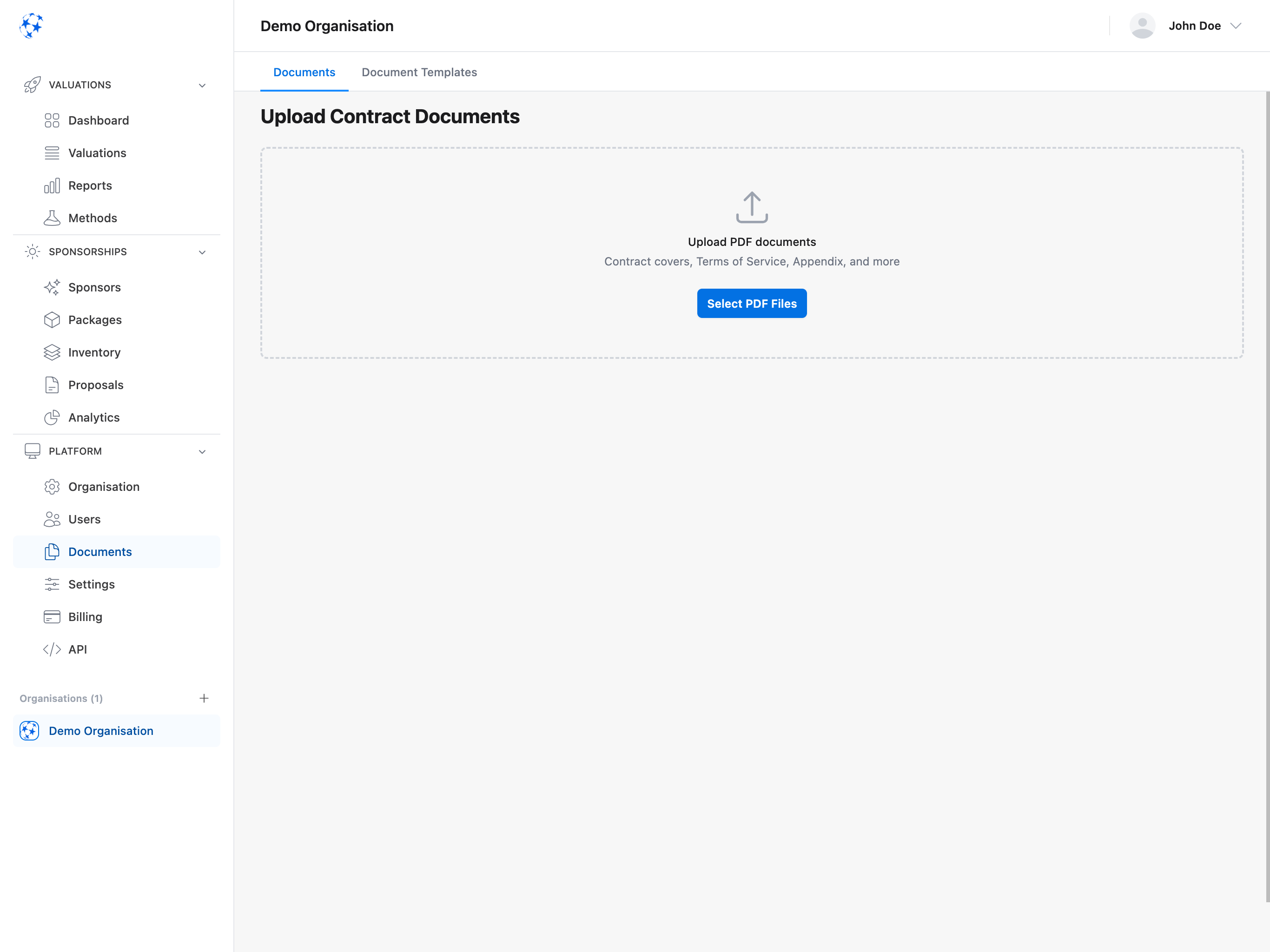
Upload Contract Documents
How to Upload
- Navigate to Platform > Settings > Contract Documents
- Click “Upload Document” button (blue, top right)
- Select PDF file from your computer
- Enter document name (e.g., “Standard Terms of Service 2025”)
- Click “Upload” to save

File Requirements
Supported Format:- PDF only (.pdf)
- Maximum 10 MB per file
- Recommended: Under 5 MB for faster loading
- Use descriptive names (e.g., “Terms_of_Service_2025.pdf”)
- Avoid special characters (use underscores instead of spaces)
- Include version/date for tracking (e.g., “Contract_v2_Jan2025.pdf”)
Documents Table
View all uploaded contract documents in a comprehensive table.Table Columns
Document Name:- Filename of uploaded document
- Click to download/preview
- Sortable alphabetically
- Date and time of upload
- Format: “Dec 4, 2025 at 10:30 AM”
- Sortable by date
- File size in KB or MB
- Example: “2.5 MB”
- Helps identify large files
- Download button - Download original PDF
- Delete button - Remove document (with confirmation)
Quick Preview: Click any document name to open a preview in a new tab. This lets you verify
the content before attaching to proposals.
Attaching to Proposals
Contract documents can be attached when creating or editing sponsorship packages.Package Builder Integration
Location: Package Builder > Proposal tab > “Attach Contract Documents” section How to Attach:- Open package in Package Builder
- Go to “Proposal” tab
- Scroll to “Contract Documents” section
- Select documents from dropdown
- Documents automatically included in proposal PDF

- Attach multiple documents per package
- Documents appear in order selected
- Remove by clicking X icon next to document name
Managing Documents
Download Documents
To Download:- Find document in table
- Click Download button (cloud icon)
- PDF saves to your device
- Sharing with legal team for review
- Creating backups
- Sending to partners directly
Delete Documents
To Delete:- Find document in table
- Click Delete button (trash icon)
- Confirm deletion in modal
- Document permanently removed
- Check if document is attached to any active packages
- Download a backup copy
- Notify team members using this document
Replace Documents
To Replace Outdated Document:- Upload new version with updated name (e.g., “Terms_v2.pdf”)
- Update packages to use new version
- Delete old version when no longer needed
Version Control: Add version numbers or dates to filenames (e.g., “Terms_2025_v1.pdf”) to
track different versions easily.
PDF Contract Covers
Customize your proposal PDFs with organization-specific cover images.Upload Cover Image
Location: Platform > Settings > PDF Contract Covers How to Upload:- Click “Upload Cover” button
- Select image file (PNG or JPG)
- Image uploads and previews immediately
- All future PDFs use this cover

- Format: PNG or JPG only
- Size: Maximum 5 MB
- Dimensions: Recommended 1200x1600px (portrait)
- Aspect Ratio: 3:4 (portrait orientation)
Cover Image in PDFs
When a cover image is uploaded, it appears as:- First page of all proposal PDFs
- Full-page cover (no margins)
- Before Terms of Service and package details
- Custom Cover Page (your branded image)
- Pre-Contract Terms of Service
- Package Details (sponsor, events, tier)
- Inclusions Table
- Financial Summary
- Post-Contract Terms of Service
- Signature Page
Remove Cover Image
To Remove:- Go to Platform > Settings > PDF Contract Covers
- Click “Remove Cover” button
- Confirm removal
- Future PDFs will not include cover page
Existing PDFs: Removing the cover image only affects NEW PDFs generated after removal.
Previously generated PDFs keep their original cover.
Terms of Service
Configure custom Terms of Service text that appears in proposal PDFs.Pre-Contract Terms
Location: Platform > Settings > Terms of Service > “Pre-Contract Terms” Position in PDF: After cover page, BEFORE package details Use Cases:- Introductory text and welcome message
- General partnership overview
- Eligibility requirements
- Application process
- Timeline and deadlines
Post-Contract Terms
Location: Platform > Settings > Terms of Service > “Post-Contract Terms” Position in PDF: After package details, BEFORE signature page Use Cases:- Legal terms and conditions
- Payment terms and schedules
- Cancellation policies
- Liability limitations
- Rights and obligations
- Dispute resolution
Editing Terms
To Edit:- Go to Platform > Settings > Terms of Service
- Edit text in “Pre-Contract Terms” textarea
- Edit text in “Post-Contract Terms” textarea
- Click “Save Terms” button
- Changes apply to all NEW PDFs
- Use clear section headings (e.g., “1. Payment Terms”)
- Keep paragraphs short and readable
- Use bullet points for lists
- Bold important terms (e.g., refund policy)
- Include line breaks for readability
Markdown Support: Terms of Service fields support basic markdown formatting (bold, italic,
lists, line breaks).
Common Use Cases
Standard Contract Package
Setup:- Upload “Standard_Terms_2025.pdf”
- Upload “Data_Protection_Agreement.pdf”
- Upload “Brand_Guidelines.pdf”
- Set Pre-Contract Terms with welcome message
- Set Post-Contract Terms with payment/cancellation policy
- Upload organization logo as PDF cover
Tier-Specific Terms
Setup:- Create “Platinum_Terms.pdf” with premium contract terms
- Create “Gold_Terms.pdf” with standard contract terms
- Attach appropriate terms to each tier’s packages
Event-Specific Documents
Setup:- Create “Championship_2025_Terms.pdf”
- Create “Season_Opener_Guidelines.pdf”
- Attach to event-specific packages
Multi-Language Support
Setup:- Upload “Terms_EN.pdf” (English version)
- Upload “Terms_DA.pdf” (Danish version)
- Upload “Terms_DE.pdf” (German version)
- Attach appropriate language version per sponsor
Troubleshooting
Upload Failed
Try:- Check file size (must be under 10 MB)
- Verify file format (must be .pdf)
- Check internet connection
- Try different browser
- Contact support if issue persists
Document Not Appearing in Package
Check:- Document successfully uploaded (check table)
- You’re in Package Builder > Proposal tab
- “Attach Contract Documents” section is visible
- You have necessary permissions
Cover Image Not Showing in PDF
Check:- Image successfully uploaded (preview should show)
- Image format is PNG or JPG (not other formats)
- Image size under 5 MB
- Generate new PDF (old PDFs keep original cover)
Terms of Service Not Saving
Try:- Check internet connection
- Verify you clicked “Save Terms” button
- Refresh page and try again
- Check browser console for errors
- Contact support if issue persists
Best Practices
Document Organization
Naming Convention:- Include version: “Terms_v2.pdf”
- Include date: “Contract_2025.pdf”
- Be descriptive: “Platinum_Partnership_Agreement.pdf”
- Keep old versions until transition complete
- Name clearly (v1, v2, v3)
- Test new versions before deleting old ones
- Notify team of updates
Legal Compliance
Regular Review:- Review terms annually
- Update for law changes
- Get legal approval
- Archive old versions
- Include GDPR compliance (if EU)
- Data protection clauses
- Privacy policy references
- Consent mechanisms
Professional Presentation
Cover Design:- Use high-resolution images
- Match brand identity
- Include organization name and logo
- Keep it clean and professional
- Clear section headings
- Short paragraphs
- Bullet points for lists
- Bold key terms
- White space for readability
Frequently Asked Questions
What file formats are supported for contract documents?
What file formats are supported for contract documents?
Only PDF files (.pdf) are supported for contract documents. The maximum file size is 10MB per file, though we recommend keeping files under 5MB for faster loading. Other formats like Word, Excel, or images must be converted to PDF before uploading.
How do I attach contract documents to sponsorship proposals?
How do I attach contract documents to sponsorship proposals?
Open the Package Builder, go to the Proposal tab, scroll to the Contract Documents section, and
select documents from the dropdown menu. You can attach multiple documents per package, and
they’ll automatically be included in the proposal PDF sent to sponsors.
Can I create custom PDF cover pages for proposals?
Can I create custom PDF cover pages for proposals?
Yes! Upload a custom cover image (PNG or JPG, max 5MB, recommended 1200x1600px portrait) in
Platform → Settings → PDF Contract Covers. The cover appears as the first page of all proposal
PDFs, creating a professional branded impression for sponsors.
What's the difference between Pre-Contract and Post-Contract Terms?
What's the difference between Pre-Contract and Post-Contract Terms?
Pre-Contract Terms appear after the cover page but BEFORE package details (use for introductions,
eligibility, application process). Post-Contract Terms appear after package details but BEFORE the
signature page (use for legal terms, payment terms, cancellation policies, liability clauses).
Can I use different contract documents for different sponsors?
Can I use different contract documents for different sponsors?
Yes! You can upload multiple contract documents (e.g., Platinum_Terms.pdf, Gold_Terms.pdf,
English_Terms.pdf, Danish_Terms.pdf) and attach the appropriate documents to each package based on
tier, language, or sponsor-specific requirements.
What happens if I delete a document that's attached to packages?
What happens if I delete a document that's attached to packages?
Deleted documents are permanently removed from the system. If packages reference deleted
documents, those attachments will be removed from future proposal PDFs. Always check which
packages use a document before deleting, and download a backup copy if needed.
Do Terms of Service support formatting?
Do Terms of Service support formatting?
Yes! Terms of Service fields support basic markdown formatting including bold (bold text),
italic, bullet points, numbered lists, and line breaks. This lets you create well-formatted,
professional legal terms for your proposals.
How do I update contract documents for new legal requirements?
How do I update contract documents for new legal requirements?
Upload the new version with an updated filename (e.g., Terms_v2_2025.pdf), update your packages to
use the new version, and delete the old version once all packages have been updated. Always keep
version numbers or dates in filenames for easy tracking.
Can I preview contract documents before attaching?
Can I preview contract documents before attaching?
Yes! Click any document name in the documents table to open a preview in a new tab. This lets you
verify the content before attaching to proposals and ensures you’re selecting the correct document
version.
Are contract documents included in proposal PDFs automatically?
Are contract documents included in proposal PDFs automatically?
Documents attached in the Package Builder are automatically included in the proposal PDF when you generate or send it to sponsors. The PDF structure includes: Custom Cover → Pre-Contract Terms → Package Details → Post-Contract Terms → Attached Documents → Signature Page.