

Valuations List & Historical Data
Accessing Valuations
Navigate to Valuations → Valuations from the sidebar to access your full valuation list.Permission Required: You need at least one valuation permission (View Sales, View Transfer,
View Marketing, View Brand, or Admin) to access this page.
Empty State
If you don’t have any valuations yet, you’ll see:- Icon: Document graphic
- Title: “No Valuations Yet”
- Message: “Create your first valuation to get started”
- Action: “Create First Valuation” button
Page Header
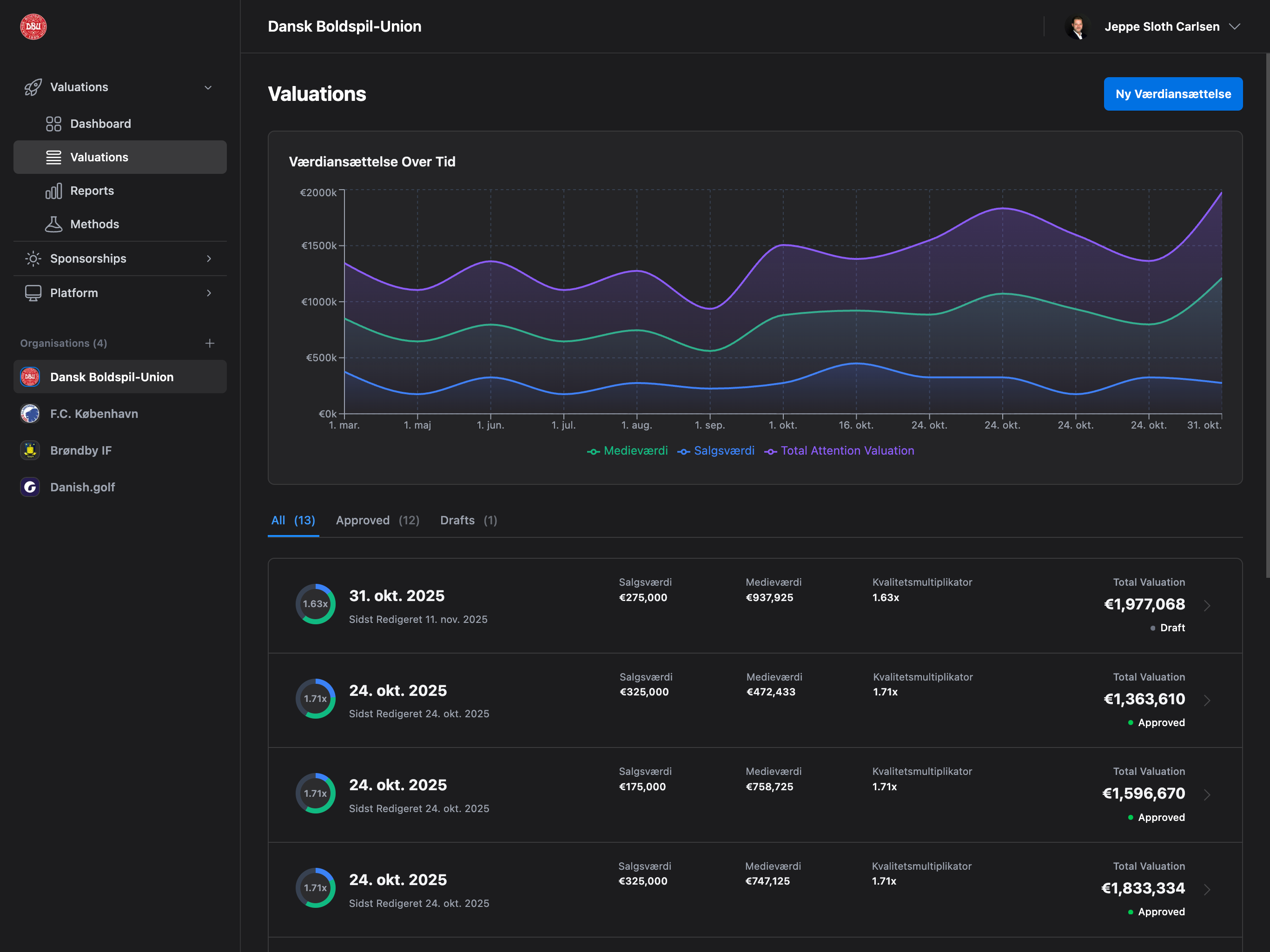
The page header shows:- Title: “Valuations”
- Create Button: “Create Valuation” button (top right)
Create Valuation Button
- Normal state: Blue primary button with “Create Valuation” text
- Loading state: Shows spinner while navigating
- Limit reached: Shows “Limit reached” text and is disabled
Valuation Over Time Chart
Displays when: You have 2 or more valuations A stacked area chart showing valuation trends across time.Chart Components
Three Stacked Areas:- Sales Value (Blue) - Bottom layer showing sales revenue
- Media Value (Green) - Middle layer showing media value
- Total Attention Valuation (Purple) - Top layer showing final total with brand multiplier
How to Read It
- X-Axis: Valuation dates (e.g., “Jan 15”, “Feb 20”)
- Y-Axis: Currency values (e.g., “€10k”, “€20k”)
- Stacked areas: Show how sales and media contribute to total
- Purple line: Total valuation including brand multiplier
Chart Features
- Legend: Shows all three data series with color indicators
- Grid lines: Help read exact values
- Responsive: Adapts to screen size
- Date format: Short date format (day + month abbreviation)
- Value format: Abbreviated for readability (€10k instead of €10,000)
The chart displays valuations in chronological order based on the
valuation_date field, not the
creation date.Filter Tabs
Three tabs to filter valuations by status:All Tab
Shows all valuations regardless of status.- Badge count: Total number of valuations
- Active indicator: Blue underline when selected
Approved Tab
Shows only approved valuations.- Badge count: Number of approved valuations
- Appears in: Dashboard charts, reports, proposals
- Status badge: Green “Approved” chip
Drafts Tab
Shows only draft valuations.- Badge count: Number of draft valuations
- Can be edited: Drafts can still be modified
- Status badge: Gray “Draft” chip
Filtering resets pagination to page 1 automatically.
Valuation List
A card-based list showing all valuations with key metrics.List Item Layout
Each valuation displays: Left Section:- Circle indicator - Visual breakdown of value composition
- Valuation date - Primary date for this valuation (e.g., “15. jan 2025”)
- Last edited date - When the valuation was last updated
- Sales Value - Total sales revenue
- Media Value - Total media value
- Qualitative Multiplier - Brand multiplier (e.g., “1.15x”)
- Total Valuation - Final calculated value
- Status badge - Draft or Approved
- Chevron icon - Indicates clickable item
The middle section (3 columns) is hidden on mobile and tablet to save space. All data is still
available in the detail view.
Circle Indicator
The circle on the left visually represents value composition using a conic gradient: Colors:- Blue segment - Sales value percentage
- Green segment - Media value percentage
- Gray segment - Remaining percentage (brand multiplier impact)
Loading State
When clicking a valuation to open it:- Circle indicator - Shows spinner instead of gradient
- List item - Becomes semi-transparent (60% opacity)
- Interaction - Disabled while loading
Pagination
Displays when: You have more than 10 valuations- Items per page: 10 valuations
- Navigation: Previous/Next buttons + page numbers
- Page info: Shows “X-Y of Z items” (e.g., “1-10 of 25 items”)
- Auto-scroll: Scrolls to top when changing pages
Pagination is applied after filtering. Each filter tab (All, Approved, Drafts) has its own
pagination.
Interactions
Click on Valuation
Click anywhere on a valuation list item to:- Show loading spinner in circle
- Navigate to valuation detail page
- View complete breakdown
Hover Effects
- List items: Background color changes on hover (light gray)
- Chart points: Tooltip appears showing exact values
- Buttons: Color and border changes indicate interactivity
Plan Limits
Valuation Limit Modal
If you’ve reached your plan’s valuation limit, clicking “Create Valuation” shows: Modal Content:- Title: “Valuation Limit Reached”
- Current usage: e.g., “You’ve created 50 valuations this year”
- Plan limit: e.g., “Your Professional plan includes 50 valuations/year”
- Action: “Upgrade Plan” button (if you have billing access)
Plan Tiers
Valuation limits by plan:- Starter: Limited valuations per year
- Professional: More valuations per year
- Enterprise: Unlimited valuations
Valuation limits reset annually based on your subscription start date.
Empty Filtered List
If a filter shows no results: Example: Clicking “Drafts” when you have no draft valuations- No empty state message (intentional)
- Shows empty list container
- Filter tabs remain functional
Common Use Cases
Tracking Progress
- View Valuation Over Time Chart to see growth trends
- Compare sales vs media contribution over time
- Identify seasonal patterns or anomalies
Managing Drafts
- Click Drafts tab to see unfinished valuations
- Click on a draft to continue editing
- Approve when ready to include in reports
Finding Specific Valuations
- Use All tab to see complete history
- Scroll through list or use pagination
- Look at dates to identify the valuation you need
- Click to open detail view
Bulk Review
- View Approved tab to see finalized valuations
- Check total valuations in the list
- Identify outliers or unexpected values
- Click to investigate details
Permissions
Different permissions affect what you see:Granular permissions (Edit Sales, Edit Transfer, Edit Marketing, Edit Brand) are available on
Enterprise plans.
Troubleshooting
”Access Denied” Page
If you see “Access Denied”:- You don’t have any valuation permissions
- Contact your organization admin to request access
- They can grant you View or Edit permissions
Create Button Disabled
If “Create Valuation” button shows “Limit reached”:- Your organization has reached the plan limit
- Admins/finance managers can upgrade the plan
- Or wait until next year when the limit resets
Chart Not Showing
If you don’t see the Valuation Over Time chart:- You need at least 2 approved valuations to show trends
- Create and approve more valuations to unlock the chart
Values Look Wrong
If valuation values seem incorrect:- Click on the valuation to view detailed breakdown
- Check if all fields were properly filled
- Verify CPM values are correct (common mistake: entering per-impression instead of per-thousand)
- Check brand multiplier in Settings → Brand Values
Frequently Asked Questions
How do I view historical data for valuations?
Navigate to Valuations → Valuations to see your complete historical data. The list shows all valuations sorted by date. For trend analysis, the “Valuation Over Time Chart” appears when you have 2+ valuations, visualizing time-series data across sales, media, and total valuation.What’s the best way to use the comparison view?
Use the filter tabs (All, Approved, Drafts) to organize your comparison view. The “Valuation Over Time Chart” provides visual comparison of trends. Click on individual valuations to compare detailed breakdowns side-by-side. For advanced comparison, use the Reports page to analyze multiple valuations simultaneously.How does trend analysis work in the valuations list?
Trend analysis appears in the time-series chart showing three stacked layers: sales value (blue), media value (green), and total valuation (purple). Hover over any point for exact values. The chart reveals growth patterns, seasonal variations, and value composition changes over your historical data.Can I filter valuations to see specific time periods?
Use the filter tabs to view All, Approved, or Draft valuations. The list displays historical data chronologically. For specific date range analysis, use the Reports page where you can select multiple valuations from any time period for detailed comparison and trend analysis.How do I track changes in valuation over time?
The Valuation Over Time Chart provides time-series data visualization showing how your total valuation, sales, and media values change across dates. Each list item shows the last edited date for tracking recent changes. Compare historical data points by clicking individual valuations for detailed breakdowns.What does the circle indicator represent?
The circle provides visual comparison of value composition using color-coded segments: blue for sales value percentage, green for media value percentage, and gray for brand multiplier impact. The center number shows your brand multiplier (e.g., “1.15x”). This quick visualization helps compare value drivers across your historical data.How many valuations should I create for good trend analysis?
Create valuations regularly (monthly or quarterly) to build rich time-series data. You need at least 2 valuations to see the trend chart. For quarterly reviews, create 4+ valuations. For annual analysis, 12 monthly valuations provide comprehensive historical data for accurate trend analysis and comparison.Can I compare draft and approved valuations?
Yes, use the “All” tab to see both draft and approved valuations in your historical data. Draft valuations appear with gray badges, approved with green badges. Note that only approved valuations appear in dashboard charts and reports, ensuring comparison accuracy for stakeholder presentations.How do I export historical data for analysis?
Click on individual valuations and use “Export CSV” for data export. For comparing multiple valuations, use the Reports page to select specific historical data points and export them together as a comprehensive report with trend analysis and comparison charts.What happens when I reach my valuation limit?
When your plan’s annual limit is reached, the “Create Valuation” button becomes disabled. Admins can upgrade the plan for more valuations. Your existing historical data remains accessible for viewing, comparison, and trend analysis. Limits reset annually based on your subscription date.Next Steps
View Valuation Details
Learn how to view complete valuation breakdown
Create New Valuation
Add another data point to track progress
Analyze Trends
Use dashboard and charts to identify patterns
Generate Reports
Advanced analytics and reporting