

Plan Required: Enterprise plan only
Permission Required: Admin or SSO management permission
Supported Protocols
- SAML 2.0 - Industry-standard authentication protocol
- OAuth 2.0 - Modern authorization protocol
- OpenID Connect - Identity layer built on OAuth 2.0
Supported Identity Providers
- Okta
- Azure Active Directory (Microsoft Entra ID)
- Google Workspace
- OneLogin
- Auth0
- Custom SAML/OAuth providers
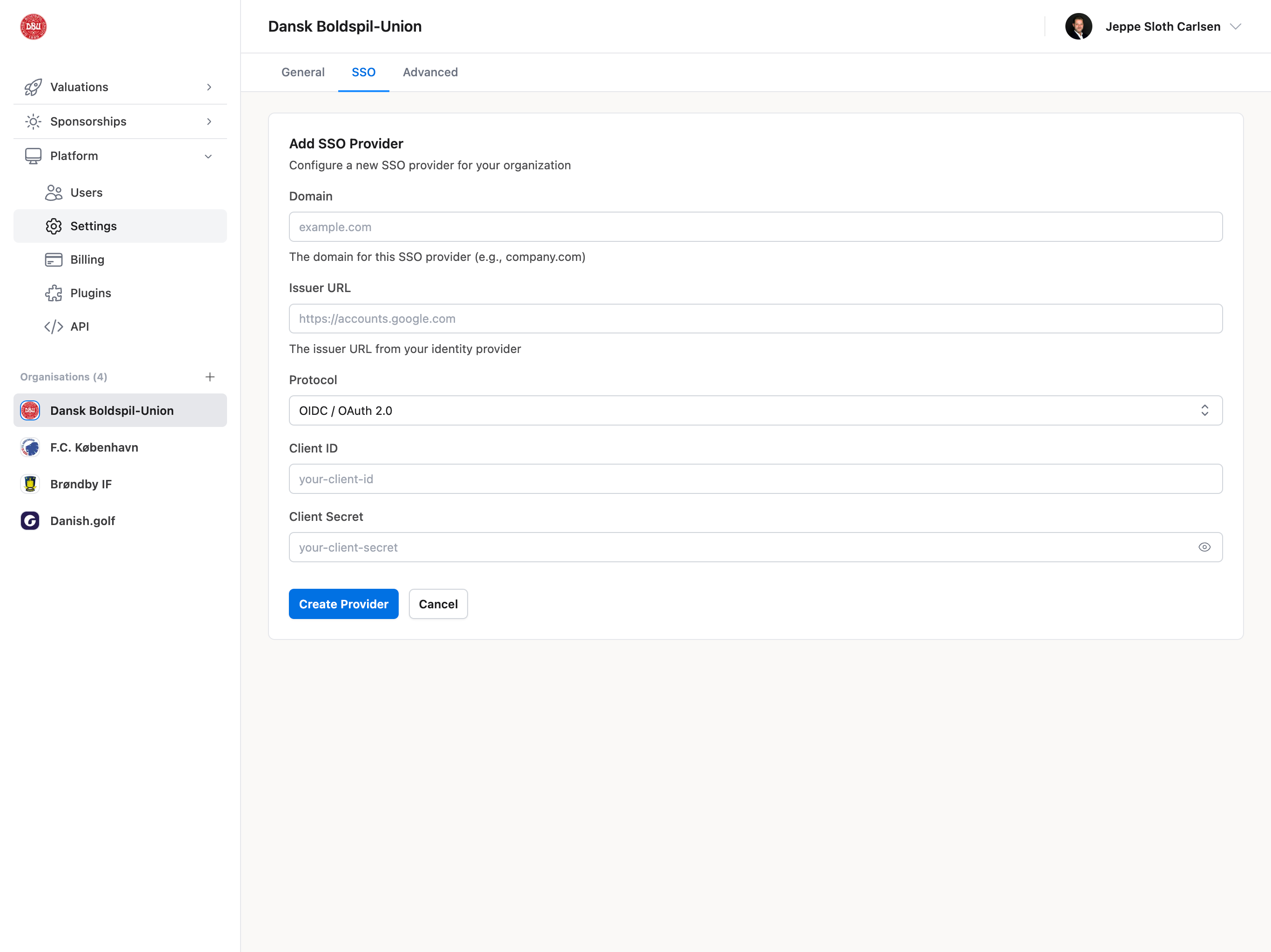
SSO Configuration Fields
- Provider type selection
- Entity ID / Issuer URL
- SSO URL / Login URL
- Certificate upload (X.509)
- Attribute mapping
- JIT (Just-In-Time) provisioning toggle
Benefits of SSO
- Single set of credentials for all tools
- Centralized user management
- Enhanced security (MFA, conditional access)
- Simplified onboarding/offboarding
- Compliance with corporate policies
Contact Support: SSO configuration requires technical setup. Contact support@valiyou.com for assistance with SSO setup and testing.
SSO Login Flow
- User clicks “Sign in with SSO” on login page
- Redirected to identity provider
- Authenticates with corporate credentials
- Redirected back to Valiyou with session
- Automatically logged in (or account created via JIT)
Common Use Cases
Enabling SSO for Team (Enterprise)
- Contact support@valiyou.com to begin SSO setup
- Provide identity provider details
- Work with support to configure SAML/OAuth
- Test SSO login with admin account
- Enable JIT provisioning (optional)
- Roll out SSO to team
- Communicate SSO login instructions
Troubleshooting
SSO Not Working
Common Issues:- Incorrect Entity ID or SSO URL
- Certificate expired or invalid
- Attribute mapping incorrect
- JIT provisioning disabled
- Contact support@valiyou.com for SSO troubleshooting
- Verify identity provider configuration
- Test with admin account first
- Check browser console for errors