

General
%20(5).png?fit=max&auto=format&n=uOT5-nqQ5NfMe-Lu&q=85&s=5cd6eaa430244ab8537b8719b7ed1997)
Upload Organization Logo
Your logo appears throughout the platform, in reports, on proposals, and in sponsor communications. Upload Process:- Click the avatar circle at the top of the General tab
- Select an image file from your computer (or drag & drop)
- Crop and adjust using the crop modal:
- Zoom slider to adjust size
- Drag image to reposition
- Preview shows final result
- Click “Save” to apply changes
- Shows current logo (if exists)
- Zoom slider (0-100%)
- Pan/drag capability
- Square crop preview
- Save and Cancel buttons
- Delete button (to remove existing logo)
Supported Formats: JPG, PNG, GIF, WebP Max File Size: 2MB Output: Automatically
cropped to square format
- Click the avatar circle with your current logo
- Click “Delete” button in the crop modal
- Confirm removal
- Avatar circle returns to default state
- Organisation page avatar circle
- Top navigation bar
- Valuation reports (PDF exports)
- Sponsorship proposals (PDF and external view)
- Email communications to sponsors
- Organization profile
Organization Details
Master data for your organization used in documents, reports, and legal contexts. Fields:- Organization Name (required) - Your company or club name
- Street (optional) - Street name
- House Number (optional) - Building number
- Postal Code (optional) - ZIP/postal code
- City (optional) - City name
- Country (optional) - Select from EU countries dropdown
- CVR/VAT Number (optional) - Tax identification number with country selector
- Country selector dropdown (DK, DE, SE, NO, UK, etc.)
- Number input field
- Format examples shown in placeholder
- Used for invoice generation and tax compliance
- Legal documents and contracts
- Invoices and receipts
- Sponsorship proposals
- Reports and exports
- Email footers
- Public profiles (if enabled)
Base Currency
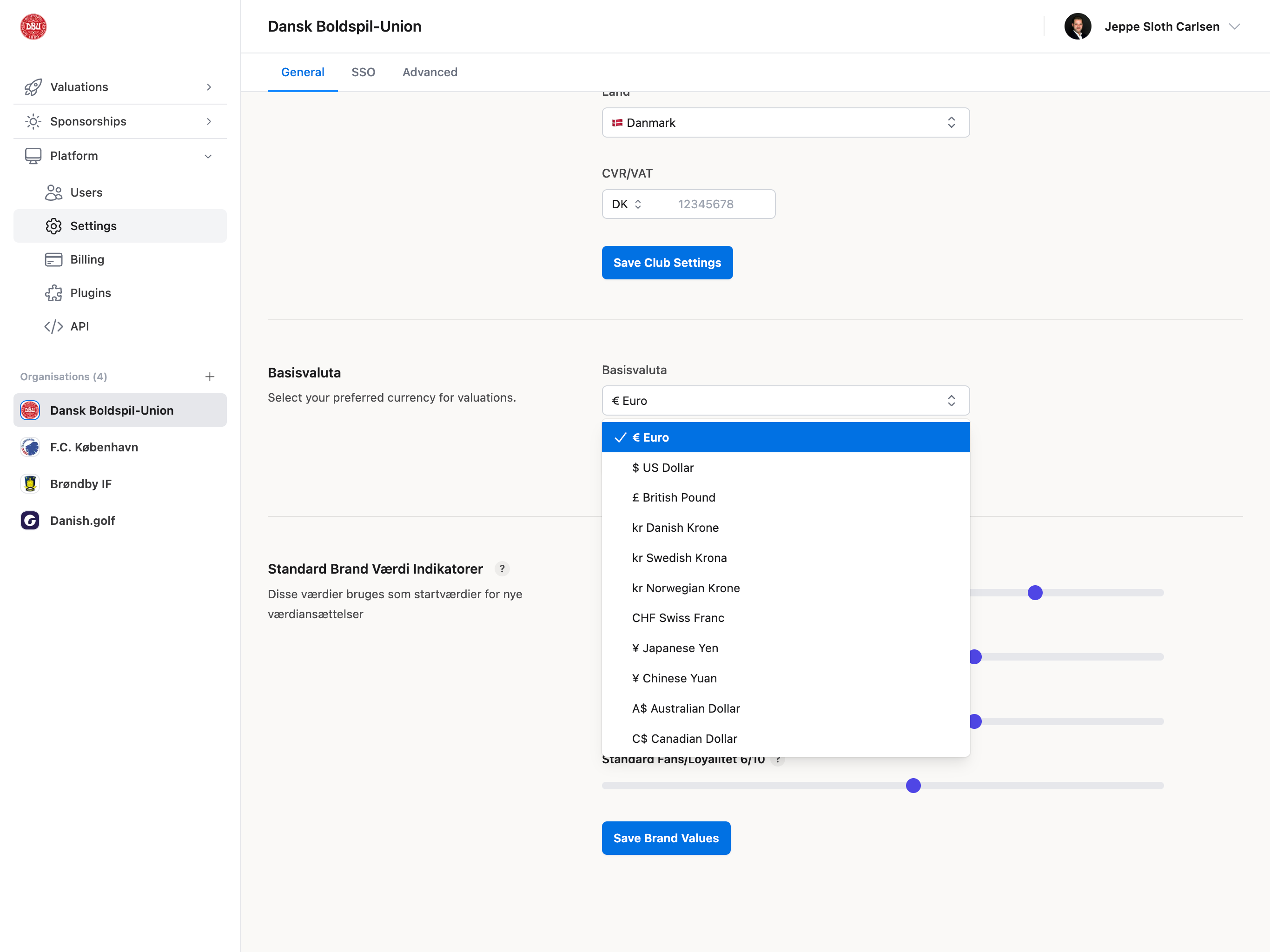
- EUR (€) - Euro
- USD ($) - US Dollar
- GBP (£) - British Pound
- DKK (kr) - Danish Krone
- SEK (kr) - Swedish Krona
- NOK (kr) - Norwegian Krone
- And more…
- Open currency dropdown in General tab
- Select your preferred currency
- Click “Save Currency” button
- Confirmation message appears
- New valuations (default currency)
- Sponsorship packages and proposals
- Financial reports and analytics
- Player transfer values
- Revenue calculations
- Export files (PDF, CSV)
Currency Symbol: The selected currency’s symbol (€, $, £, kr, etc.) automatically appears
throughout the platform next to all monetary values.
Default Brand Value Indicators
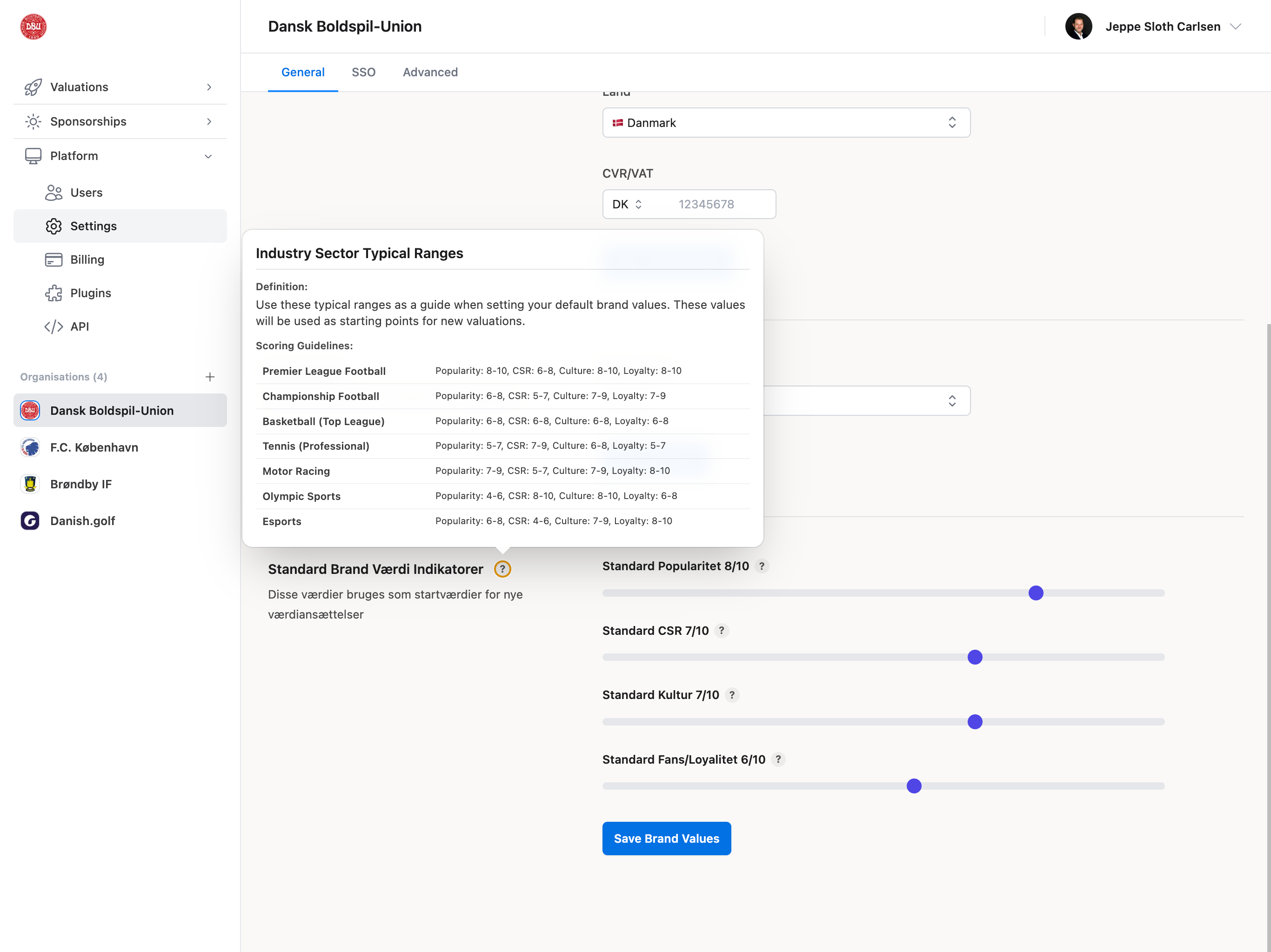
Plan Required: Professional or Enterprise plan only
- How well-known is your brand?
- General public recognition
- Social media presence
- Media coverage frequency
- Community involvement
- Environmental initiatives
- Charity work and partnerships
- Ethical practices reputation
- Organizational values clarity
- Team cohesion
- Brand identity consistency
- Fan culture strength
- Fan retention rate
- Repeat sponsor partnerships
- Season ticket holder percentage
- Community engagement
- Use sliders (1-10) for each indicator
- Values save automatically
- Applied to all new valuations
- Can be overridden per valuation
Save Button: “Save Brand Values” (saves all four indicators)
Why Use Defaults?:
- Save time when creating valuations
- Ensure consistency across team
- Set organizational baseline
- Easy to override when needed
Common Use Cases
Initial Organization Setup
- Navigate to Platform → Organisation
- General tab:
- Upload organization logo
- Fill in organization details (name, address, VAT number)
- Select base currency
- Set default brand values (Professional/Enterprise)
- Invite team members
Updating Organization Branding
- Open Organisation → General tab
- Click avatar circle
- Upload new logo
- Crop and adjust
- Save changes
- Verify logo appears in navigation bar
Changing Currency Mid-Year
- Export all current data (valuations, reports) for records
- Open Organisation → General tab
- Select new currency from dropdown
- Click “Save Currency”
- Note: Existing records keep original currency
- New valuations use new currency
- Update team about currency change
Troubleshooting
Can’t Upload Logo
Check:- File size under 2MB
- File format is JPG, PNG, GIF, or WebP
- Browser allows file uploads (not blocked)
- You have Organisation permission
- Compress image file
- Convert to different format
- Clear browser cache
- Try different browser
- Drag and drop instead of clicking
Currency Not Changing
Reasons:- No Organisation permission
- Currency not saved (must click Save button)
- Browser error (check console)
- Request Organisation permission from admin
- Click “Save Currency” after selecting
- Refresh page and try again
- Check network connection
Frequently Asked Questions
How do I upload and configure my organization logo in general settings?
How do I upload and configure my organization logo in general settings?
Click the avatar circle at the top of the General tab, select an image file (JPG, PNG, GIF, or WebP under 2MB), use the crop modal to zoom and position your logo, then click Save. You can also drag and drop an image directly onto the avatar circle. Your logo will automatically appear throughout Valiyou including in reports, sponsorship proposals, email communications, and the navigation bar.
What organization details should I configure in general settings?
What organization details should I configure in general settings?
Complete all fields including organization name (required), street address, house number, postal
code, city, country, and CVR/VAT number with country selector. These details are used in legal
documents, invoices, sponsorship proposals, reports, exports, and email footers. Accurate
organization information ensures professional communications and proper tax compliance.
How does changing base currency affect existing data?
How does changing base currency affect existing data?
Changing the base currency in general settings only affects new records created after the change.
Existing valuations, sponsorship packages, and financial reports retain their original currency
without automatic conversion. For smooth transitions, export all current data before changing
currency and communicate the change to your team.
What permissions are needed to edit general settings?
What permissions are needed to edit general settings?
You need the “Organisation” permission to access and edit general settings including logo upload,
organization details, currency configuration, and brand value indicators. This permission is
typically granted to administrators and senior team members. If you cannot see edit fields,
contact your organization administrator to request the necessary permissions.
Where does my organization logo appear after uploading?
Where does my organization logo appear after uploading?
Your uploaded logo appears in multiple locations throughout Valiyou: the organisation page avatar
circle, top navigation bar, valuation reports (PDF exports), sponsorship proposals (both PDF and
external views), email communications to sponsors, and your organization profile. The logo is
automatically cropped to square format for consistent display.
Can I configure different currencies for different valuations?
Can I configure different currencies for different valuations?
Yes, while the base currency in general settings determines the default for new records, you can
manually change the currency for individual valuations when creating or editing them. This
multi-currency account configuration allows flexibility for working with clients in different
regions while maintaining a consistent organizational default.
What is the CVR/VAT number field used for in organization settings?
What is the CVR/VAT number field used for in organization settings?
The CVR/VAT number field includes a country selector (DK, DE, SE, NO, UK, etc.) and number input
for your tax identification. This information is used for invoice generation, tax compliance,
legal documents, and sponsorship proposals. The field shows format examples in placeholders to
help you enter the correct format for your country.
How do default brand value indicators in general settings work?
How do default brand value indicators in general settings work?
Default brand value indicators (available on Professional and Enterprise plans) set baseline
values for popularity, CSR, culture, and loyalty on a 1-10 scale. These values automatically apply
to new valuations, ensuring team consistency. You can reference industry typical ranges and adjust
for your organization’s brand strength, with the flexibility to override defaults for specific
valuations.
What file formats and sizes are supported for logo upload?
What file formats and sizes are supported for logo upload?
Logo uploads support JPG, PNG, GIF, and WebP formats with a maximum file size of 2MB. The system
automatically crops uploaded images to square format. If your file is too large, compress it
before uploading. You can use the built-in zoom slider and drag functionality to position your
logo within the square crop area.
How do I ensure organization details appear correctly in reports?
How do I ensure organization details appear correctly in reports?
Complete all fields in the organization details section of general settings including name, full address, country, and VAT number. After saving, generate a test report or proposal to verify that all details appear correctly formatted. These settings cascade to all PDF exports, sponsorship documents, invoices, and email communications, ensuring professional and accurate representation.