

Overview
Plan Required: Professional or Enterprise plan
Permission Required: Reports permission + Plugins permission
Supported LLM Providers
Free Providers
Groq
Best for: SpeedModels:
- llama-3.3-70b-versatile (Recommended)
- mixtral-8x7b-32768
- gemma2-9b-it (Fast)
Google Gemini
Best for: BalanceModels:
- gemini-2.0-flash-exp (Latest)
- gemini-1.5-pro (Recommended)
- gemini-1.5-flash (Fast)
OpenRouter
Best for: Multi-model accessModels:
- Multiple models with free tier
Paid Providers
OpenAI
Models:
- gpt-4o (Recommended)
- gpt-4o-mini (Fast)
- gpt-4-turbo
Anthropic (Claude)
Models:
- claude-3-5-sonnet-20241022 (Recommended)
- claude-3-5-haiku-20241022 (Fast)
- claude-3-opus-20240229 (Powerful)
Configuration
Step 1: Enable Plugin
- Navigate to Platform → Plugins
- Find “AI Insights for Reports” card
- Click “Enable” button
- Wait for status to change to “Enabled”
Step 2: Get API Key
Before configuring, you need an API key from your chosen LLM provider. How to get an API Key:-
Log in to the LLM provider:
- OpenAI: https://platform.openai.com/
- Anthropic: https://console.anthropic.com/
- Groq: https://console.groq.com/keys
- Google Gemini: https://aistudio.google.com/
- OpenRouter: https://openrouter.ai/
- Navigate to “API Keys” in the menu
- Click “Create Key” or “Create API Key”
- Copy the key (it’s only shown once!)
Step 3: Configure Provider
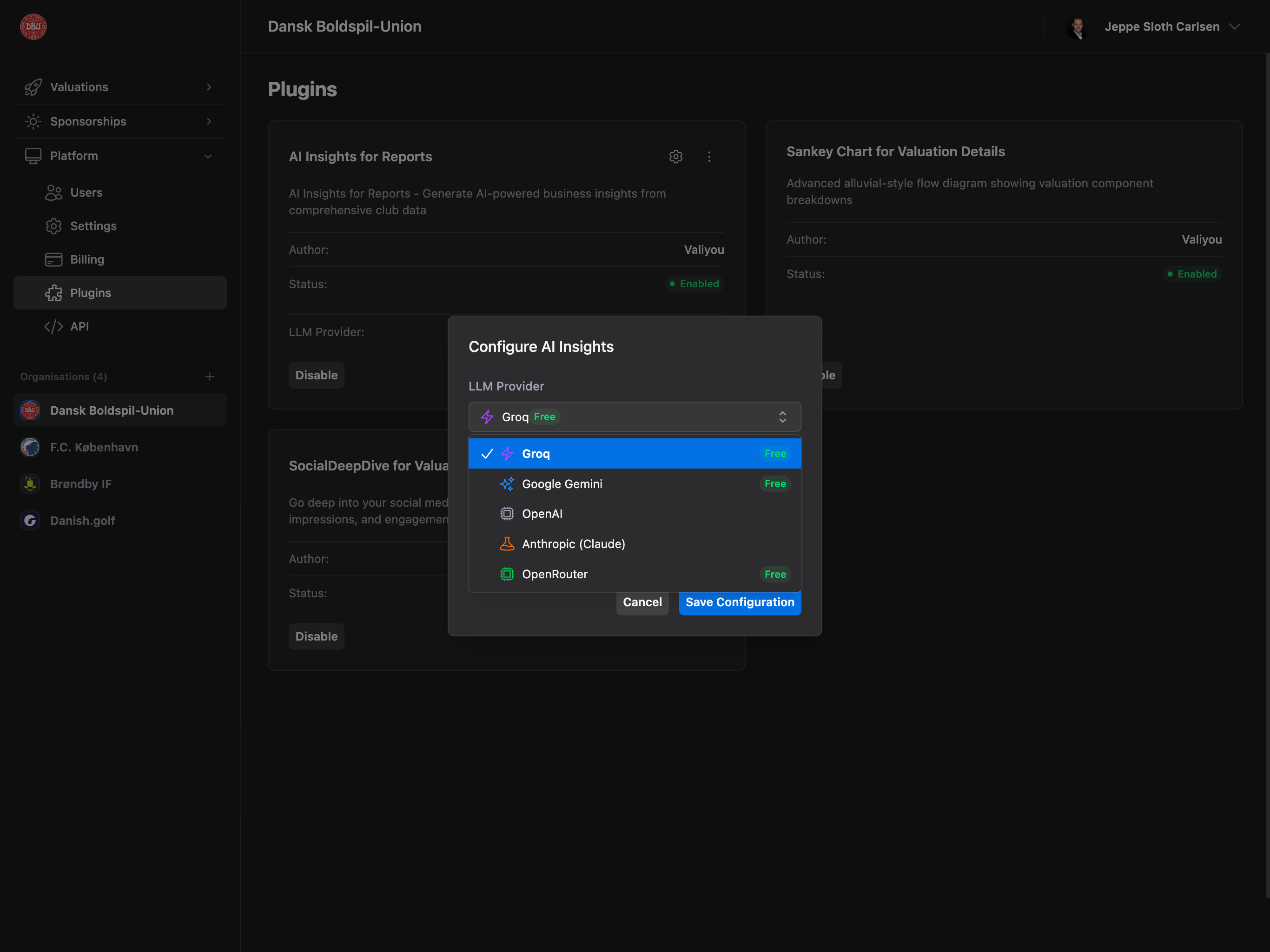
- Click gear icon (⚙️) in plugin card header
- Configuration modal opens

-
LLM Provider (dropdown with icons):
- Groq (purple bolt icon, “Free” badge)
- Google Gemini (blue sparkle icon, “Free” badge)
- OpenAI (gray chip icon)
- Anthropic/Claude (orange beaker icon)
- OpenRouter (green chip icon, “Free” badge)
-
Model (provider-specific models with badges):
- Badges: Free, Recommended, Latest, Fast, Powerful
- Each provider has 3-5 models to choose from
-
API Key (SecretInput with view/hide/copy):
- Paste your API key from Step 2
- Changes placeholder based on provider
- Examples:
sk-...,sk-ant-...,gsk_...,AIza...,sk-or-...
- Click “Save Configuration”
Detailed API Key Instructions
Need more detailed instructions? Expand your provider below for step-by-step guidance:Groq (Free)
Groq (Free)
- Visit Groq Console
- Sign up or log in
- Navigate to API Keys
- Click “Create API Key”
- Copy key (starts with
gsk_...) - Paste into Valiyou configuration
Google Gemini (Free)
Google Gemini (Free)
- Visit Google AI Studio
- Sign in with Google account
- Click “Get API Key”
- Create new project or select existing
- Copy key (starts with
AIza...) - Paste into Valiyou configuration
OpenAI (Paid)
OpenAI (Paid)
- Visit OpenAI Platform
- Sign up or log in
- Navigate to API Keys
- Click “Create new secret key”
- Copy key (starts with
sk-...) - Paste into Valiyou configuration
Anthropic/Claude (Paid)
Anthropic/Claude (Paid)
- Visit Anthropic Console
- Sign up or log in
- Navigate to API Keys
- Click “Create Key”
- Copy key (starts with
sk-ant-...) - Paste into Valiyou configuration
OpenRouter (Free Tier)
OpenRouter (Free Tier)
- Visit OpenRouter
- Sign up or log in
- Navigate to Keys
- Click “Create Key”
- Copy key (starts with
sk-or-...) - Paste into Valiyou configuration
Using AI Insights
Step 1: Navigate to Reports
Go to Valuations → ReportsStep 2: Select Multiple Valuations

- Select 2 or more valuations from the dropdown
- AI Insights requires at least 2 valuations for comparison
Step 3: View AI Insights

- Key Insights - Main observations and trends
- Recommendations - Actionable suggestions
- Pattern Analysis - Data patterns and correlations
- Natural Language Explanations - Easy-to-understand summaries
What AI Insights Analyzes
The AI receives comprehensive data from all selected valuations:Financial Metrics
- Total valuation amounts
- Sales revenue (transfers, merchandise, tickets)
- Growth rates and trends
- Revenue mix analysis
Media Metrics
- Media impressions (print, digital, social, broadcast)
- Media value calculations
- Platform-specific performance
- Engagement rates
Brand Metrics
- Brand exposure value
- Sponsorship coverage
- Marketing effectiveness
- Brand visibility trends
Comparative Analysis
- Year-over-year changes
- Performance benchmarks
- Trend identification
- Anomaly detection
Benefits
Automated Analysis
Get instant insights without manual data analysis
Trend Detection
Identify patterns and trends across valuations
Recommendations
Receive actionable suggestions for improvement
Natural Language
Understand complex data through clear explanations
Model Selection Guide
Groq (Free - Recommended for Speed)
Best for: Fast analysis with good quality
Recommendation: Use
llama-3.3-70b-versatile for best balance
Google Gemini (Free - Recommended for Balance)
Best for: Balanced speed and quality
Recommendation: Use
gemini-1.5-pro for best results
OpenAI (Paid - Highest Quality)
Best for: Maximum quality and reliability
Recommendation: Use
gpt-4o for production reports
Anthropic/Claude (Paid - Best Reasoning)
Best for: Complex analysis and reasoning
Recommendation: Use
claude-3-5-sonnet for detailed analysis
Troubleshooting
AI Insights Not Appearing
Check:- ✅ Plugin enabled (green “Enabled” badge)
- ✅ Reports permission granted
- ✅ Professional/Enterprise plan active
- ✅ Multiple valuations selected (2+ required)
- ✅ API key configured correctly
- Enable AI Insights plugin
- Request Reports permission from admin
- Upgrade plan if needed
- Select at least 2 valuations
- Reconfigure API key
”Invalid API Key” Error
Causes:- API key expired or revoked
- Wrong provider selected
- Copy/paste error (extra spaces)
- API key from wrong provider
- Verify provider selection matches your API key
- Check for extra spaces when pasting
- Generate new API key from provider
- Ensure API key starts with correct prefix:
- Groq:
gsk_... - Gemini:
AIza... - OpenAI:
sk-... - Anthropic:
sk-ant-... - OpenRouter:
sk-or-...
- Groq:
Plugin Shows “Unhealthy”
Causes:- API key invalid or expired
- Rate limit exceeded
- Provider service unavailable
- Insufficient credits (paid providers)
- Check API key validity in provider dashboard
- Wait for rate limit reset (usually hourly)
- Check provider status page
- Add credits to account (paid providers)
- Try different provider temporarily
Slow Analysis
Causes:- Large number of valuations selected
- Slow model selected (e.g., claude-3-opus)
- Provider experiencing high load
- Select fewer valuations (2-5 optimal)
- Switch to faster model:
- Groq: gemma2-9b-it
- Gemini: gemini-1.5-flash
- OpenAI: gpt-4o-mini
- Claude: claude-3-5-haiku
- Try again during off-peak hours
Best Practices
1. Start with Free Providers
Test AI Insights with Groq or Google Gemini before committing to paid providers:- Zero cost to experiment
- Good quality results
- Fast response times
- Easy to switch later
2. Compare 3-5 Valuations
Optimal number for meaningful insights:- 2 valuations: Basic comparison
- 3-5 valuations: Trend analysis (recommended)
- 6+ valuations: May slow analysis
3. Use Consistent Date Ranges
For best trend analysis:- Select valuations from similar time periods
- Compare same season/quarter when possible
- Avoid mixing different valuation types
4. Review and Interpret
AI insights are suggestions, not directives:- ✅ Use as starting point for analysis
- ✅ Verify insights against actual data
- ✅ Apply domain knowledge and context
- ❌ Don’t blindly follow all recommendations
5. Monitor API Usage
Track your API usage to avoid surprises:- Check provider dashboard regularly
- Set up usage alerts if available
- Consider upgrading to paid tier for high usage
- Switch to free provider if budget constrained
FAQ
Which provider should I choose?
Which provider should I choose?
For beginners: Start with Groq (free, fast, good quality)For best results: Use Google Gemini 1.5 Pro (free, excellent quality)For production: Use OpenAI GPT-4o or Claude 3.5 Sonnet (paid, highest quality)
Can I switch providers later?
Can I switch providers later?
Yes! You can change providers at any time:
- Open plugin configuration
- Select new provider
- Enter new API key
- Save configuration
How much does AI Insights cost?
How much does AI Insights cost?
Free Options:
- Groq: Free tier available
- Google Gemini: Free tier available
- OpenRouter: Free tier available
- OpenAI: ~$0.01-0.05 per analysis (GPT-4o)
- Anthropic: ~$0.01-0.03 per analysis (Claude)
Can I use multiple providers?
Can I use multiple providers?
You can configure one provider at a time. To use different providers:
- Reconfigure plugin with new provider
- Generate insights
- Switch back to original provider if desired
What happens if I exceed API limits?
What happens if I exceed API limits?
Free providers:
- Rate limits apply (e.g., 30 requests/minute)
- Wait for limit reset or upgrade to paid tier
- Soft limits can be increased
- Hard limits require credit top-up
Related Documentation
- Plugins Overview - All available plugins
- Reports - Multi-valuation comparison reports
- Valuation Details - Single valuation analysis
- Team Management - Manage user permissions