

Valuation Details & Data Breakdown
Accessing Valuation Details
Click on any valuation from the Valuations list to open its detail page.Permission Required: You need at least one valuation permission (View Sales, View Transfer,
View Marketing, View Brand, or Admin) to view valuation details.
Page Header
Mobile Header (Sticky)
Fixed header at the top of mobile screens with:- Back button - Returns to Valuations list (with loading spinner)
- Export dropdown - PDF and CSV export options
- Info button - Shows approval information
- Edit button - Opens edit mode (if you have edit permissions)
Desktop Header
Breadcrumb navigation:- Valuations - Link back to list
- Valuation Details - Current page
- Info icon - Toggle approval information sidebar
- Export dropdown - PDF and CSV export
- Edit button - Open valuation in edit mode
Title and Status
Valuation Date: Displayed as page title (e.g., “15. januar 2025”) Status Badge: Shows Draft (gray) or Approved (green)The valuation date is the primary identifier - it’s the date this valuation represents, not when
it was created.
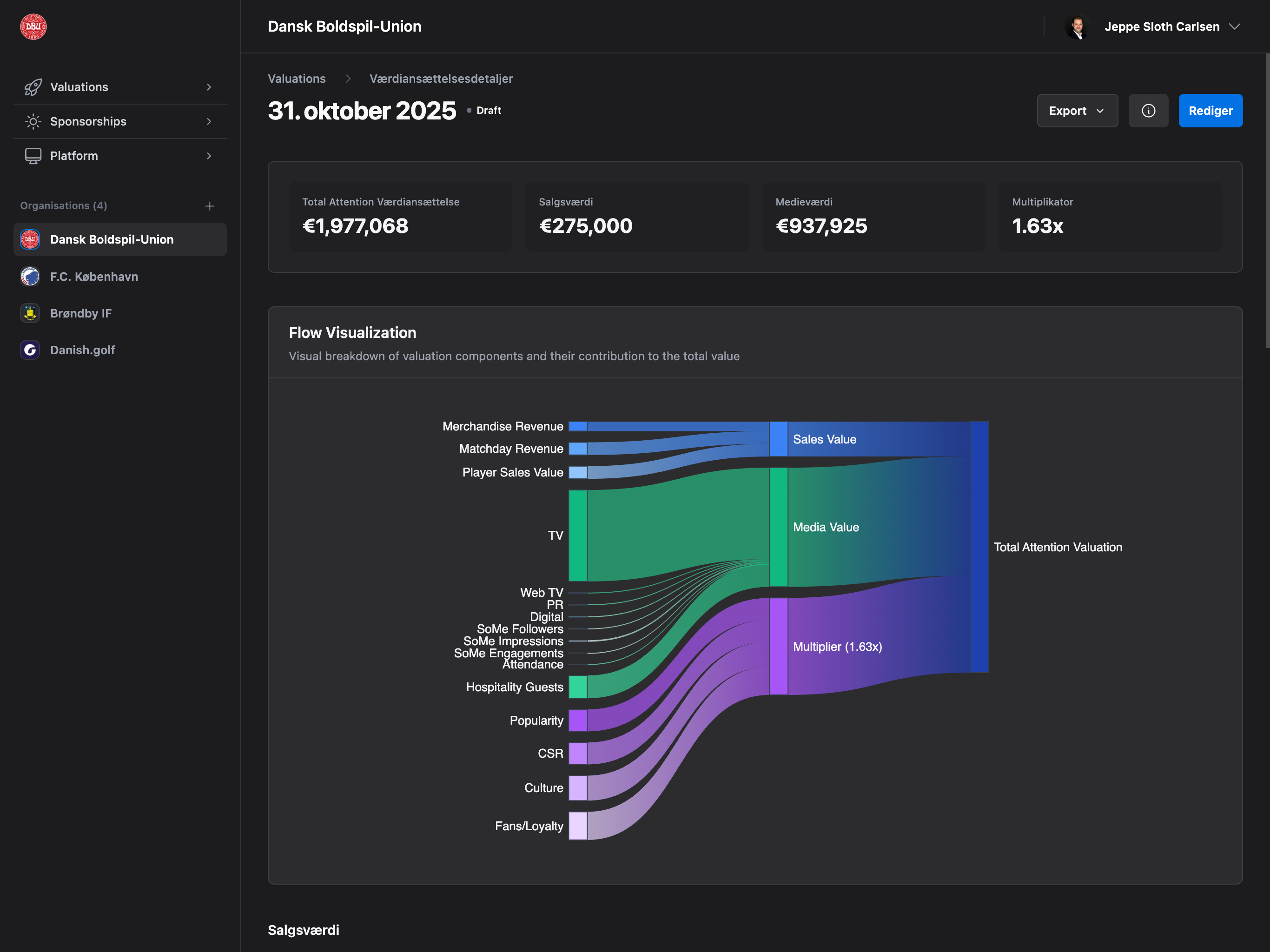
Summary Cards
Four metric cards at the top provide key totals:Total Attention Valuation
Final calculated value including all components and brand multiplier. Display: Large currency amount (e.g., “€125,000”)Sales Value
Total sales revenue (merchandise + matchday + player sales). Display: Currency amountMedia Value
Total media value across all channels (TV, Web TV, PR, Digital, Social, Attendance). Display: Currency amountQualitative Multiplier
Brand multiplier applied to sales and media values. Display: Decimal multiplier (e.g., “1.15x”)Cash Flow Visualization
Plugin Required: This chart requires the Cash Flow Visualization (Sankey) plugin
(Professional/Enterprise plans). See Cash Flow
Visualization for setup details.
Features
- Nodes: Sales, Media, Brand components
- Flows: Visual representation of how values combine
- Interactive: Hover to see exact values
- Responsive: Adapts to screen size
- Customizable: Configure chart type, height, color scheme, position, and more
Sales Value Section
Detailed breakdown of all sales revenue components.Merchandise Revenue
Fields:- Label: “Merchandise Revenue”
- Value: Currency amount
- Bar chart: Visual representation relative to total valuation
- Calculation: Direct value from form
Matchday Revenue
Fields:- Label: “Matchday Revenue”
- Value: Currency amount
- Bar chart: Visual representation
- Calculation: Direct value from form
Sales values are entered directly - no CPM calculation involved.
Player Sales Section (Professional/Enterprise)
Feature Availability: Player sales tracking requires Professional or Enterprise plan.
Individual Player Sales
For each player sale:- Player name - Name of sold player
- Sale value - Transfer fee
- Bar chart - Visual representation
- Color: Light blue (#60A5FA)
Total Player Sales Value
Sum of all player transfers:- Label: “Total Player Sales Value”
- Value: Sum of all sale values
- Bar chart: Combined visual representation
Media Value Section
Comprehensive breakdown across six media channels.TV Broadcasting
Fields:- Duration: Minutes of TV exposure
- Size Category: S (Small ≤1%), M (Medium ~1-5%), L (Large ~5-15%), XL (Extra Large >15%)
- Viewers: Total TV viewers count
- Calculation: Duration _ Size Multiplier _ CPM * Viewers / 1000
- S = 0.4x
- M = 0.7x
- L = 1.0x
- XL = 1.0x
30 minutes * 0.7 (M) * €20 CPM * 50,000 viewers = €21,000
CPM = Cost Per Mille: Cost per thousand impressions. All media values use CPM-based
calculation.
Web TV
Fields:- Views: Total web TV views
- Calculation: Views / 1000 * CPM
10,000 views * €10 CPM = €100
PR & Press
Fields:- Reach: Total audience reached through PR
- Calculation: Reach / 1000 * CPM
Digital Advertising
Fields:- Impressions: Total digital ad impressions
- Calculation: Impressions / 1000 * CPM
Social Media
Three separate metrics combined: Followers-based:- Social Followers: Follower count / 1000 * Followers CPM
- Social Impressions: Impressions / 1000 * Impressions CPM
- Social Engagements: Engagements / 1000 * Engagements CPM
Match & Hospitality
Two components: Attendance:- Field: Total match attendance
- Calculation: Attendance / 1000 * Attendance CPM
- Field: Number of hospitality guests
- Calculation: Guests * Value per Guest
Media Value Features
Every media item displays:- Label: Component name (e.g., “TV Viewers”)
- Value: Calculated currency amount
- Bar chart: Visual representation relative to total
- Formula: Shows exact calculation (e.g., “10,000 * €5.00 CPM”)
The formula display helps verify calculations and understand how values were derived.
Brand Value Indicators Section
Four brand indicators on a 1-10 scale.Popularity
Field: Brand awareness and recognition (1-10) Display: Value out of 10 (e.g., “8/10”) Bar chart: Purple bar showing value relative to max (10)CSR (Corporate Social Responsibility)
Field: CSR perception (1-10) Display: Value out of 10Culture
Field: Brand culture and identity strength (1-10) Display: Value out of 10Fans/Loyalty
Field: Fan and stakeholder loyalty (1-10) Display: Value out of 10 Color: Purple (#A855F7) for all brand indicatorsBrand indicators multiply the combined sales and media value. Higher scores (7-10) increase total
value, lower scores (1-4) decrease it.
Mini Bar Charts
Every value component includes a visual bar chart:Features
- Relative scale: Bar width represents percentage of total valuation
- Color-coded: Blue (sales), Light blue (player sales), Green (media), Purple (brand)
- Responsive: Adapts to container width
- Dark mode support: Adjusts background for readability
How to Read
- Longer bar = Larger contribution to total valuation
- Shorter bar = Smaller contribution
- Empty bar = Zero value
Approval Information
Access: Click Info icon (top right) to toggleDesktop Layout
Sticky sidebar on the right side showing:- Status badge: Draft or Approved
- Status history timeline: All status changes with dates and users
Mobile Layout
Slide-in panel from the right showing same information:- Close with X button or swipe
- Scrollable content
Status History Timeline
Shows chronological record of:- Status changes: Draft → Approved transitions
- Who: User who made the change
- When: Date and time of change
- Visual timeline: Vertical line connecting events
Draft Valuations: Show only creation event Approved Valuations: Show creation + approval
event(s)
Export Options
Dropdown menu with two export formats:Export PDF
Action: Opens browser print dialog Output: PDF file with print-optimized layout What’s included:- Organization logo (if uploaded)
- Valuation date as title
- All summary metrics
- Complete sales, media, and brand breakdowns
- Mini bar charts (rendered as colored bars)
- Navigation elements
- Buttons and interactive elements
- Approval sidebar (use Info button before printing if needed)
- Page size: A4
- Margins: 0.8cm
- Orientation: Portrait
- Colors: Preserved (charts, bars, indicators)
Export CSV
Action: Downloads CSV file Filename:valuation-YYYY-MM-DD.csv
What’s included:
- All valuation fields (excluding player_sales)
- Player sales in separate section (if any)
- Header row with field names
- Data row with values
- Import into Excel/Google Sheets
- Bulk data analysis
- Integration with other systems
- Archival records
CSV export includes raw values from the database, not formatted currency amounts.
Edit Mode
Button: “Edit” (top right) Access: Requires edit permissions (Edit Sales/Transfer/Marketing/Brand or Admin) Action: Navigates to edit page with:- All current values pre-filled
- Same form structure as “Create Valuation”
- Save as Draft or Approve options
Common Use Cases
Reviewing Valuation Accuracy
- Open valuation from list
- Check summary cards for overall totals
- Review each section for data accuracy
- Verify CPM calculations in formula displays
- Edit if corrections needed
Presenting to Sponsors
- Enable Cash Flow Visualization plugin for visual impact
- Open valuation detail page
- Click Export PDF
- Print or save PDF for proposal
- Share with sponsor stakeholders
Analyzing Value Distribution
- Open valuation
- Compare mini bar chart widths across components
- Identify strongest value drivers (sales vs media)
- Note which media channels contribute most
- Use insights to focus future efforts
Tracking Approval History
- Click Info icon (top right)
- Review status timeline
- See who approved and when
- Verify approval chain for audit purposes
Permissions
Different permissions show different sections:Granular Permissions: Enterprise plans unlock field-level permissions, allowing precise
control over who can view/edit specific value components.
Troubleshooting
Values Look Wrong
Check:- Verify CPM values in formula displays
- Common mistake: Entering CPM as cost per impression instead of cost per thousand
- Check TV size multiplier (S/M/L/XL)
- Verify all counts (viewers, impressions, reach) are correct
Export PDF Not Working
Try:- Ensure popup blocker isn’t blocking print dialog
- Check browser print permissions
- Use Chrome/Safari for best print results
- Manually use browser’s Print function (Cmd+P / Ctrl+P)
Export CSV Empty or Corrupted
Check:- Valuation has saved data (not just loaded)
- Browser allows file downloads
- Try opening CSV with different program (Excel, Google Sheets, Notepad)
- Re-export if file appears corrupted
Can’t Edit Valuation
Reasons:- You don’t have edit permissions (only View permissions)
- Contact admin to request Edit Sales/Transfer/Marketing/Brand permissions
- Or request Admin role for full access
Approval Info Not Showing
Check:- Click Info icon (top right) to toggle visibility
- On mobile: Slide-in panel should appear
- On desktop: Sidebar appears on right side
- If valuation is Draft: Only shows creation event (normal)
Frequently Asked Questions
How do I access valuation details and data breakdown?
Click on any valuation from the Valuations list to open its detail page. You’ll see a comprehensive view with summary cards, detailed breakdowns for sales, media, and brand metrics, and visual bar charts showing each component’s contribution.What data is included in the metric analysis?
The comprehensive view includes all valuation components: sales value (merchandise, matchday, player sales), media value (TV, Web TV, PR, digital, social, attendance), and brand indicators (popularity, CSR, culture, loyalty). Each metric shows calculations, formulas, and visual bars.How do I view detailed calculations for each metric?
Each media component displays its calculation formula. For example, TV shows “Duration _ Size _ CPM * Viewers / 1000” with actual values. This transparent data breakdown helps you verify accuracy and understand how each component contributes to total valuation.Can I export valuation details for analysis?
Yes, use “Export CSV” to download raw data for analysis in Excel or other tools. The CSV includes all valuation fields with one row of data, plus a separate section for player sales. For presentations, use “Export PDF” to create a formatted document.What do the mini bar charts represent?
Mini bar charts provide visual data breakdown showing each component’s contribution relative to total valuation. Longer bars indicate larger contributions. The comprehensive view uses color-coding: blue for sales, green for media, purple for brand indicators.How do I understand CPM calculations in details?
Each media component shows its CPM calculation formula. CPM (Cost Per Mille) means cost per 1,000 impressions. The formula “Impressions / 1000 * CPM” calculates the advertising value. Detailed formulas appear next to each metric for transparent analysis.Can I edit valuation details after approval?
Yes, click the “Edit” button (top right) to modify any valuation. However, editing an approved valuation resets it to “Draft” status. Make your changes, then re-approve. This ensures data integrity and maintains an audit trail of changes.What’s the difference between comprehensive view and summary?
The comprehensive view (this page) shows complete data breakdown with every component, calculation, and visual bar. The summary (dashboard) shows aggregated totals and trends. Use details for deep metric analysis, dashboard for quick overview.How do brand indicators affect the comprehensive breakdown?
Brand indicators (popularity, CSR, culture, loyalty) multiply your combined sales and media value. The detail page shows each indicator’s score (1-10) and visual bar. Higher scores amplify total valuation, while lower scores reduce it, with full transparency in the data breakdown.Can I print valuation details for offline review?
Yes, click “Export PDF” to open the print dialog. The page automatically formats for printing with your organization logo, all metrics, calculations, and visual bars. Save as PDF for offline analysis or stakeholder presentations without internet access.Next Steps
Edit Valuation
Modify values and update your valuation
Export Data
Use PDF for presentations, CSV for analysis
Create New Valuation
Return to list and track progress over time
Compare Valuations
View Dashboard to see trends and patterns