

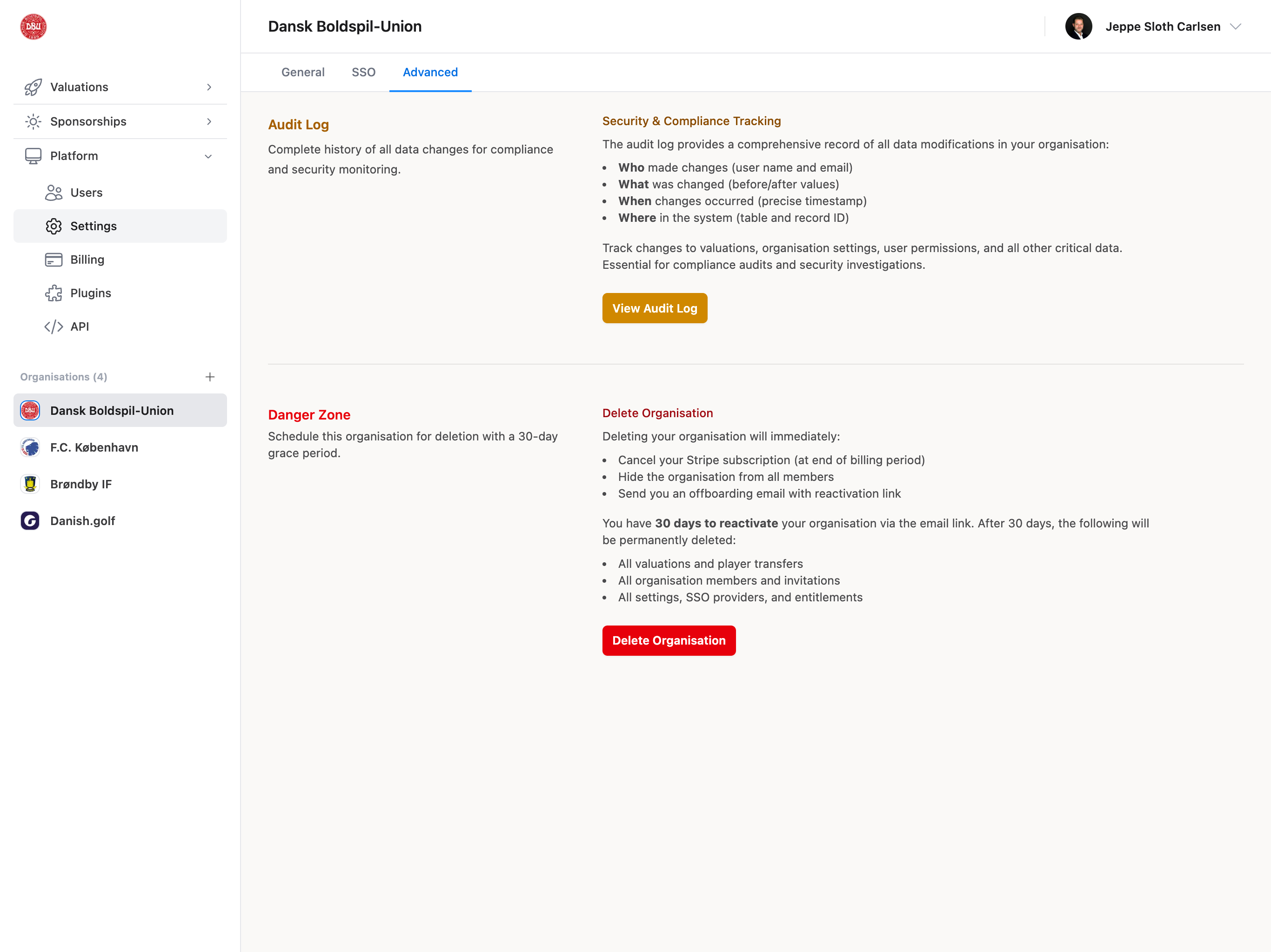
Audit Log (Enterprise)
Plan Required: Enterprise plan only
Permission Required: Admin permission
- Who: User name and email who made the change
- What: Before and after values (complete diff)
- When: Precise timestamp (date and time)
- Where: Table name and record ID
- How: Action type (create, update, delete)
- Valuations (create, update, delete, status changes)
- Organization settings (all fields)
- User permissions and roles
- Player transfers and sales
- Sponsorship packages and proposals
- Sponsor contacts and details
- Library items and categories
- All other critical data
- Searchable by user, action, resource type
- Date range filtering
- Sortable columns
- Export to CSV
- Detailed change diff viewer
- Pagination for large datasets
Retention: Audit logs are retained indefinitely for compliance purposes. Contact support for specific retention policy questions.
- Compliance Audits: GDPR, SOX, financial regulations
- Security Investigations: Track unauthorized access or suspicious activity
- Team Activity Monitoring: Review team member actions
- Data Forensics: Investigate data changes or errors
- Training: Identify areas where team needs guidance
- Dispute Resolution: Verify who made changes and when
Danger Zone: Delete Organization
Permanently delete your organization and all associated data. What Happens Immediately:- Stripe subscription cancelled (at end of current billing period)
- Organization hidden from all members
- Members lose access to organization
- Offboarding email sent to owner with reactivation link
- All valuations and player transfers
- All organization members and pending invitations
- All sponsorship packages, proposals, and sponsors
- All settings, SSO providers, and entitlements
- All audit logs and historical data
- Organization name becomes available for reuse
30-Day Grace Period: You can reactivate your organization within 30 days using the link in the offboarding email. After 30 days, data is permanently deleted.
- Click “Delete Organisation” button in Danger Zone
- Read warnings carefully in confirmation modal
- Type exact organization name to confirm (case-sensitive)
- Click “Delete Organisation” in modal
- Check email for offboarding message with reactivation link
- Save reactivation link (valid for 30 days only)
- Red border and warning colors
- Lists all data that will be deleted
- Requires exact organization name match
- “Delete Organisation” button (red, disabled until valid)
- “Cancel” button (gray)
- Confirmation of deletion request
- 30-day grace period explanation
- Reactivation link (valid for 30 days)
- Contact support information
- Data export instructions (if needed)
- Downgrade plan: Cancel subscription but keep data
- Export data: Download valuations and reports first
- Transfer ownership: Assign new owner instead of deleting
- Archive organization: Keep data but stop using platform
Common Use Cases
Investigating Data Changes (Enterprise)
- Navigate to Organisation → Advanced tab
- Click “View Audit Log”
- Filter by:
- Date range (when did change occur?)
- User (who made the change?)
- Resource type (what was changed?)
- Review change details
- Export audit log if needed for compliance
Offboarding Organization
- Export all data (valuations, reports, sponsor lists)
- Notify team members of pending deletion
- Navigate to Organisation → Advanced tab
- Click “Delete Organisation” in Danger Zone
- Read warnings carefully
- Type exact organization name
- Confirm deletion
- Save reactivation link from email (valid 30 days)
- Verify Stripe subscription cancelled
Troubleshooting
Can’t Delete Organization
Reasons:- Not organization owner (only owner can delete)
- Organization name typed incorrectly (case-sensitive)
- Browser JavaScript error
- Transfer ownership to yourself first
- Type exact organization name (check capitalization)
- Try different browser
- Contact support if ownership transfer needed